


Project summary template
Visual Gantt chart slide that enables professionals to present project proposals, plans or reports in a straightforward, effective format.
Powered by Lucen Timeline (formerly Office Timeline)

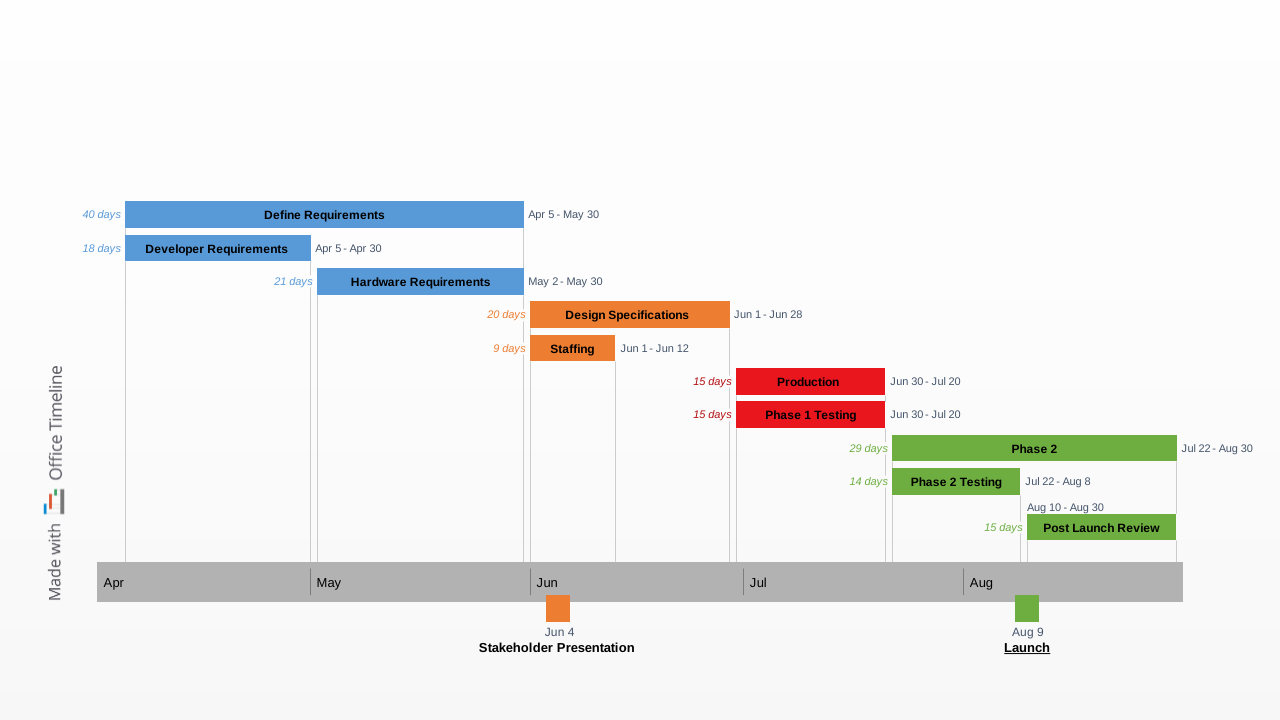
The free project summary template was designed for professionals who need to communicate project proposals, plans or reports to upper management, clients, or other non-technical audiences. Built as a visual Gantt chart slide, the template quickly highlights the key points of a project and can be easily edited and included in PowerPoint presentations.
A clear, eye-catching project summary can be a powerful tool for project managers to secure stakeholder buy-in or keep clients and execs up to date without overloading them with extensive technical details. As high-level audiences need to make quick decisions, visual timelines or Gantt charts can help them absorb information more easily and get to the essence of the project at a glance.
Building effective project summary presentations
Project managers and business professionals can use the free project summary template to communicate their project’s data in a more engaging way and make their point quickly, clearly and concisely. The following tips can help them get the most out of the template:
- Keeping maximum 25 tasks or initiatives on the slide will ensure the resulting visual remains clear and easy to understand.
- Incorporating color codes can be a fast and simple way to add meaning and convey important messages without overcrowding the presentation with text. For instance, tasks can be color-coded to show status or priority, highlight the connection between similar initiatives, or illustrate hierarchies.
- Adding milestones and performance indicators such as percent complete will help the audience instantly get an accurate overview of the project, the direction it’s heading to, and the actions that need to be taken.
The easy way to update the template
The template can be easily edited with new data, colors, tasks, and milestones directly in PowerPoint, either manually or using Lucen Timeline’s project management add-in to automate the process. This user-friendly timeline maker enables professionals to customize and update graphics in minutes or create their own project visuals from scratch with just a few clicks. To save even more time on high-level presentations, project managers can use the most advanced edition of Lucen Timeline to import data from Microsoft Project or Excel and instantly convert it into a summary slide like this template.
Frequently asked questions
A project summary is a concise, high-level overview of a project's key points: its objectives, main activities, timeline, and current or planned progress. Unlike a full project plan or status report, it is not meant to capture every detail but rather to give decision-makers a fast, accurate read on what the project involves and where it stands. When built as a visual Gantt chart slide, a project summary can communicate all of this at a glance, making it particularly effective for presentations to clients, executives, or other non-technical audiences.
The two terms are often used interchangeably, but they serve slightly different purposes. An executive summary typically appears at the beginning of a larger document, condensing the full contents of that document into a brief overview. A project summary, by contrast, is a standalone deliverable designed to communicate the key aspects of a project on its own terms. It does not need to reference a longer document to make sense, and in visual form it can be presented, shared, or updated independently throughout the project lifecycle.
At a minimum, a project summary should cover the main tasks or initiatives, key milestones, and an indication of progress or timeline. Keeping the number of tasks to around 25 or fewer will ensure the visual stays clean and readable. Beyond the basics, color coding can add meaning without adding clutter, for example by grouping related tasks, signaling priority levels, or indicating status. Percentage complete indicators and milestone markers round out the picture, giving the audience a clear sense of how far the project has come and what still lies ahead. Tools like Lucen Timeline make it straightforward to add these elements directly within PowerPoint and adjust them quickly as the project evolves.
A project summary is the right choice when your audience does not need, or does not have time for, a deep dive into the project's mechanics. Executives and clients typically fall into this category: they need enough information to make decisions or stay informed, but not a task-by-task breakdown of every activity. A detailed project report is better suited for internal team reviews or situations where specific dependencies, resource allocations, or risks need to be examined closely. In many cases, project managers maintain both and share each with the appropriate audience.
Stakeholders are more likely to support a project when they can quickly see what is being proposed, why it matters, and how it will unfold. A visual project summary removes the friction of dense documentation by presenting the plan in a format that is intuitive and easy to follow. Building that visual inside PowerPoint, whether manually or with a tool like Lucen Timeline, means the finished slide can be dropped straight into any existing presentation without formatting headaches. When the key deliverables, timeline, and progress indicators are laid out clearly on a single slide, it becomes much easier for decision-makers to evaluate whether the project aligns with their goals and to give their approval with confidence.
Color coding is one of the most effective ways to add layers of meaning to a project summary without introducing extra text or complexity. It can be used to group tasks that belong to the same workstream, highlight which activities are complete versus in progress, or flag priorities that require attention. Because the visual association between color and meaning is immediate, audiences can interpret the information faster than they would by reading labels or legends. The key is to keep the color system simple and consistent so it aids comprehension rather than creating additional noise.
Yes, and that is one of the more practical reasons to use a template rather than building the visual from scratch each time. Once the layout, color scheme, and structure are established, the same template can be adapted for any project by swapping in new tasks, dates, and milestones. With Lucen Timeline, this process is largely automated: data updates feed directly into the visual, so the slide stays current without manual repositioning or reformatting. This consistency also benefits recurring audiences such as leadership teams or long-term clients, who will find it easier to interpret updates when the format stays familiar from one project to the next.

Your download should start now. If it doesn’t start click here and check your inbox for tips to get started.