




A new way to keep projects and tasks on track: you can now track time inside Microsoft Planner!
Thanks to the Lucen Track integration with Microsoft Planner, you can now track time for your Microsoft Planner tasks, create detailed timesheets, and know which tasks are taking most of your time. And all of this without having to leave Microsoft Planner.
Time tracking for Microsoft Planner, by Lucen Track
Our integration allows you to:
- Track time seamlessly for any task within Microsoft Planner, directly from the Planner interface;
- Effortlessly import your Microsoft Planner plans into Lucen Track as projects to unify your portfolio in one place;
- Automatically sync new plans to Lucen Track, minimizing manual input and saving valuable time;
- Importing your Microsoft Planner tasks into Lucen Track to track time for each task;
- Set time estimates for your tasks in Microsoft Planner to compare the projected time with the actual time spent;
- Synchronize labels as Tags for streamlined organization;
- Aggregate time tracking data from Microsoft Planner into visually beautiful reports to highlight project milestones and showcase productivity trends.
Find our Microsoft Planner integration in the Integrations section of your workspace and in our website integrations page
Microsoft Planner is a task and project management tool for teams that is included with Microsoft 365.
Once you’ve created your first plan in Microsoft Planner, you can organize the tasks in a kanban-like board, assign them to the team, set due dates, and so on. You can visualize your tasks, but as of today, Microsoft Planner doesn't offer the possibility to track time.
Luckily, Lucen Track steps in to seamlessly integrate time tracking, allowing you to easily monitor the progress of your tasks within Microsoft Planner.
The most exciting part? You can manage everything right inside Microsoft Planner, eliminating the need to constantly toggle between different applications.
To use this integration, you’ll need a Lucen Track workspace and the Lucen Track Browser Widget.
Sync your Plans and your Lucen Track Projects
In the Integrations section of the workspace, Owners can set up the integration to synch the plans in the Microsoft Planner account with the Lucen Track projects. When correctly linked, the integration will automatically import all the Plans in Lucen Track. No more manual work, less time wasted, more completed tasks.

All you have to do is authorize the integration, and then use the Synchronization option to import or link your plans in Lucen Track.
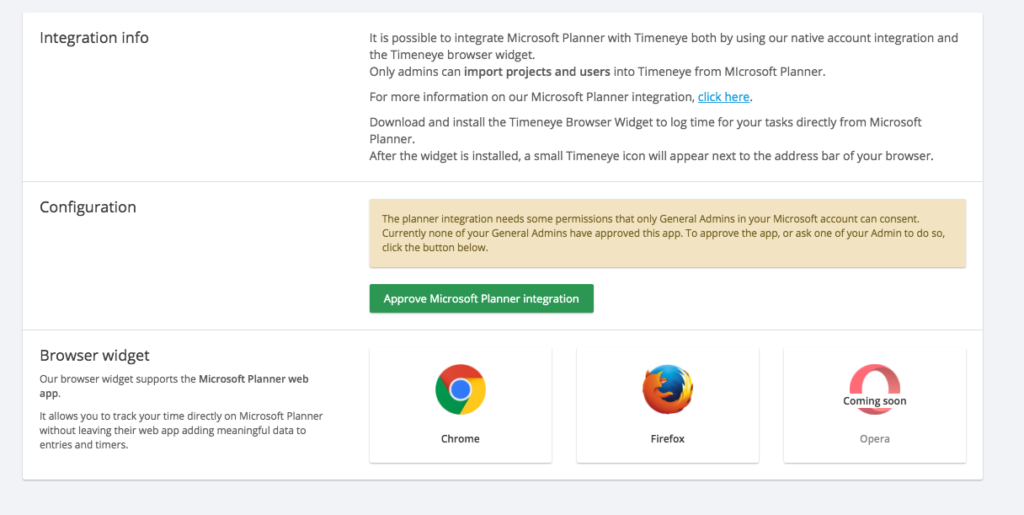
PLEASE NOTE:
Due to Microsoft Planner’s very specific permissions, we will require teams who want to use our integration a series of authorisation, to make sure all the plans and users are correctly imported and synched from Microsoft Planner to Lucen Track.
1) Only Global admins in the Microsoft account can connect this integration.
2) At the same time, every user in the workspace, regardless of their role, will have to grant permission to Lucen Track to access their plans/ the plans they are part of.
When all permissions have been approved, it’s possible to sync Lucen Track and Planner, so you won’t have to manually replicate the plans in Lucen Track. You can do it both manually or automatically:
.png)
How to Track Time In Microsoft Planner
After you have connected your Microsoft Planner with Lucen Track, you can start tracking your time.
For tracking time, you’ll need the Lucen Track Browser Widget:
Download and install the Lucen Track Browser Widget for Chrome and Firefox
The widget will allow you to track time directly inside Microsoft Planner.
How To Track Time For Individual Tasks In Microsoft Planner
Install the Lucen Track Widget, and make sure to log in to your Lucen Track workspace.
Next, navigate to your Microsoft Planner and open the specific Plan for which you want to track time.

You can already see the little Lucen Track icon, added by the Lucen Track Widget, that you can use to track time.
Click on any tasks on the Planner to see the task details.

The widget adds a Lucen Track button on the task for quick access, as well as inside the task details . You can use this button not only to track time, but also to see a recap of how many entries and how many timers have been tracked, and by whom.
When you track time, you’ll be able to select your plans as Lucen Track projects and allocate the time accurately.
How to sync and track Planner Tasks in Lucen Track
In the Synchronization settings you're already familiar with, you can turn on the option to sync your Planner tasks to Lucen Track as well.
This feature is ideal for individuals seeking to utilize Lucen Track as their central project management hub, streamlining all projects, tasks, labels (tags) and reports in a single location.

Once you've done that, you'll see your tasks neatly organized and imported inside Lucen Track, with the option to track time by clicking a single button:

How To Find Your Planner Time Inside Lucen Track
All the time you track with the integration is stored inside the workspace.
The entries you create are clearly recognizable on the calendar dashboard by the Planner logo and the name of the task.

If you happened to come across this blog and are curious to learn more about Lucen Track, take a look at our comprehensive list of time tracking integrations with the Microsoft 365 suite.
Productivity awaits: try the Lucen Track integration with Microsoft Planner today!


Subscribe to our blog
Get all the tips, tricks and inspiration you need to create professional looking timelines, straight to your inbox.
.png)

