


How to Change the Default Language in Lucen Track
Explore how to switch to your preferred language in Lucen Track as we introduce new options in Italian and French, imrpving our global user experience.


Header designed by Freepik
Good morning, Bonjour and Buongiorno! Today, we're proud to announce that we're rolling out new language options for Lucen Track.
Lucen Track is available in multiple languages
As a global company serving clients in over 50 countries, we are thrilled to make our user experience even better by offering the app in three distinct languages: English, and the new additions of Italian, and French.
Our mission is to bring effortless, smart time tracking to all companies that may benefit from it. So, new languages are on the horizon: we're likely to introduce even more options in the future.
(Have a specific language in mind? Don't hesitate to let us know!)
How to switch languages in Lucen Track
In the Workspace settings, you can change the language displayed in the interface from the Personal settings. When you're there, look for the Language option:
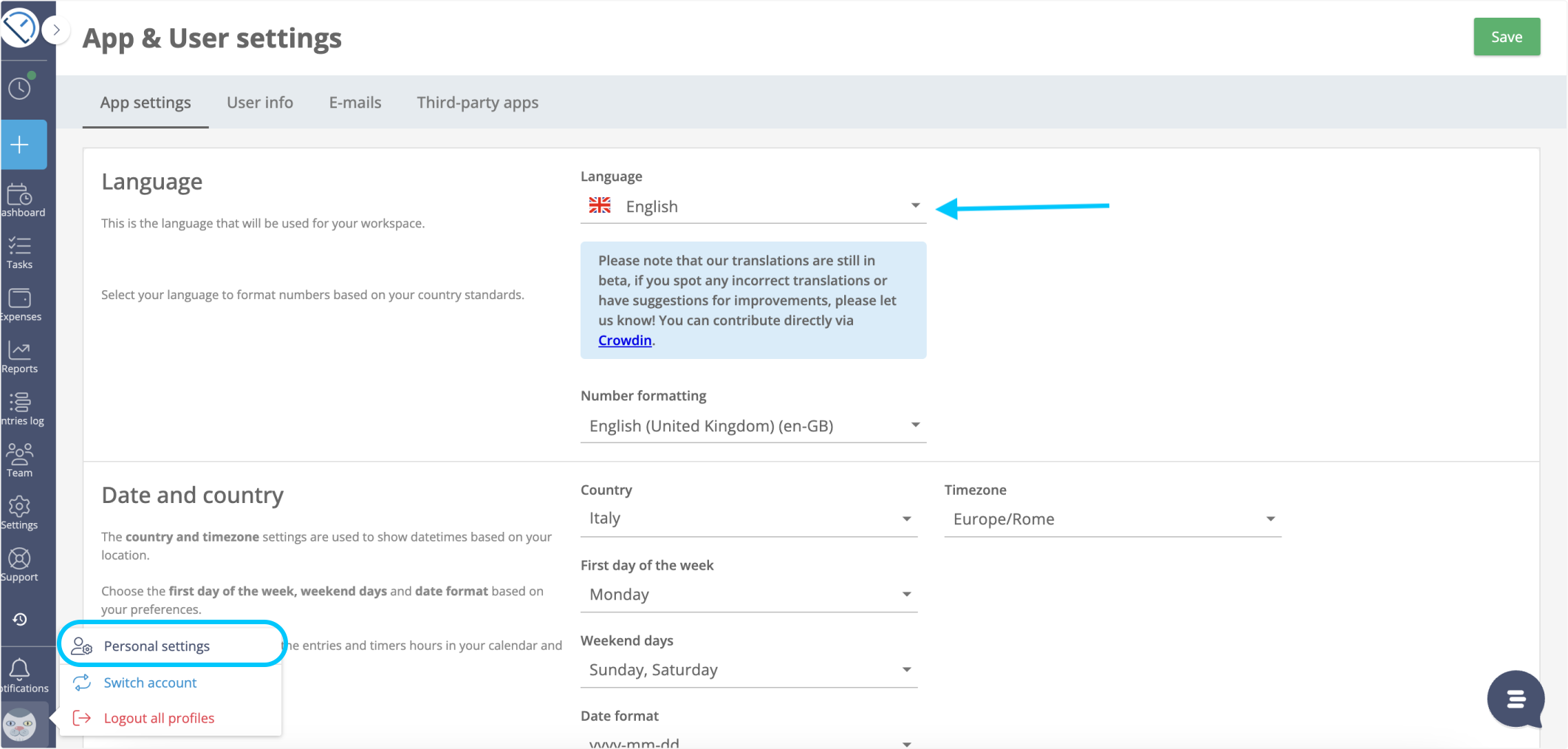
From there you can easily switch to the language you need. This is a personal setting and not a global setting for the whole workspace. So if you're part of a team, make sure all your team members know that they can change their own settings.
Help us get better!
Please note! This feature is currently in Beta. Our goal is to make time tracking efficient and available for users all around the world, and we'd love to reach more users with our multi-language support.
If you spot any incorrect translations or have suggestions for improvements, please let us know! You can contribute directly via Crowdin.

Subscribe to our blog
Get all the tips, tricks and inspiration you need to create professional looking timelines, straight to your inbox.
.png)