


How to Bill Outstanding Hours Before December 31
A year-end checklist for finding approved hours that were never billed, getting them approved, and invoicing them before December 31.

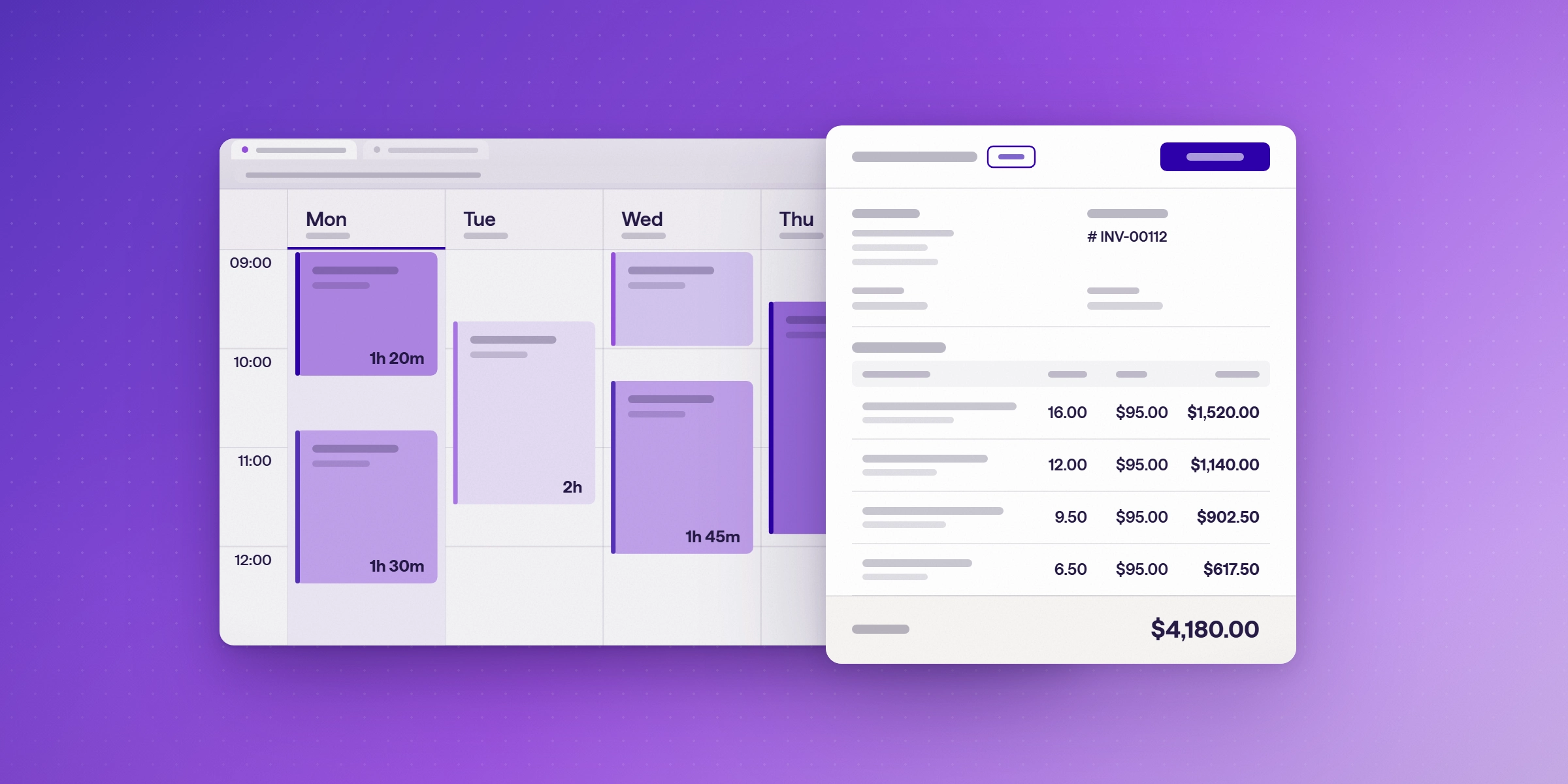
To bill outstanding hours before December 31, find every approved billable hour that has not been invoiced, get any missing hours approved, and invoice them before the year closes. Hours left unbilled at year-end are usually lost revenue, because they are harder to match to invoices and harder to explain to clients later.
Why do hours go unbilled at year-end?
Hours go unbilled for three common reasons. Time is logged late or not at all. Entries are approved but never added to an invoice. Or a client's budget or contract period ends before the invoice is raised. Each reason is easy to fix before the year closes and harder to fix afterwards. For how billable time slips through during the year, see how billable time slips through.
How do you find unbilled hours before December 31?
- Pull a list of approved, billable hours that are not invoiced. Sort by client, then by project, so each client's open balance is clear.
- Check for missing time. Ask team members to log any billable work that was done but not recorded. Late entries are easier to approve in November than in January.
- Approve or reject each entry. Only approved hours should go on an invoice. Reject entries that were logged to the wrong project or client, and fix them first.
- Match hours to contracts. Confirm the rate, the billing period and any cap for each client before you invoice. If rates need to change for next year, see how to set billable rates for 2027.

How do you invoice outstanding hours?
Invoice each client once for the hours they owe, with each entry shown by date, person and project. Clients review invoices faster when the line items match the work they recognize. Send invoices before December 31 so they fall in the year you did the work, and keep a copy of each invoice with its timesheet.
If your team uses Lucen Track, create the invoice from approved hours and expenses, so nothing is re-entered. Each invoice moves from draft to issued to paid. Track downloads a client-ready PDF, and you send it to the client yourself and mark it as paid when payment arrives. Invoicing is included on the Starter, Premium and Enterprise plans, and is not available on the Free plan.
An accounting team usually sets the cut-off date for year-end. Confirm the date and the treatment of unbilled work with your accountant.
| Task | When to do it | Owner |
|---|---|---|
| Pull unbilled, approved hours by client | Early December, or mid-November for a faster close | Finance or PMO lead |
| Collect late time entries | One week before the cut-off | Project managers and team members |
| Approve or reject entries | Before invoicing starts | Approvers |
| Invoice each client | Before December 31 | Billing owner |
| Store invoices with timesheets | When invoices are sent | Finance |
How do reports help you check the year-end numbers?
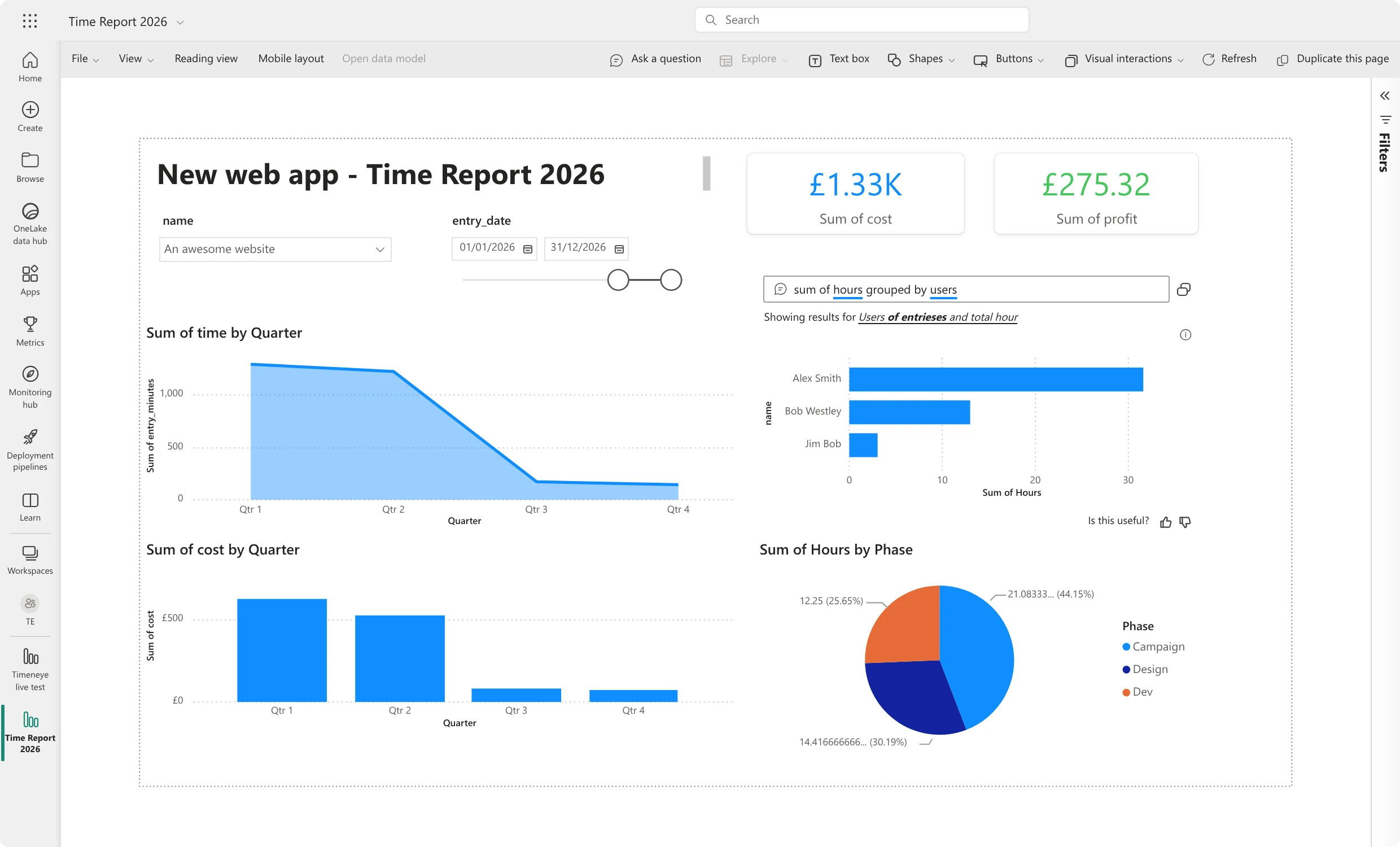
A report that compares billable and non-billable time shows where hours were logged but not billed. Lucen Track turns tracked time into reports and charts of billable and non-billable hours and earnings by project, phase and team member, so you can see what is ready to bill against what has already been invoiced. You can also export a breakdown of billable work, or connect Track to Microsoft Power BI for custom analysis.
Start your free 14-day trial of Lucen Track. Turn approved billable hours and expenses into client invoices before December 31, and see unbilled hours client by client. No credit card is needed. Start free trial.
Frequently asked questions
They stay unbilled unless you invoice them. Many firms lose the revenue because the work is hard to match to an invoice later. Check the treatment with your accountant.
Lucen Track shows approved hours that have not been invoiced yet, by client and project, next to what has already been invoiced, so you can see what is ready to bill.
Approve them first. Only approved hours should go on an invoice, so each line item can be checked.
Yes. Lucen Track creates invoices from approved hours and expenses, and billable entries become line items automatically. You can also start from a blank invoice for charges that are not tied to tracked time.
Invoicing is included on all paid plans — Starter, Premium and Enterprise. It is not available on the Free plan.
No. Track builds the invoice and tracks its status. You download the branded PDF, send it the way you do today, and mark it paid in Track.
Before December 31, so the work falls in the year it was done. Confirm the cut-off date and the treatment of unbilled work with your accountant.
Mid-November gives time to collect late entries and send invoices before the holiday period.
Start your free 14-day trial of Lucen Track.
Turn approved billable hours and expenses into client invoices before December 31, and see unbilled hours client by client. No credit card is needed.


Subscribe to our blog
Get all the tips, tricks and inspiration you need to create professional looking timelines, straight to your inbox.