


Flowchart Software for Consultants: Turn Workshop Output into Client-Ready Process Maps in PowerPoint
Turn workshop output into client-ready process maps and swimlane diagrams built as native PowerPoint shapes your client can keep editing after handover.

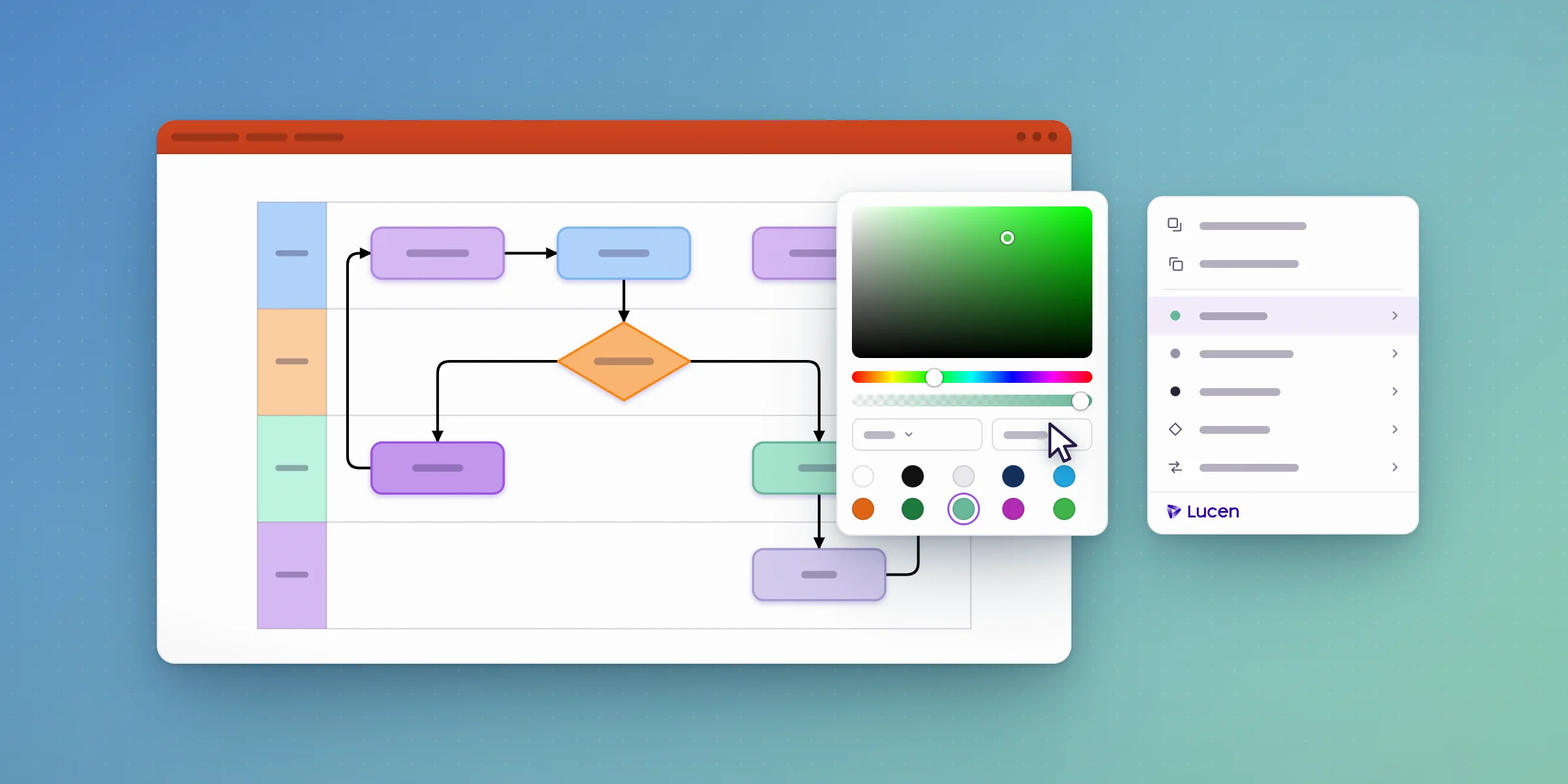
For consultants whose deliverables are PowerPoint decks, the most useful flowchart tool is one that builds diagrams inside the deck. Lucen Flowchart, a PowerPoint add-in for Windows, turns workshop notes into process maps, swimlane diagrams and decision trees made of native, editable shapes, so the client gets visuals they can open, edit and keep using after the engagement ends.
Why do process visuals take so long on consulting engagements?
The workshop itself usually went fine, with sticky notes, a whiteboard tool or a page of notes capturing how the client's process really worked. The time went afterward, when someone on the team rebuilt it in PowerPoint late in the evening, the client's review moved two steps and added an approval, and the diagram had to be redrawn again before the steering committee. When the final deck went out, some of the diagrams were pasted pictures from a tool the client didn't license, so the client couldn't update them once the engagement ended.
In Lucen Software's April 2025 research with 308 diagramming users, building a diagram from scratch was the most common pain, cited by 55% of people who use a dedicated diagramming tool and 72% of people who don't.
How does Lucen Flowchart fit a consulting workflow?
After the workshop, take a photo of the whiteboard and let Lucen AI turn it into an editable diagram on the Plus plan, or describe the current state in plain language. A prompt like "Current-state invoice approval: the AP clerk receives the invoice and matches it to the PO, mismatches go back to the buyer, the controller approves anything over $10,000 and payments run weekly" comes back as a flowchart on your slide, built from native shapes you can refine.
Because the diagram lives in the deck, you can adjust it during the client review instead of taking notes and redrawing it later. Auto layout realigns the shapes and reroutes the connectors as steps move, and swimlanes keep each role's responsibilities visible. Colors and fonts follow the presentation theme by default, so a diagram dropped into a client-branded template picks up the client's look. For the future-state version, duplicate the slide and edit it, which keeps current and future state side by side for the readout.
What makes a process visual client-ready?
A client-ready process visual is one the client's leaders can follow in a meeting and the client's team can maintain after you leave. In practice that means swimlanes that show who owns each step, a layout that matches the rest of the deck, and shapes the client can edit in their own copy of PowerPoint. Lucen Flowchart covers the last point directly, because recipients don't need the add-in or a Lucen account to open and edit the diagram.
How does it compare with Miro and Lucidchart for consulting work?
Miro and Lucidchart are strong for live, collaborative whiteboarding and diagramming, and many firms run workshops in them. The difference shows up at the deliverable. Those tools reach PowerPoint as an export or an embed, while Lucen Flowchart builds the diagram inside the deck as native PowerPoint shapes. A common setup is to run the workshop in a whiteboard tool and build the client deliverable in Lucen Flowchart, so the version the client keeps is the editable one. For a wider look at the options, see our comparison of the best flowchart diagram software for PowerPoint users.
Can you reuse process visuals across engagements?
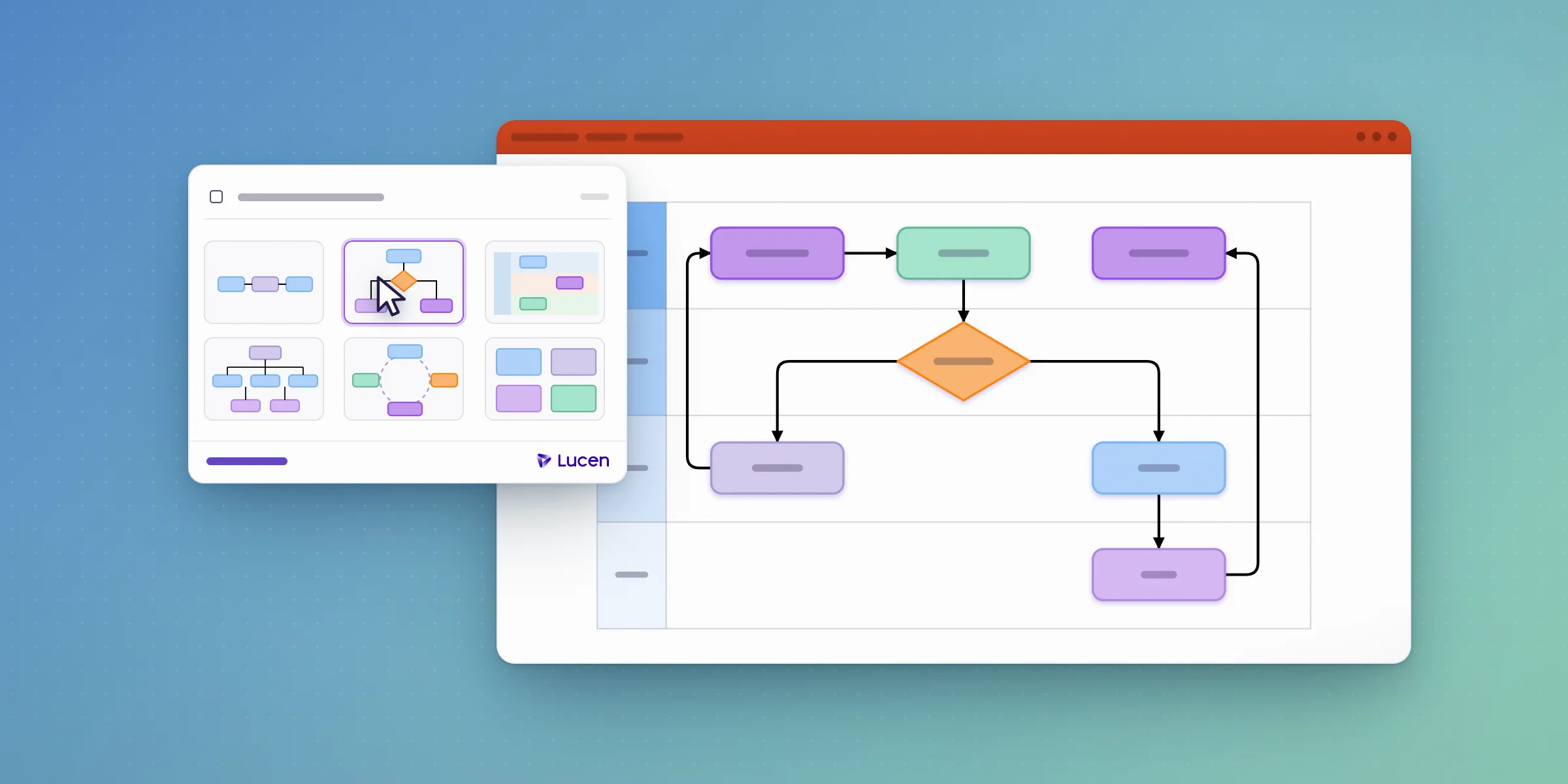
Yes. Start new diagrams from templates on the Plus plan, and because each diagram is ordinary PowerPoint content, a well-built approval flow or onboarding map from one engagement can be copied into the next client's deck and restyled by their theme. That gives the team a consistent starting point without starting from a blank slide each time.
Build your next client deliverable in the deck itself
Download Lucen Flowchart and start free. Describe your first process to Lucen AI and present it from the same slide you'll hand to the client.
Frequently asked questions
No. The diagrams are standard PowerPoint shapes, so the client can open and edit them without the add-in or a Lucen account.
Yes. Colors and fonts follow the presentation theme by default, so diagrams pick up the look of the client's template.
Not yet. You build diagrams in PowerPoint 2016 or later on Windows, including Microsoft 365. Team members and clients on Mac can open and edit the finished slides.
Yes, if you're facilitating from PowerPoint on Windows. Describe the process as the group talks it through and edit the draft on screen. For large, free-form brainstorming, a whiteboard tool is often the better first step.
Yes. The Free plan lets you go from a process description to a shareable diagram with Lucen AI. Plus costs less than $9 per user per month on an annual license and adds unlimited diagrams, swimlanes, templates, and Lucen AI that turns flowchart images into editable diagrams, which is the plan most consultants will want for client work.
Process maps and flowcharts in PowerPoint: guides and how-tos

Subscribe to our blog
Get all the tips, tricks and inspiration you need to create professional looking timelines, straight to your inbox.