


How to turn your Outlook calendar into a timesheet
Connect Outlook to Lucen Track and turn meetings into suggested time entries you accept in one click. Setup steps, settings and FAQs.

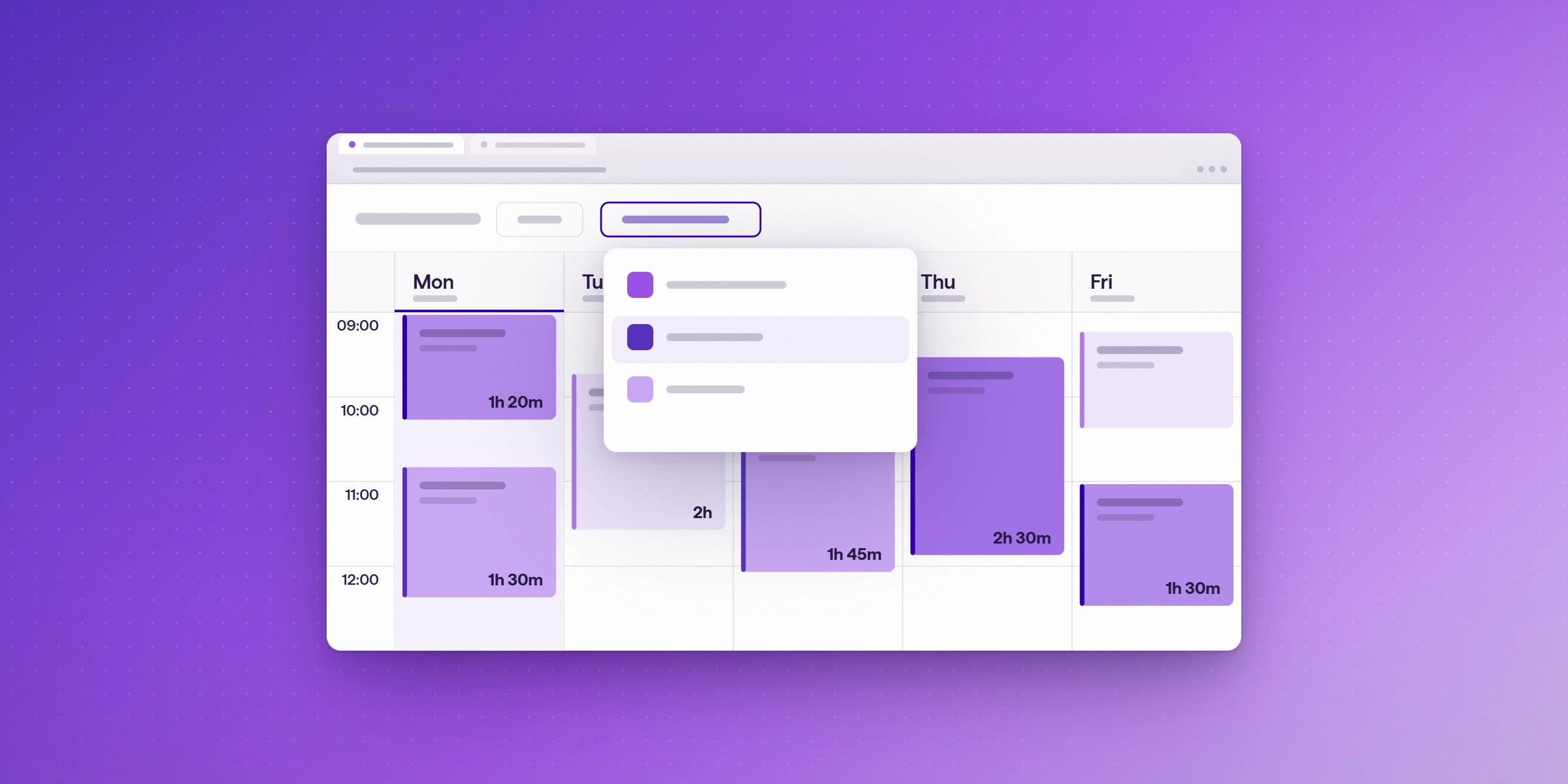
Connect your Outlook calendar to Lucen Track and each meeting appears as a suggested time entry on the day it happened. You review the suggestions, accept the ones that count with one click, and edit anything that needs a tweak. Outlook sync is available on Starter and above.
Your calendar already records where a big share of your week went: client calls, project check-ins, workshops, reviews. The gap is turning that record into time entries your team can bill and report on. This guide walks through the setup in Track, what you see afterwards, and how to keep your timesheet accurate.
Why use your Outlook calendar as the starting point for a timesheet?
Most people rebuild their week from memory on Friday afternoon. Meetings are the easiest part to lose, and they are often the hours a client expects to see. Starting from the calendar gives you a reliable first draft: the title, the time and the duration are already there, so you decide what to keep instead of typing it all again.
Track treats the calendar as a source of suggestions, not final entries. Nothing lands on your timesheet until you accept it. That keeps you in control of what gets billed and reported, and it keeps the focus where it belongs: billing the client accurately and running the project well.
What do you need before you start?
- A Lucen Track account on the Starter plan or above (Outlook calendar sync is not part of the Free plan).
- A Microsoft account with an Outlook calendar.
- A few minutes to grant Track permission to read your calendar.
If you are not on Starter yet, you can start a free trial and connect Outlook during it.
How do you connect Outlook to Lucen Track?
- Open your Track Dashboard and select Link Calendar.
- Choose Outlook Calendar.
- Sign in if prompted and grant Track permission to access your calendar.
- Select the calendar you want to use.
Prefer to do it from settings? Go to Integrations, open Outlook Calendar, and select Link Outlook Calendar to your User.
What happens after you connect?
After a few minutes, your meetings show up as Suggested Entries in a light blue box at the top of each day. Each card shows the meeting from your calendar, so you can see at a glance what is waiting for you.
Track imports events from up to 30 days before you connect, so a recent week you have not logged yet is covered. Two-way sync keeps the suggestions current when your calendar changes.
How do you turn a suggested entry into a time entry?
Hover over a card and choose one of three actions:
- Accept to add it to your timesheet as a time entry.
- Edit to change the details first, such as the project or description.
- Delete to remove the suggestion if it should not be tracked.
For recurring meetings, Track asks whether to ignore only that occurrence or to disable the recurring event altogether. That is a quick way to clear a standing meeting you never bill.
If a meeting was a Microsoft Teams call, the duration updates to the actual length of the call, so the entry reflects the time you spent.
How can you cut down the clicks even more?
- Pre-select a project and phase. An optional setting assigns a project and phase to imported entries, which helps if most of your calendar belongs to one client or engagement.
- Choose how private appointments are handled. The Synchronization settings option lets you control what happens with private appointments in your calendar.
- Review at a steady rhythm. A short check at the end of each day keeps the suggestions fresh and your timesheet current.
What does the Outlook calendar sync cost?
Outlook calendar sync is included in Track Starter and above. As of October 2026, Track is free for up to 2 users, and paid plans are $7 and $13 per user per month on annual licences. Track also offers a 14-day Premium trial. Check the Track pricing page for current details.
How does this fit with the rest of your Microsoft 365 setup?
Outlook is one piece of how Track works inside the Microsoft tools your team already uses. Track also runs in Microsoft Teams, syncs with Planner, To Do and Azure DevOps, and connects to Power BI for reporting. To see how the options compare across Microsoft 365, read our comparison of time tracking software for Microsoft 365.
Comparing Outlook sync across tools? Our roundup of time tracking tools that sync with Outlook Calendar covers Track alongside other options.
Connect Outlook in a free trial
Start with your calendar, accept the meetings that count, and let your timesheet take shape from there. Connect Outlook in a free trial.
Frequently asked questions
Link your Outlook calendar in Lucen Track from the Dashboard or the Integrations page. Your meetings appear as suggested entries at the top of each day, and you accept, edit or delete each one. Outlook sync is available on Starter and above.
No. Meetings appear as suggestions, and each one becomes a time entry only after you accept it. You can edit or delete any suggestion first.
Track imports calendar events from up to 30 days before you connect, and two-way sync keeps your suggestions up to date afterwards.
Yes. The Synchronization settings option lets you choose how private appointments in your Outlook calendar are treated.
When you delete a suggestion for a recurring meeting, Track asks whether to ignore only that occurrence or to disable the recurring event.
Outlook calendar sync is included in Starter and above. Track is free for up to 2 users, and paid plans are $7 and $13 per user per month on annual licences.

Subscribe to our blog
Get all the tips, tricks and inspiration you need to create professional looking timelines, straight to your inbox.