



The basics: What is Lucen Track?
Lucen Track (formerly Timeneye) is a time tracking tool designed with simplicity in mind. Thanks to its straightforward and intuitive interface, Lucen Track is the perfect time tracking software for enterprises, small teams, and freelancers.
Lucen Track will help you monitor projects, stay within budget, visualize your daily effort, and analyze team performance, all in one place!
Ultimately, Lucen Track will help you turn your time into actionable insights, so you can take data-driven decisions and improve the productivity of your organization.
What can I do during the trial?
Everything!
You can try any of Lucen Track's features during the 14-day trial. In fact, we recommend you play around with the app as much as possible to understand if Lucen Track is good for you! There are no limitations on how many features you can try, or how many integrations you can connect. By default, trial users start on the Premium plan.
Our Apps: what we reccomend downloading
Lucen Track Web app: app.timeneye.com
Lucen Track Browser Widget: for Chrome, Firefox, for Microsoft Edge
Lucen Track App for Android
Lucen Track App for iOS
Microsoft Teams user? Make sure to download and install the Lucen Track app for Microsoft Teams
What you will find in the workspace
In the Dashboard, you will have a weekly calendar with a visual representation of the time you have tracked day by day. When you start tracking time on a Project, a colorful card will appear on your Dashboard showing the length of your time entry and the project’s Phase linked to it.
On the left side, you can see the main menu in blue, allowing you to move smoothly between the different parts of your workspace (Tasks, Team, Projects, Clients, Reports, Timsheets, and Expenses). Please note that sections like Expenses may not show up immediately when you log in for the first time. You need to activate iit from the Workspace settings.
You can find the recap modules on the right-hand side: project recap, client recap, phase categories, and personal budget recaps. You can personalize the module's position and type by clicking the gear button.

What you need to do right away
Create projects
Every minute you track in Lucen Track must be assigned to a Project (and Phase).
Our onboarding sequence lets you create projects right after you sign up. For any other projects you need to create in Lucen Track , follow the procedure below.
You can create a new project from the Register Time window or inside the Projects section of Lucen Track.

1. Fill in the Project information. Type the Project name in the text box and select a color ,to better identify the project in the Dashboard;
2. Add Team Members. Add your team members so they can also track time for that project. You can start the project with just yourself on it and, later on, add your colleagues;
3. Add Phases. Phases break down projects into smaller steps. Add at least one phase per project.
Optional: You can set a budget for your project, or decide what type of billable project it is (Time&material, Fixed fee, or Not billable. For more information on the project types, please refer o this guide) We also recommend adding tags (more on that later).
Optional but highly recommended:
Create Tags
In the Management section of your main menu, you'll find a section called the Tags.
Tags serve as customizable labels that can be attached to time entries and projects, enabling a higher level of detail and accuracy. Moreover, tags can be utilized across various projects, further enhancing their versatility and utility.
- In the Tags section, start by creating a new Tag list;
- Once you have your Tag lists, click the blue "Add new Tag" option to add the individual tags.
How do I add my team to Lucen Track?
You can test Lucen Track alone if you want to, but in case you are trialing Lucen Track with your team, we would recommend to invite a few people to join you right off the bat.
You can invite users from the section Team. All you need to do is to add their name and email address.
You can also invite people later on!

Start tracking time!
The core of the time tracking functionalities is the blue Register time button on the left side of the menu.
(Quick tip: you can also open the Register time dialog by double-clicking on the card regarding the activity on each day).
On Lucen Track, you can:
- Enter the time manually (i.e.: “2h30”);
- Start a timer and let it run while you work.
Time tracking: manual mode
To register a time entry, click on the blue + button on the left side of the menu. Then
1. Select a Project;
Projects are compulsory to track time in Lucen Track. You can pick a project from the list under the Projects menu. If you want to create a new project, click on “New project” and fill in all the project information;
2. Select a Phase
Phases, too, are compulsory to track time, so make sure to have at least one phase for every project.
3. Enter the time duration (h; mm);
4. Select the date (ddmm, yyyy);
5. Click on Save entry.

Time tracking: timers (real-time)
Timers allow you to track time while you work. If you need a timer to keep you focused on the task at hand and a more precise way of measuring time, you should use timers.
Open the Register Time dialog:
1. Select a Project. If you want to create a new project, click on New Project and fill in all the project information;
2. Select a Phase;
3. Click on the Start timer.

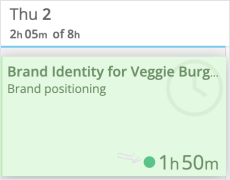
An active Timer will automatically appear in your calendar.
You can recognize an active timer by the small green dots blinking in the bottom right corner. Timers are also bigger than entries and paused timers.
Link your work Calendar to Lucen Track
We have built native integrations with Outlook Calendar and Google Calendar. Thanks to these integrations, you can bring all your calendar events to Lucen Track, and include them in your timesheets.
Link the calendars using the Link Calendars option on the dashboard.

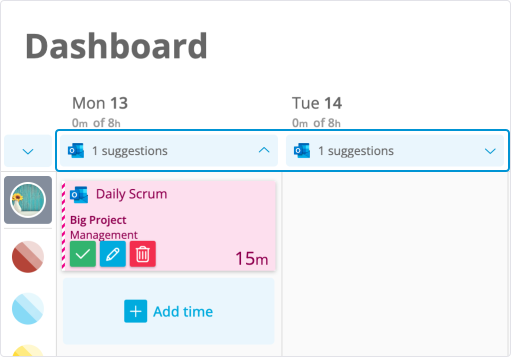
Once your calendar is linked, all your events will be imported to Lucen Track as Suggestions. Below you see what a suggestion looks like.
Click on the suggestion to track time, and you will finally know how much time you spend on meetings, conference calls, and so on!
How do I get my team to track time?
Yeah, we know: getting aboard new software can be rocky. Not everybody will get into the habit of tracking right away.
To avoid chasing down your team to get them to track time, we would suggest you
- Test Lucen Track with a small group of people first, then progressively introduce the rest of the company to the tool;
- Have your team set Working hours and time tracking reminders (Settings>General setting): this feature sets an email that will be sent to the user when less than a certain percentage of the expected hours of work is tracked, to gently nudge he team;
- Share this guide with the rest of the team!
How do I receive any help in case I am stuck?
For any questions, comments, or suggestions, contact us.
Productivity awaits!
Now, go to your Lucen Track Workspace to complete your setup 😉


Subscribe to our blog
Get all the tips, tricks and inspiration you need to create professional looking timelines, straight to your inbox.

.png)
