


Which Project Visualization Tools Help Teams Align Work in 2026?
Compare project visualization tools that help teams align work: milestones, dependencies, refresh from the plan and PowerPoint output, with 2026 Lucen Timeline plans.

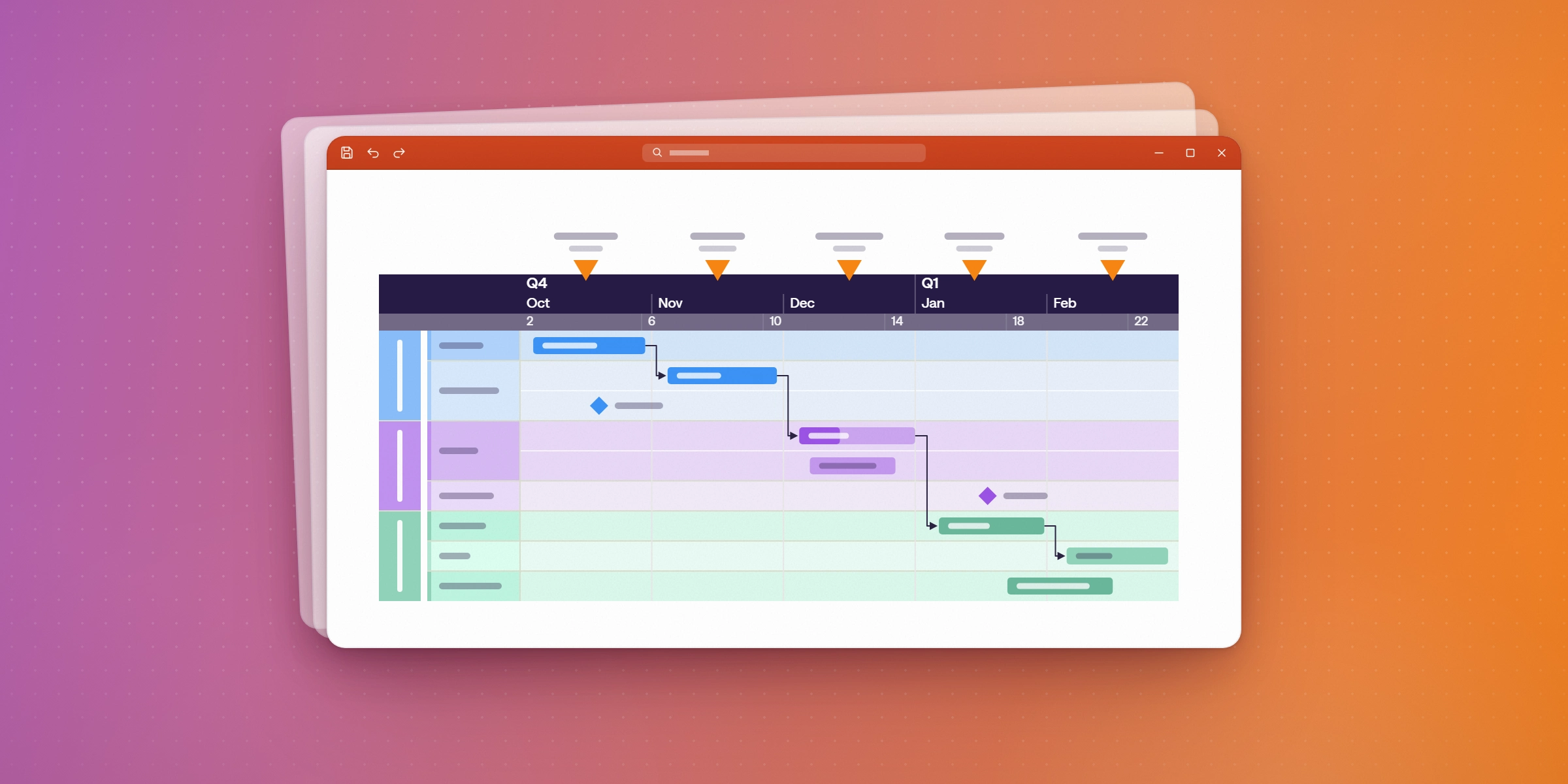
Which project visualization tool helps a team align work?
A team aligns when everyone reads the same plan in the same format. For teams that present progress in PowerPoint, Lucen Timeline (formerly Office Timeline) builds the plan as native PowerPoint shapes, with milestones, dependencies and critical path visible on one slide. It imports from Excel on the Plus plan, and from Microsoft Project, Smartsheet, Jira and Wrike on the Expert plan. Teams that run the plan inside Smartsheet, Asana or monday.com can align there instead, but the view stays in that tool.
What makes a project visualization tool help a team align?
A project visualization tool turns tasks, milestones, dependencies and dates into a view that shows what is on track, what is at risk and what depends on what. Three things decide whether the team uses it:
- Milestones and dependencies on one view, so a slip shows what it affects.
- Refresh from the source plan, so the view reflects the current schedule, not a copy made last week.
- A format the team already presents in, so the view does not need a separate meeting to explain it.
Which tools help teams align work?
Four tools come up most often for team alignment. The right one depends on where the plan lives and where the team presents.
| Tool | Where the view lives | Imports from | Refresh from source | Best fit |
|---|---|---|---|---|
| Lucen Timeline | Native PowerPoint shapes | Excel (Plus); Excel, Microsoft Project, Smartsheet, Jira and Wrike (Expert) | Expert: one-click refresh | Teams that present progress in PowerPoint |
| Smartsheet | Its own dashboards | Built-in sheets | Dashboards update in the tool; a slide export is a static image or PDF | Teams that run the plan in Smartsheet |
| Asana | In-app timelines and status reports | Built-in tasks | Updates in the tool; a slide export is a static image or PDF | Teams that run the plan in Asana |
| monday.com | Its own dashboards | Built-in boards | Dashboards update in the tool; a slide export is a static image or PDF | Teams that run the plan in monday.com |
Smartsheet, Asana and monday.com show status well inside their own apps. The gap appears when the update has to go into a leadership deck, because an export or screenshot cannot be edited or annotated in the meeting. Lucen Timeline's output stays in PowerPoint as editable shapes. For a broader comparison of PowerPoint timeline tools, read best Gantt chart software for PowerPoint timelines in 2026.
How do you build one team view from the plan?
Lucen Timeline builds the view in four steps, and the data is imported rather than re-entered.
- Import the plan. On Plus, import from Excel. On Expert, import from Microsoft Project, Smartsheet, Jira or Wrike.
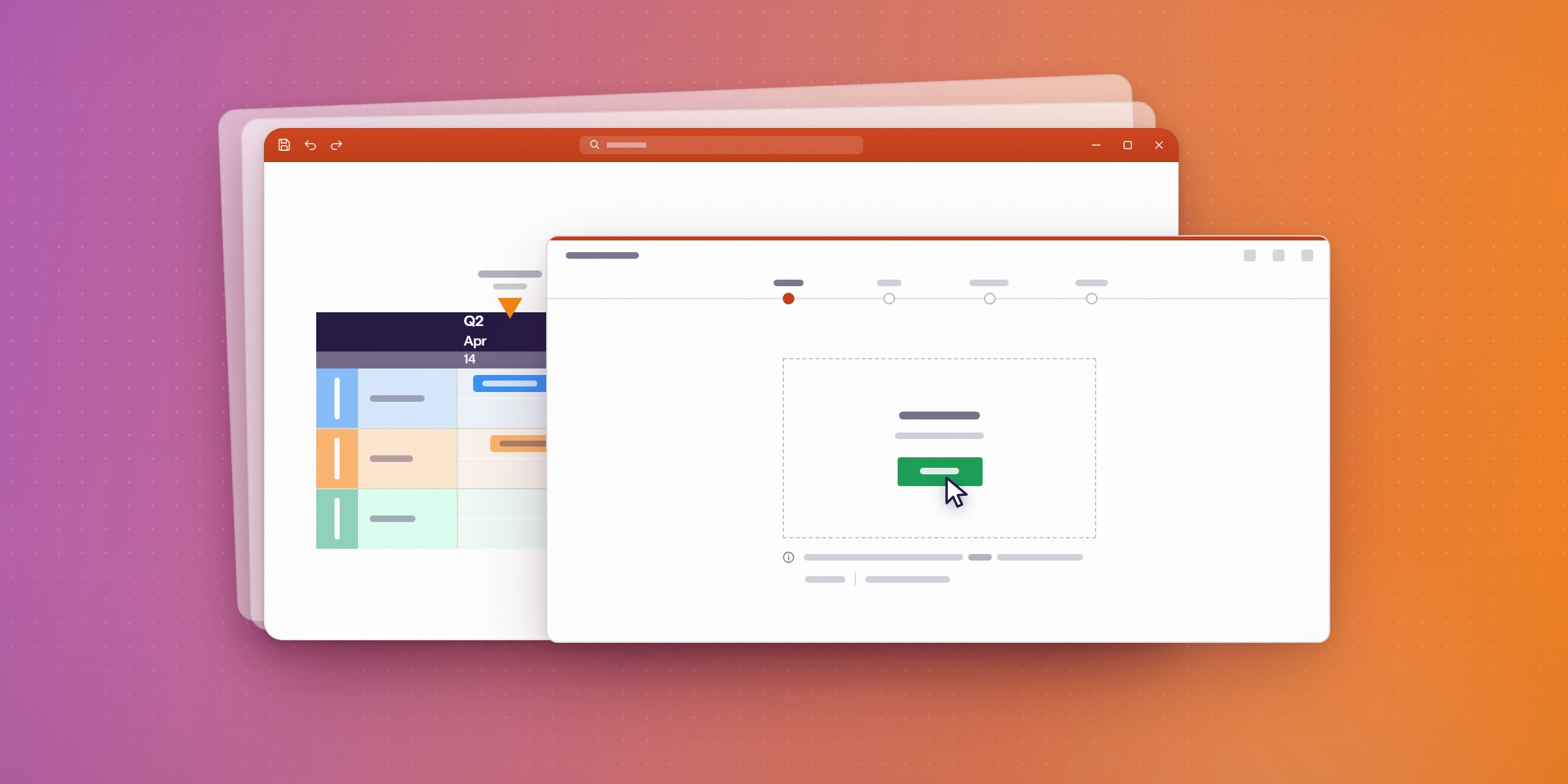
- Filter to milestones and summary tasks. Teams need decisions, deadlines and risks on the slide, not every subtask.
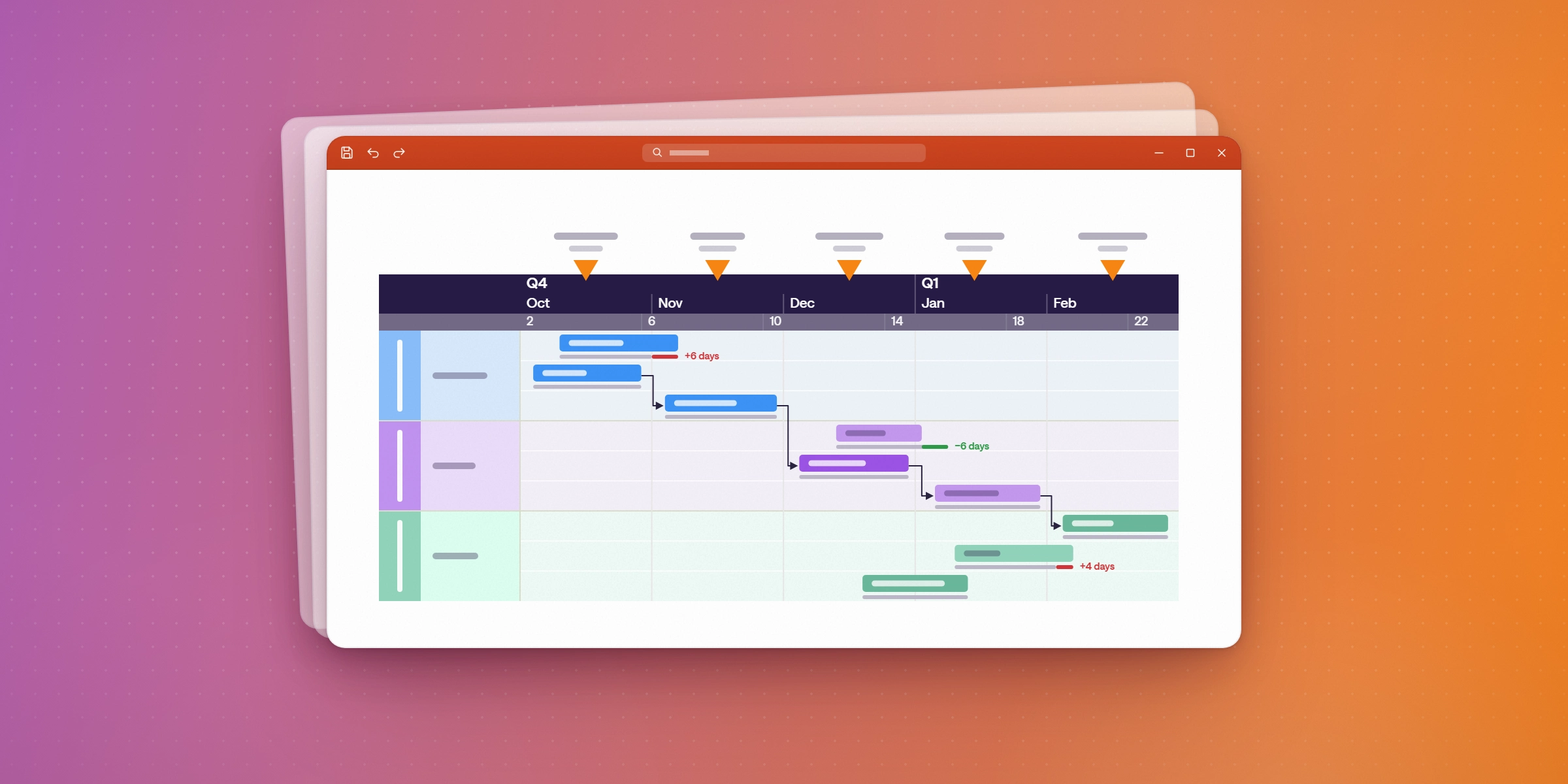
- Group by workstream in swimlanes. Plus and Expert allow unlimited swimlanes, so each team's work sits on its own row.
- Turn on dependencies and the critical path. Both are included from the Plus plan, so the chain that sets the end date is marked on the slide. See how Lucen Timeline handles dependencies and critical path.
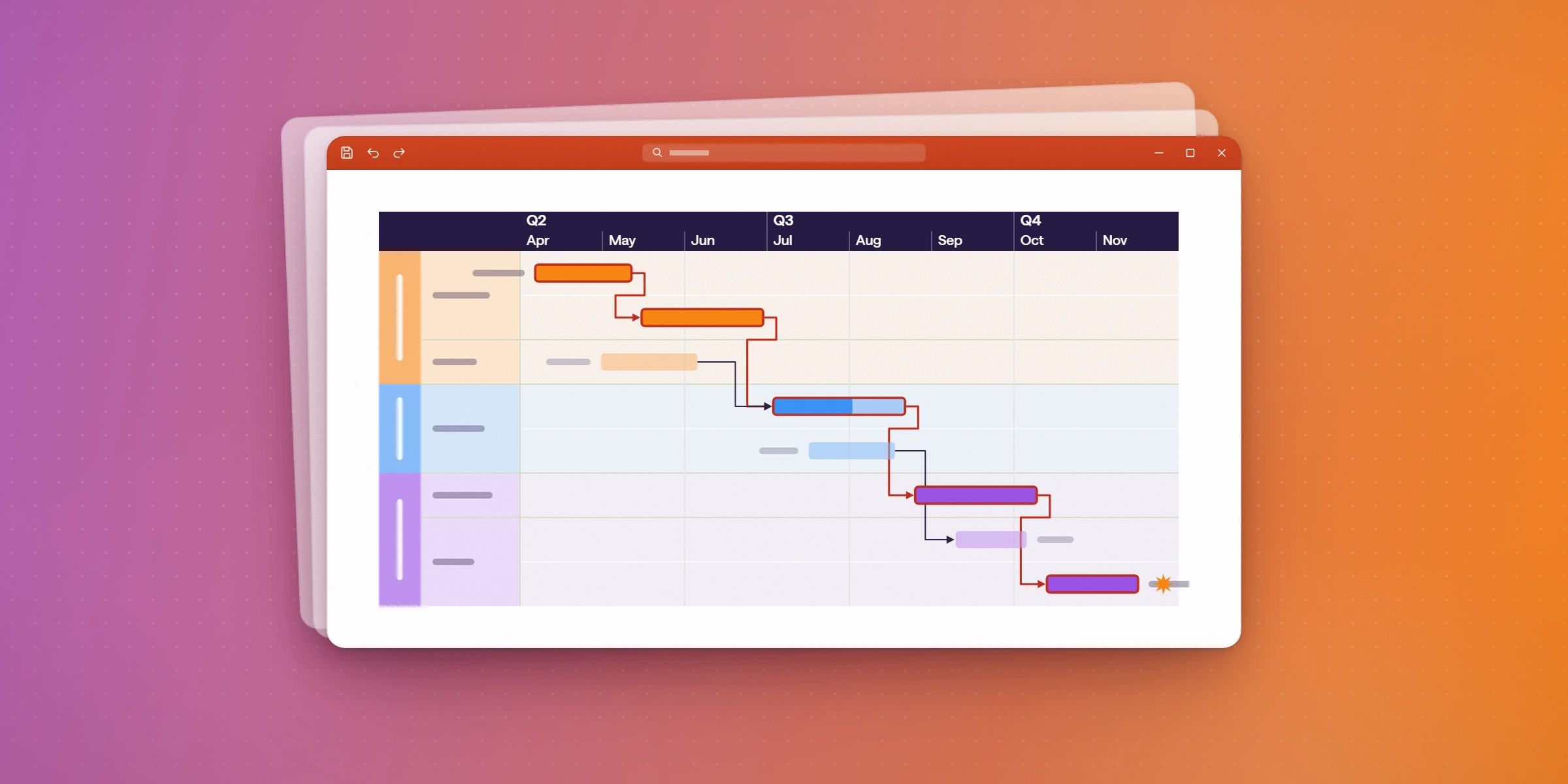
For the executive-review version of this workflow, read project visibility for pharma teams.
How do you keep the team view aligned when the plan changes?
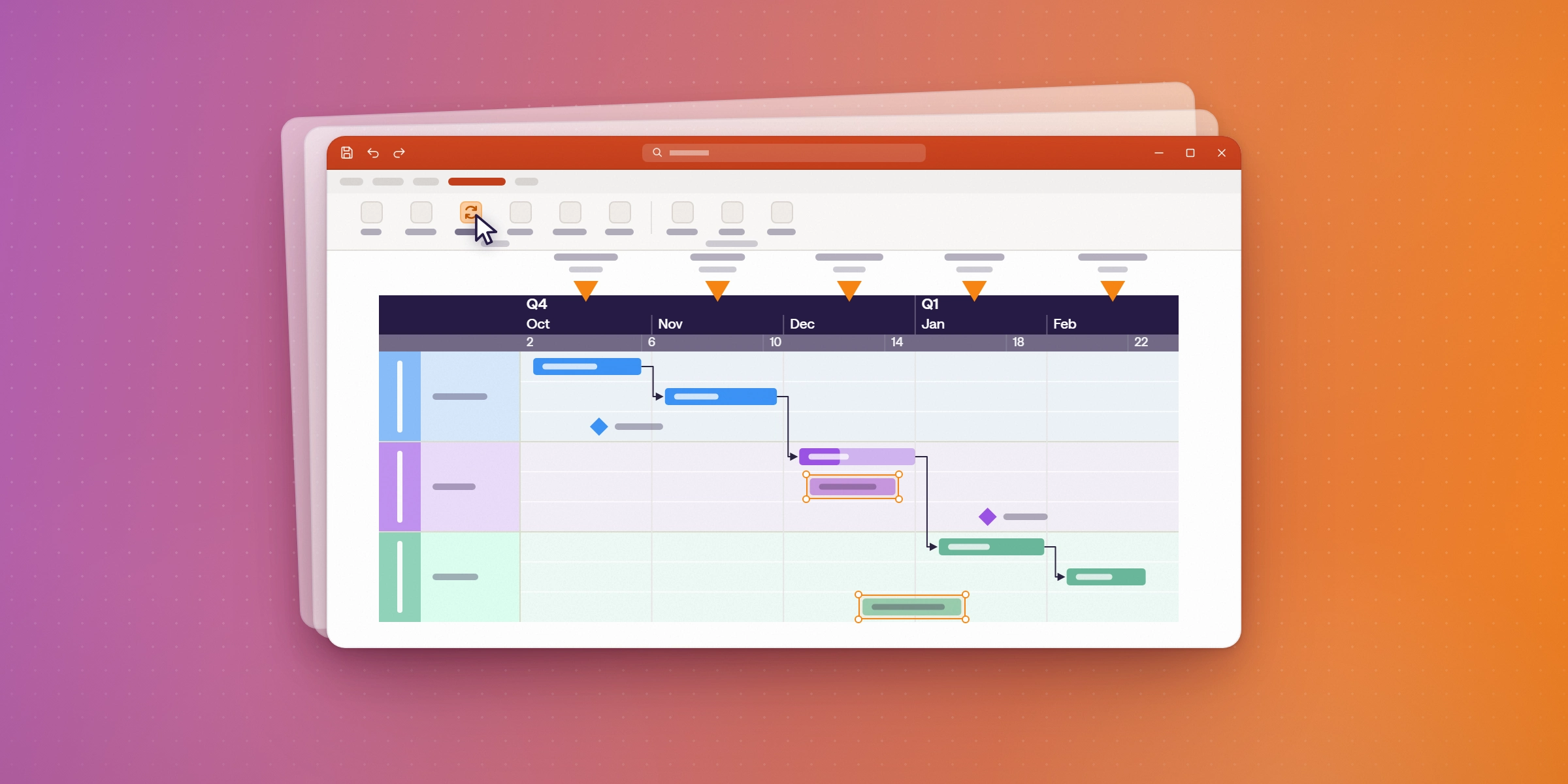
On Expert, open the timeline and refresh. It pulls the latest data from the source plan. On Plus, update the Excel file and import again. Refresh is not a live connection, and Lucen Timeline sends no alerts when the plan changes, so the plan owner refreshes before each team meeting. Expert also includes planned vs. actual, so the team can see variance against the approved baseline.
Does Lucen Timeline have a free plan?
Yes, with limits. The Free plan supports up to 10 milestones and/or tasks per slide, which is enough to test the format on one team's plan. Plus is $17 per user per month billed annually and adds unlimited swimlanes, dependencies, critical path and Excel import. Expert is $21 per user per month billed annually and adds the imports from Microsoft Project, Smartsheet, Jira and Wrike, refresh, and planned vs. actual. Check the pricing page before you buy, because prices change.
Give your team one view of the plan.
Start on the free plan and build a first team timeline in PowerPoint. No credit card is needed.
What do teams say about aligning work with Lucen Timeline?
A VP at BOK Financial says the tool helps her "quickly demonstrate where we are in the project and what the forecast and work streams look like." Read the BOK Financial customer story for the full case.
Frequently asked questions
A project visualization tool turns plan data (tasks, milestones, dependencies and dates) into a view that shows what is happening, what is at risk and what is next. Gantt charts, timelines and roadmaps are the most common formats for team and executive updates. Lucen Timeline builds this view as native PowerPoint shapes.
Yes, on the Expert plan. Expert imports from Jira (including multiple projects or boards), Smartsheet, Microsoft Project and Wrike. Plus imports from Excel, and Lite supports copy and paste from Excel. For how these integrations compare to other tools, read project timeline tools with time tracking.
Lucen Timeline is a PowerPoint add-in for Windows. Mac users can use Lucen Timeline Online, which runs in the browser and produces the same native PowerPoint shapes.
No. On Expert, you refresh the timeline from the source plan when you open it. On Plus, you update the Excel file and import again. There is no live connection and no alert when something changes upstream. See the plans on the pricing page.
The Expert plan. Refresh from Microsoft Project, Smartsheet, Jira and Excel is included there. Compare the plans on the pricing page.
Project management visualization: tips and tricks
Give your team one view of the plan.
Start on the free plan and build a first team timeline in PowerPoint. No credit card needed.


Subscribe to our blog
Get all the tips, tricks and inspiration you need to create professional looking timelines, straight to your inbox.