


Project Online Has Retired: How to Replace Project Online Timesheets in Microsoft 365
Project Online retired on September 30, 2026, and Planner doesn't include timesheets. Here's what to use instead, and how to keep your timesheet history.

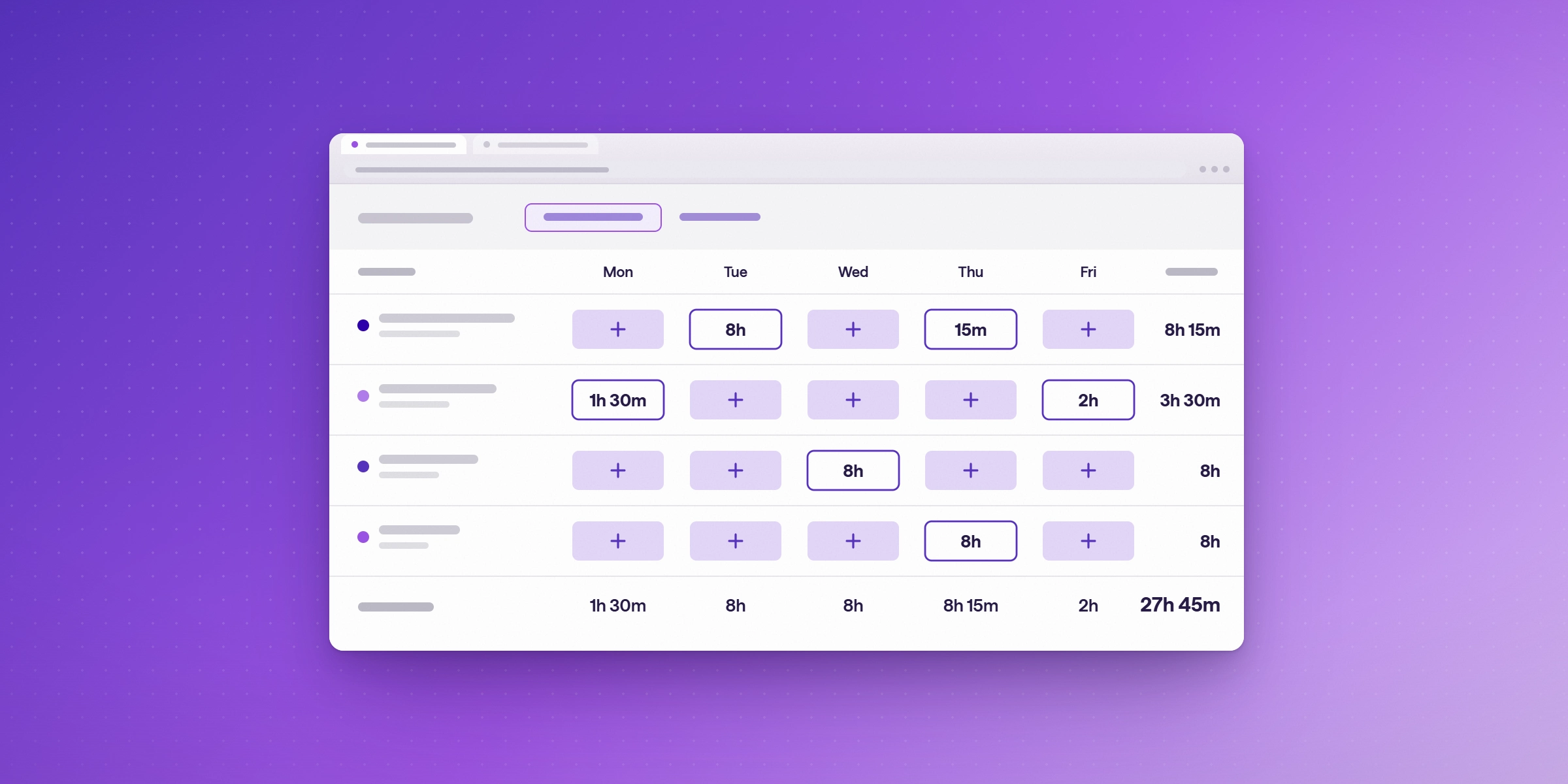
For years, the Friday routine in many PMOs was the same: open Project Web App, fill in the timesheet, submit it for approval. On September 30, 2026, Microsoft retired Project Online, and that routine went with it.
Most of what Project Online did has an obvious next home. Plans and schedules can move to Planner, and portfolios can move to Project Server or a partner tool. Timesheets are the exception. Planner, the replacement Microsoft points most customers to, estimates effort but doesn't record hours worked. Teams that relied on Project Online for time reporting, billing or cost tracking now need a separate answer.
This guide covers what changed, what each replacement does and doesn't cover, and the steps to move your timesheet process without losing the history behind it.
What happened to Project Online?
Microsoft retired Project Online on September 30, 2026. After that date, Microsoft says customers "will no longer be able to access your projects or any associated data within the service." That includes timesheets, which Microsoft lists as unavailable after retirement.
| Date | What changed |
|---|---|
| September 5, 2025 | Microsoft announced the retirement |
| October 1, 2025 | End of sale: no new customers for Project Online-only plans |
| April 1, 2026 | New Project Web App (PWA) sites could no longer be created |
| September 30, 2026 | Project Online retired; projects and data in the service no longer accessible |
What about your data? Microsoft's guidance was to export or migrate everything before September 30. It hasn't published a window for exporting after that date. Exported data stays wherever you saved it, in the format you saved it in. Some organizations received case-by-case extensions; if yours did, export your timesheet data now (see the checklist below).
What still works: Project desktop (Project Standard or Professional 2024) keeps working as a standalone app. It can no longer connect to Project Online to publish or pull project data.
Does Planner replace Project Online timesheets?
No. Microsoft points most Project Online customers to three destinations, and only two of them include timesheets. Microsoft itself notes that "a destination is not necessarily a one-to-one replacement for every Project Online capability."
- Planner (premium plans, in Planner and Project Plan 3 or 5): Microsoft describes it as "a unified solution for modern work and project management" with portfolios, baselines, dependencies and Gantt charts. For time, it offers effort and duration fields, which estimate how long work will take. It doesn't record actual hours or produce timesheets.
- Project Server Subscription Edition: the on-premises server Microsoft recommends for organizations that need "a close match to the feature set of Project Online." It keeps timesheets. It's still supported, but Microsoft says it's getting "no major features or enhancements," and you host and maintain it yourself. Microsoft provides no tool to migrate from Project Online to Project Server.
- Dynamics 365 Project Operations: Microsoft positions it for customers "who require robust timesheet management and resource scheduling." Team members submit time for approval, and time feeds project costing and billing. It costs $135 per user per month, billed yearly.
If your team used Project Online mainly for scheduling, Planner may cover you. If it used Project Online to capture hours for billing, chargeback, capitalization or utilization reporting, you need one of the other routes in the next section.
Your options for replacing Project Online timesheets
There are four realistic routes. The right one depends on where your plans now live and what your time data feeds: billing, cost reporting or utilization.
| Option | Actual hours | Approvals | Runs on | Best for |
|---|---|---|---|---|
| Planner + Excel timesheet templates | Manual, in Excel | No | Microsoft 365 | Small teams tracking time occasionally |
| Project Server Subscription Edition | Yes | Yes | Your own servers | The closest match to Project Online |
| Dynamics 365 Project Operations | Yes | Yes | Dynamics 365 | Services firms that bill from Dynamics |
| Time tracking tool for Microsoft 365 | Yes | Depends on the tool | Outlook, Teams, Planner | Teams that moved plans to Planner |
Watch out for: Excel templates aren't linked to Planner tasks, so totals are rebuilt by hand. Project Server has no migration tool from Project Online and no major new features planned, and you host it yourself. Project Operations costs $135 per user per month and is a full ERP-style rollout. With a dedicated tool, check which integrations are native and which work only through a browser extension.
For teams that moved their plans to Planner, the fourth route keeps time tracking in the apps people already use. Integration depth varies a lot between tools: in our comparison of 11 Microsoft 365 time tracking tools, only two integrate natively with Planner.
How to move your timesheets off Project Online: a checklist
- Secure your timesheet history. If you still have access through an extension, export now. Microsoft documents two methods: the
ExportProjectUserContent.ps1PowerShell script with the-Options Timesheetssetting, which exports one user's timesheets per run as JSON; and the Project Online OData reporting feed (/_api/ProjectData), which includes timesheet lines and connects to Power BI Desktop or Excel. If you've already lost access, gather what exists elsewhere: Power BI datasets, Excel exports and billing records built from Project Online reports. - List what your time data was used for. Billing, client reporting, cost tracking, R&D capitalization, chargeback, utilization or compliance. Each use needs a home in the new process.
- Map your structure. Write down projects, tasks, billable and non-billable categories, timesheet periods and who approves what. This becomes the setup checklist for your new tool.
- Decide where history lives. Most teams keep past timesheets as a read-only archive in Power BI or Excel and start fresh in the new tool from a clean cutover date. Import history only if you need it for year-over-year reporting in one place.
- Pick your route from the options above, based on where your plans live now and what your time data feeds.
- Pilot with one team for two timesheet periods. Compare totals against the previous process before rolling out further.
- Rebuild approvals and reports. Recreate approval steps and the reports finance and leadership rely on before switching everyone over.
- Roll out with less manual entry. The most common timesheet problem is people not logging time consistently. Tools that turn calendar events and task activity into suggested entries leave less to remember on Friday afternoon.
Where Lucen Track fits
Lucen Track is time tracking built for Microsoft 365. It suits teams that moved their plans to Planner and need the timesheet piece Planner doesn't provide.
- Planner: Track imports plans and team members from Planner, and people track time against Planner tasks without leaving Planner. For plans that use Planner's premium features (the former Project for the web), Track can't import every detail of the plan, so the Track browser widget is the way to track time directly on those tasks.
- Outlook and Teams: calendar events become suggested time entries, and the Teams app logs call and meeting durations, so less time goes unrecorded.
- To Do and Azure DevOps: native integrations for task and development work.
- Approvals, budgets and profitability: included in the Premium and Enterprise plans, for teams that used Project Online timesheets for cost and billing.
- Bringing your history: a CSV import brings over users, clients, projects, project members, phases and time entries. For anything beyond that, the Track API can import the rest.
- Reporting: a Power BI connector, so the reports you built on Project Online's reporting feed can be rebuilt on Track data.
- IT requirements: Microsoft Entra ID single sign-on; SOC 2 and GDPR compliant.
What Track doesn't do: it isn't a portfolio management tool. If you need Project Online's portfolio features, look at Project Server Subscription Edition or a partner tool, and use Track for time alongside it.
Pricing: free for up to 2 users. Starter is $7 per user per month and Premium is $13, billed annually, with a 14-day Premium trial. See Track pricing.
Sources
Checked October 20, 2026.
- Microsoft: Project Online retirement announcement · Changes to PWA site creation, April 1, 2026 · Prepare for Project Online retirement · Project Online lifecycle · Export user data from Project Online · Connect Power BI to Project Online · Planner plans and pricing · Project Server Subscription Edition lifecycle · Project Server SE features · Project Operations time entry · Project Operations pricing · Planner FAQ
- Lucen Track: product page · integrations · pricing
Frequently asked questions
Microsoft retired Project Online on September 30, 2026. It stopped selling Project Online-only plans to new customers on October 1, 2025, and blocked new Project Web App sites from April 1, 2026.
Microsoft hasn't published an export window after September 30, 2026. Its guidance was to export or migrate data before that date. Organizations with an approved extension should export now, using the ExportProjectUserContent.ps1 script or the OData reporting feed.
No. Planner, including its premium plans, has effort and duration fields for estimating work, but it doesn't record actual hours or produce timesheets. Teams that track time against Planner tasks use a separate tool with a Planner integration.
Microsoft doesn't name a single replacement. Of its recommended destinations, Project Server Subscription Edition keeps timesheets (on-premises), and Dynamics 365 Project Operations offers time entry with approvals. Planner doesn't include timesheets.
Yes. Project desktop continues to work as a standalone app. It can no longer connect to Project Online to publish or retrieve project data.
For teams that moved their plans to Planner, the simplest route is a time tracking tool that integrates natively with Planner, Outlook and Teams, so hours are captured from tasks and meetings. Lucen Track and timeghost both integrate natively with all three.

Subscribe to our blog
Get all the tips, tricks and inspiration you need to create professional looking timelines, straight to your inbox.