

Our latest update aims to improve the professional sharing of reports for our users and customize their Lucen Track experience.
Let's explore how this new feature (and all the other features released along with it) works.
New feature: Share a report with multiple people
Previously, Lucen Track users only had the option of scheduling a report that would be sent to their inbox only. But now, scheduling reports has become much simpler with the option to share scheduled reports with multiple people, inside or outside your organization.
Outside recipients will be asked to verify their email address. Once they've done that, they can easily visualize the report by clicking on the email, and download the report to PDF.
Our shareable reports will surely help our users effortlessly showcase their project/productivity updates with customers, team members, and any other stakeholders in an easy and tidy way.
Here's how to share a report with multiple people:
- Go to the Reports section of the workspace;
- Run the report you want, with all the filters and customizable widgets you need;
- Click the clock icon on the top right to schedule your report;
- When you select the frequency of the scheduled report, you will see a brand new option Email me and others;
- You can select up to 10 people outside of your organization to share the report with.

New feature: Add your company logo to a report
To polish the professional appearance of your report, you now have the option to personalize it with your company's logo.
You can set the company logo only if you're the Owner of the workspace.
- Go to the Workspace settings section of the workspace;
- Access the Features tab;
- Upload the company logo there.

Improvements: the Team section has a new look!
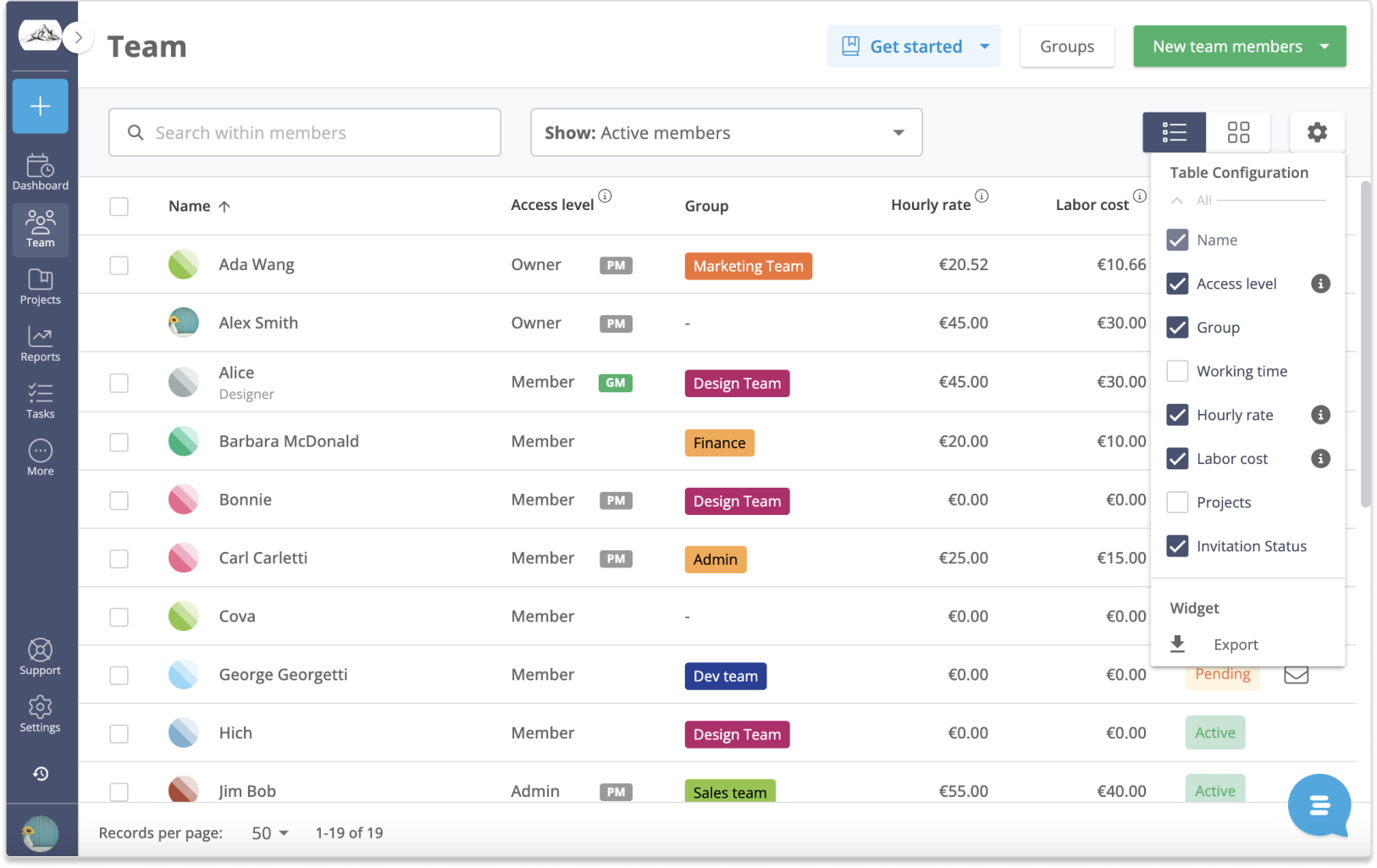
The revamped Team section provides a clear overview of each user's invitation status, permission level, and hourly rates and costs, allowing you to easily access all the necessary information at a glance.

As always, you'll be able to edit the Teams' information by clicking on the individual team member's name.
You can also customize the appearance of the Teams section, by selecting the columns to showcase the information you need.
Bonus improvements: pin your favorite section to the Lucen Track main menu
Personalize your Lucen Track experience by pinning your favorite features within easy reach. Users now have the ability to pin or unpin the Lucen Track sections in the main menu on the left, ensuring quick and convenient access to the features that matter most.

Lastly, we have now included easy access to our support knowledge base, filled with articles, resources, and tutorials, to help you navigate Lucen Track more effectively.
Don't miss out on these new features: give them a try and let us know what you think!


Subscribe to our blog
Get all the tips, tricks and inspiration you need to create professional looking timelines, straight to your inbox.