


Example timeline template
A blank example timeline for PowerPoint with ten color-coded milestones, a Today marker and an elapsed time indicator - ready to fill in with your own project dates
Powered by Lucen Timeline (formerly Office Timeline)

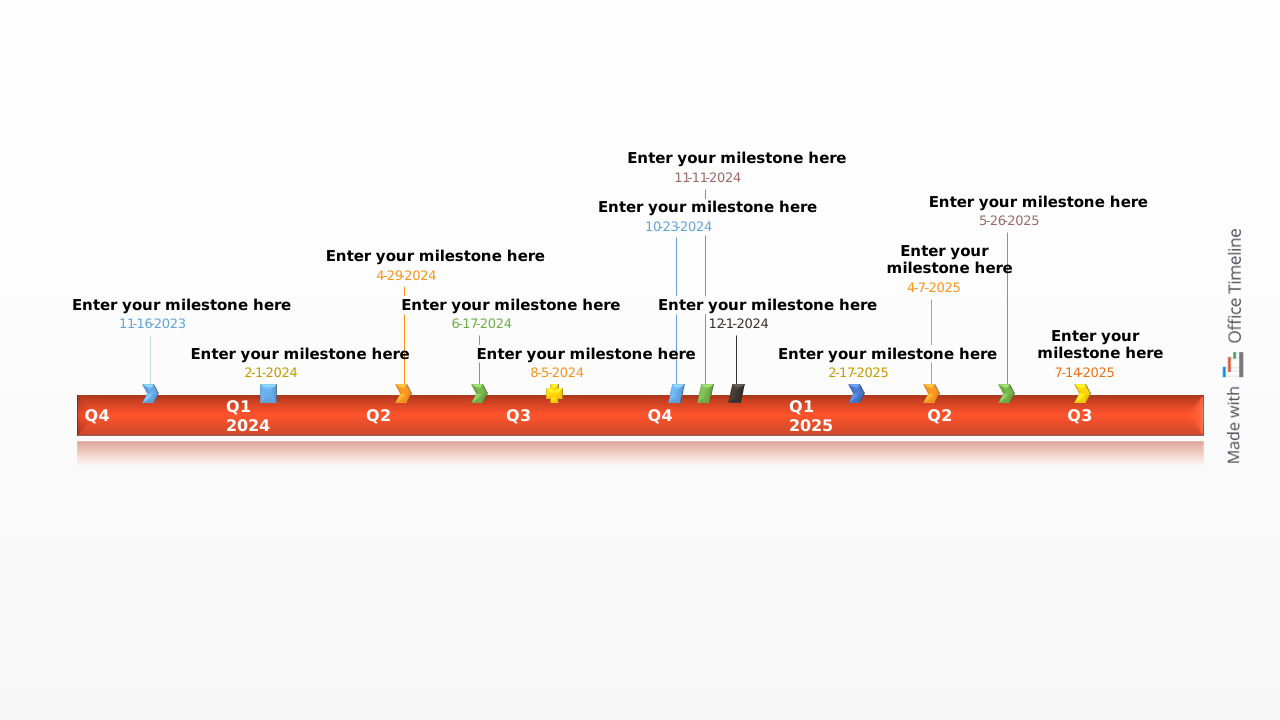
An example timeline template helps you quickly visualize the sequence of events in a project, process, or plan. Instead of starting from scratch, you can begin with a ready-made timeline layout and customize it with your own milestones, tasks, and key dates.
This free example timeline template for PowerPoint provides a clean, professional slide designed to present project schedules clearly to clients, executives, or stakeholders. By adapting the template to your own project data, you can quickly communicate plans, progress, and deadlines in a format that is easy to understand.
Once customized, the template can also be reused for future projects, helping teams standardize timeline visuals and streamline reporting across multiple initiatives.
When to use an example timeline template
Timelines are particularly useful when you need to present a clear visual overview of a project schedule.
Typical use cases include:
- project kickoff presentations;
- status reports and project reviews;
- client or executive briefings;
- roadmap presentations;
- planning discussions.
Because timelines display events chronologically, they help audiences quickly understand how milestones relate to one another and where a project currently stands.
Benefits of using a sample timeline
Using a sample timeline template can significantly simplify project communication and planning.
Key benefits include:
- Faster timeline creation – start from a ready-made structure instead of designing a timeline from scratch.
- Clear visual communication – present milestones and deadlines in a format that stakeholders can easily follow.
- Reusable structure – adapt the same timeline layout for multiple projects or presentations.
- Improved project reporting – illustrate status updates, progress, and timelines clearly.
- Professional presentation quality – create polished timeline visuals suitable for executive audiences.
Many project managers keep a library of example timelines that can be quickly adapted to different types of projects.
Using the example timeline template
This sample timeline template was created directly in Microsoft PowerPoint, making it easy to edit and share with colleagues or stakeholders.
Once downloaded, you can customize the slide by:
- adding project milestones;
- updating timeline dates;
- modifying labels and descriptions;
- adjusting colors, fonts, or shapes.
The template also includes useful timeline features such as a Today marker and elapsed time indicators, which help illustrate project progress during status presentations.
Because PowerPoint is widely used for presentations, the timeline can easily be embedded in project reports, planning documents, executive briefings, or client presentations.
For faster updates, the template can also be edited with the Lucen Timeline add-in for PowerPoint. The tool automatically generates and updates timeline visuals, allowing you to modify milestone dates, styles, or layouts in just a few clicks.
With the free 14-day trial of Lucen Timeline, you can quickly build and update professional timeline slides without manually repositioning milestones or dates.
Frequently asked questions
An example timeline is a pre-designed timeline used as a reference or starting point for creating your own timeline visualization. It shows how events or milestones can be arranged chronologically along a time axis.
Example timelines help users quickly understand how to structure a timeline and can be customized with new data for different projects or presentations.
Most timelines include several key elements:
- a time scale showing the duration of the project or process;
- milestones or events placed along the timeline;
- short descriptions explaining each milestone;
- start and end dates for project phases or activities.
These components help viewers quickly understand the sequence of events and the overall timeline of a project.
There are several ways to build a timeline depending on the tools you use.
Common options include:
- creating a timeline manually in PowerPoint;
- using SmartArt in Microsoft Office tools;
- customizing a ready-made imeline template.
Using a template is typically the fastest approach because it provides a structured layout that can be quickly adapted to your project data.
Timelines can be used for many purposes, including:
- project timelines for managing tasks and milestones;
- historical timelines for presenting events over time;
- process timelines for explaining stages in a workflow;
Different layouts and visual styles can be used depending on the type of information you want to communicate.
If you want to see how these formats look in practice, you can explore our collection of timeline examples that demonstrate different ways timelines are used across projects, business planning, and presentations.
Timelines present information visually, making it easier to understand the relationship between events and their order in time.
Compared with written lists or tables, timelines help audiences:
- quickly grasp the sequence of events;
- understand project progress;
- identify key milestones and deadlines.
For presentations, timelines provide a clear and engaging way to communicate plans and schedules.

Your download should start now. If it doesn’t start click here and check your inbox for tips to get started.