


Consolidate project reporting with Lucen Timeline and Excel
Bring your Excel plans to life with engaging timelines and Gantt charts that simplify updates, improve tracking, and enhance project communication.
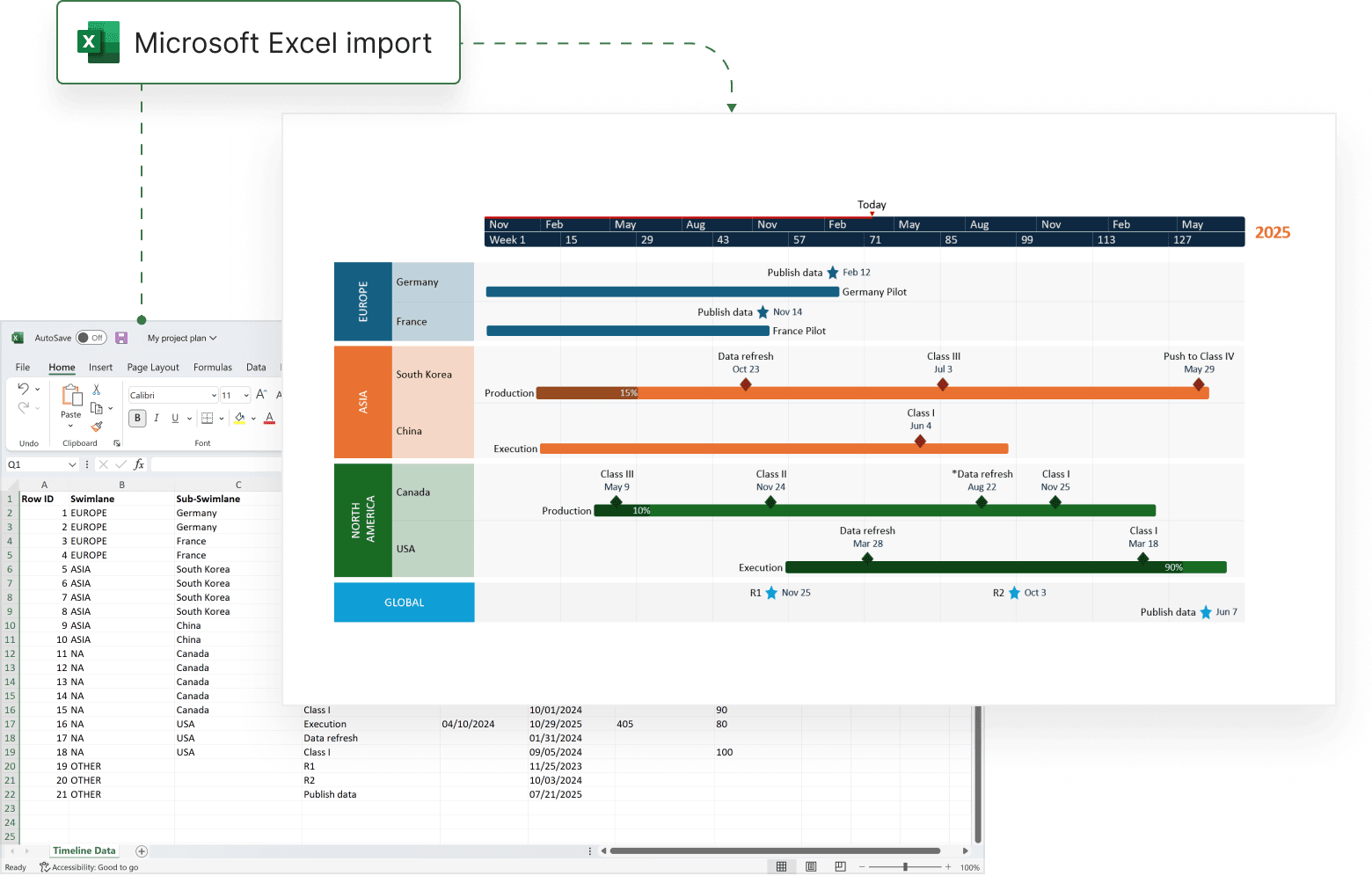
Transform static Excel tables into clear, actionable project charts
With Lucen Timeline, Excel data comes to life as dynamic timelines and Gantt charts that are easy to update and share.
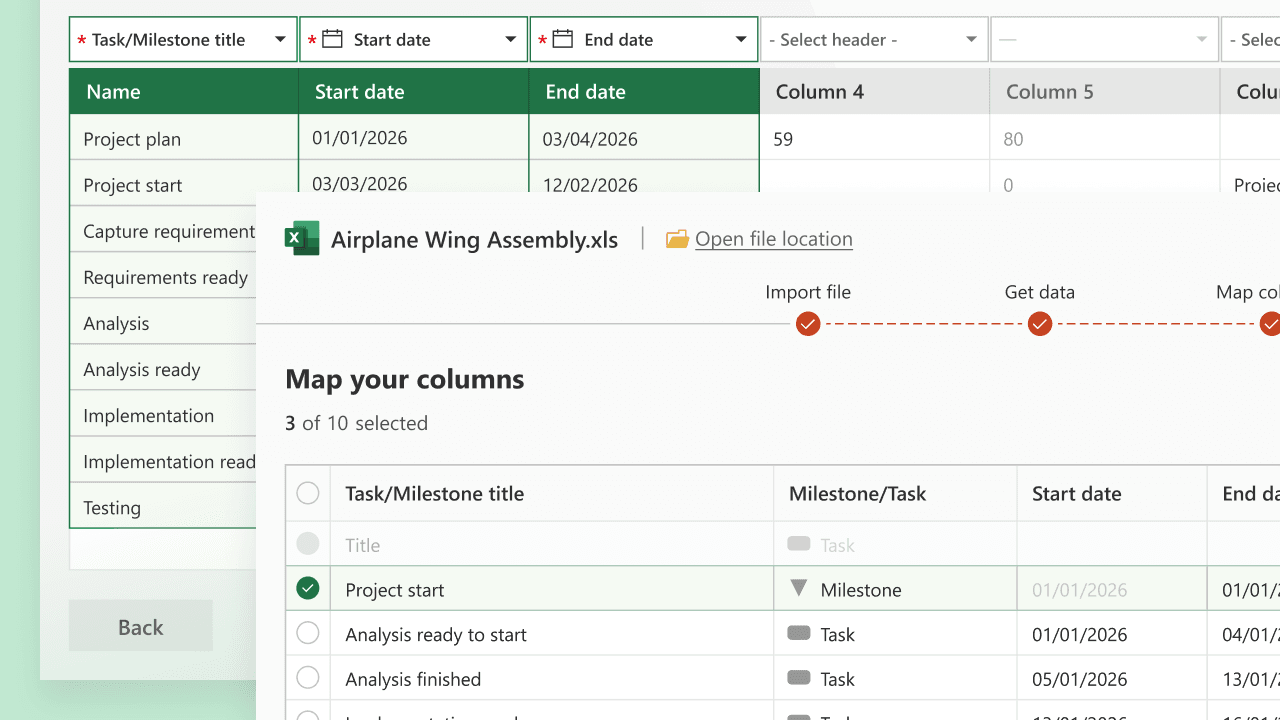
Quick data import
Import tables directly from Excel to instantly build out professional, presentation-ready timelines.
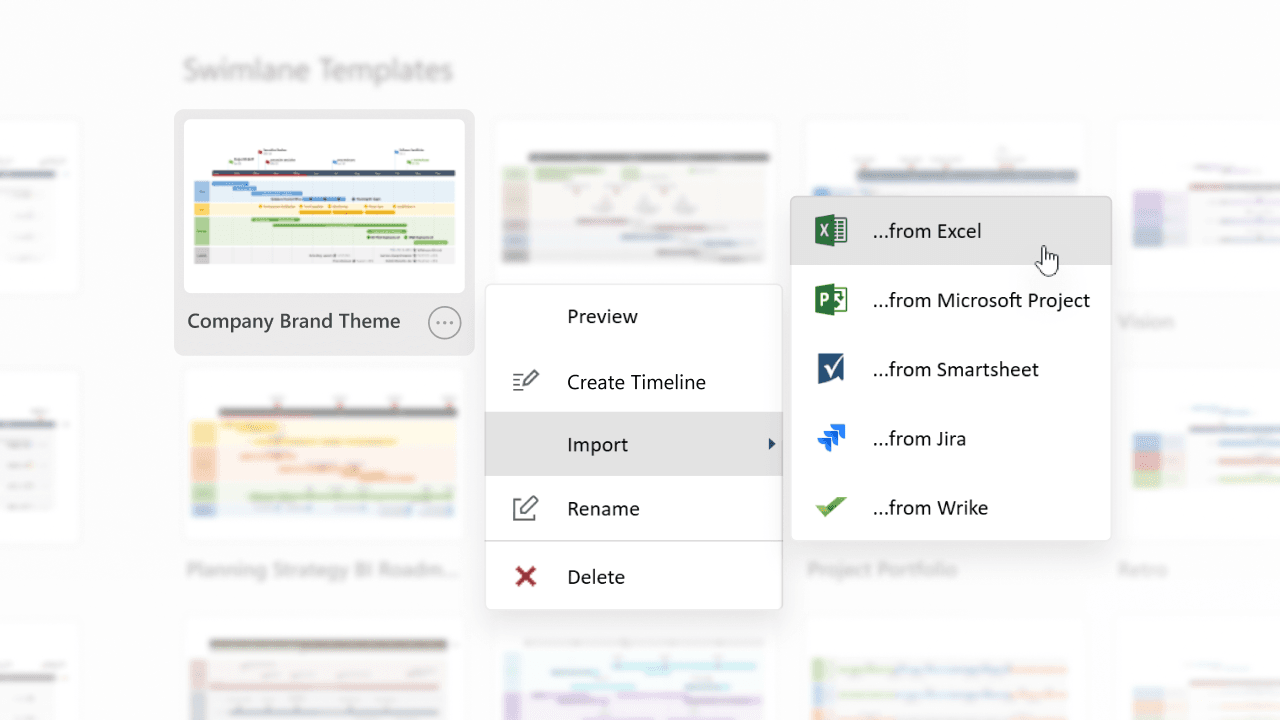
Flexible templates for Excel sheets
Select from templates optimized for project plans, deadlines, and task lists to showcase key information at a glance.
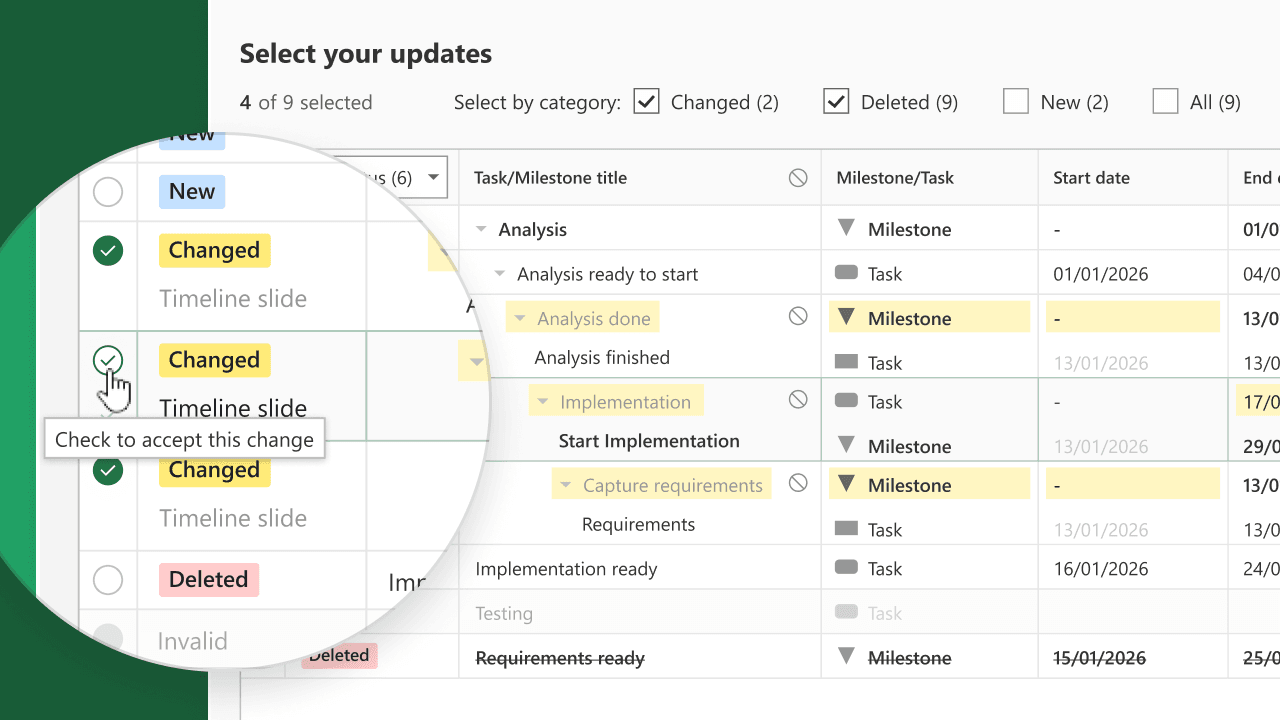
Seamless updating
Maintain up-to-date timelines by syncing changes from your Excel sheets automatically.
How Excel + Lucen Timeline enhance your project tracking
Discover how Lucen Timeline and Excel work together to simplify data visualization and make project tracking seamless and accurate.

Present Excel data in a way everyone can follow
Streamline project communication by transforming raw Excel tables into clear, easy-to-read timelines and Gantt charts that resonate with any audience.

Stay on top of project updates effortlessly
Keep your timelines accurate and polished without the hassle of manual formatting by syncing Lucen Timeline with your latest Excel data.

Make complex reports user-friendly
Create professional timelines and Gantt charts that simplify complex Excel datasets and deliver clear, actionable insights for your clients and teams.
Getting started with Excel integration
- Connect Excel to Lucen Timeline: Link your Excel workbook with Lucen Timeline.
- Choose the right data: Import relevant columns and fields.
- Design and customize: Use templates to tailor your visuals to specific audiences.
Master the Project integration
Find expert tips and step-by-step guides to transform your Excel data into polished, presentation-ready visuals with Lucen Timeline.

Easily import Excel data
Learn how to quickly import your spreadsheet data into Lucen Timeline to build impactful project timelines effortlessly.

Automatically update your imported Excel data
Learn how to refresh your imported Excel data in Lucen Timeline to ensure your visuals always reflect the latest updates.

Design Gantt charts with Excel data
Discover how to transform your Excel projects into detailed Gantt charts that make project tracking simple and effective.
How to create effective executive reports: a comprehensive guide
Unlock the secrets to crafting executive reports that make an impact! Dive into our comprehensive guide, where you'll learn essential components, step-by-step creation, and get access to free PowerPoint templates for timelines, Gantt charts, and roadmaps. Elevate your reporting game and help your execs make informed decisions swiftly.
Get personalized training


Turn your Excel data into engaging reports with Lucen Timeline
Use Lucen Timeline to easily transform your Excel data into clear,
compelling visuals that enhance project communication.