


Capture the essence of your Project plans with Lucen Timeline
Use Lucen Timeline to easily turn Project tasks and milestones into compelling timelines that make even the most complex project details clear and impactful.
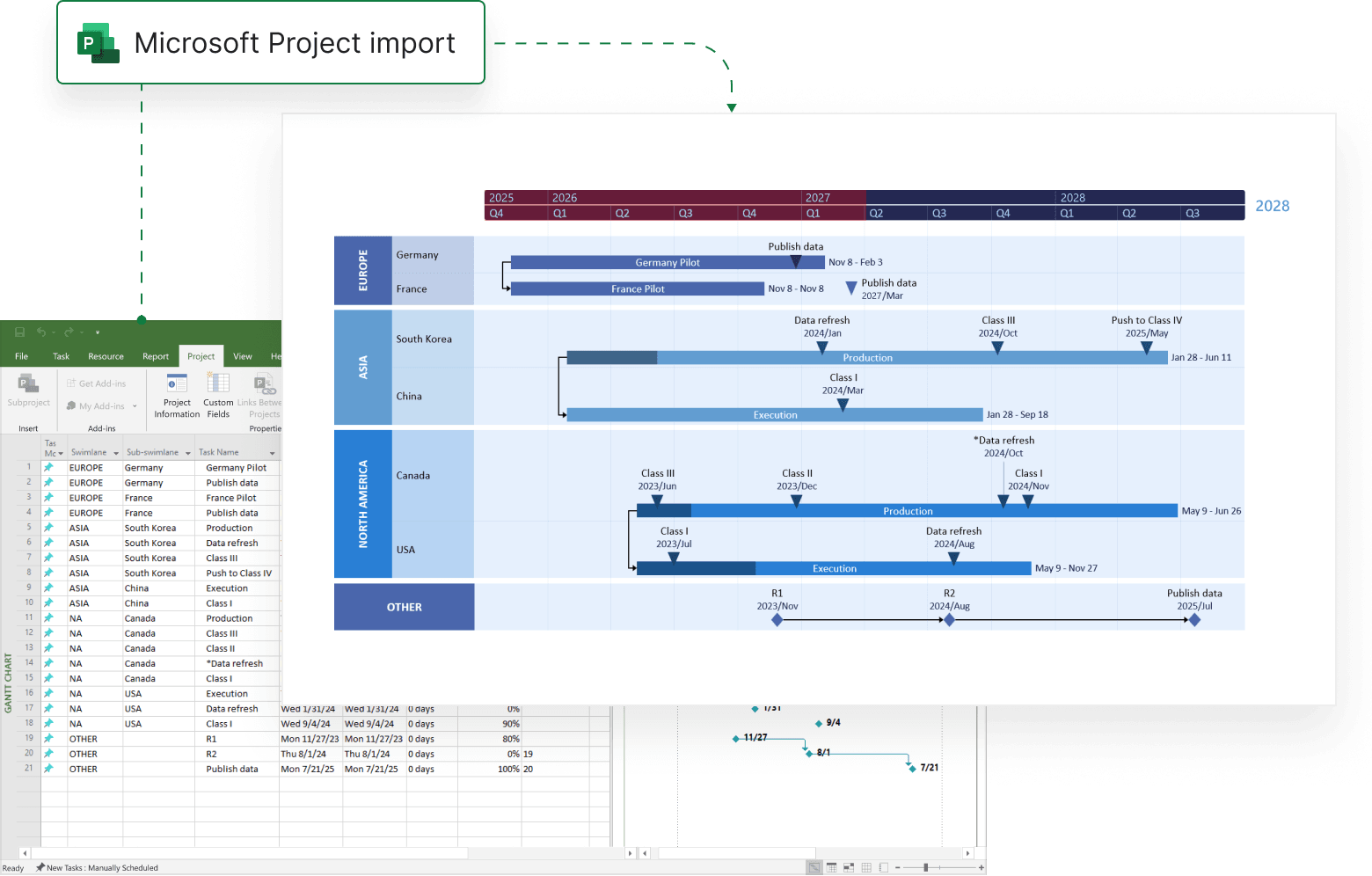
Simplify complex data for stakeholder presentations
Lucen Timeline integrates smoothly with Microsoft Project so you can present intricate project data clearly and concisely without overwhelming your audience.
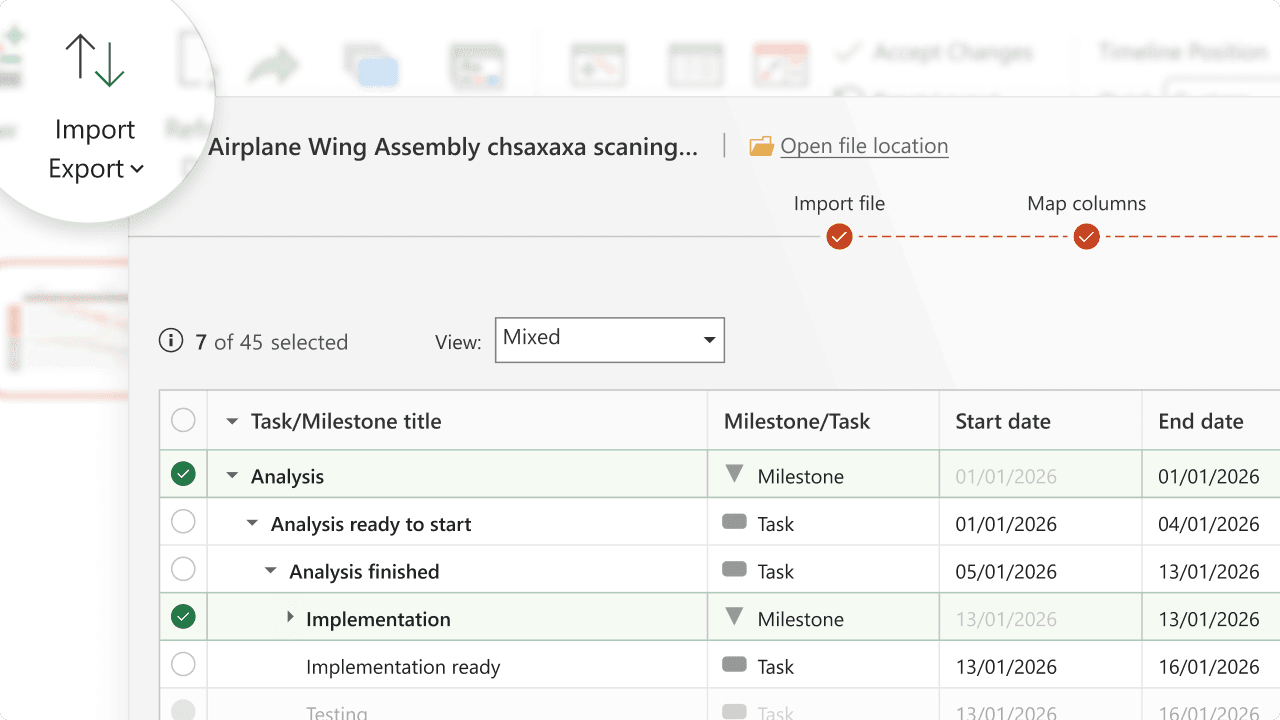
Intuitive data import
Pull out essential tasks, milestones, and dependencies directly from Microsoft Project to create a visually clear, presentation-ready timeline in minutes.
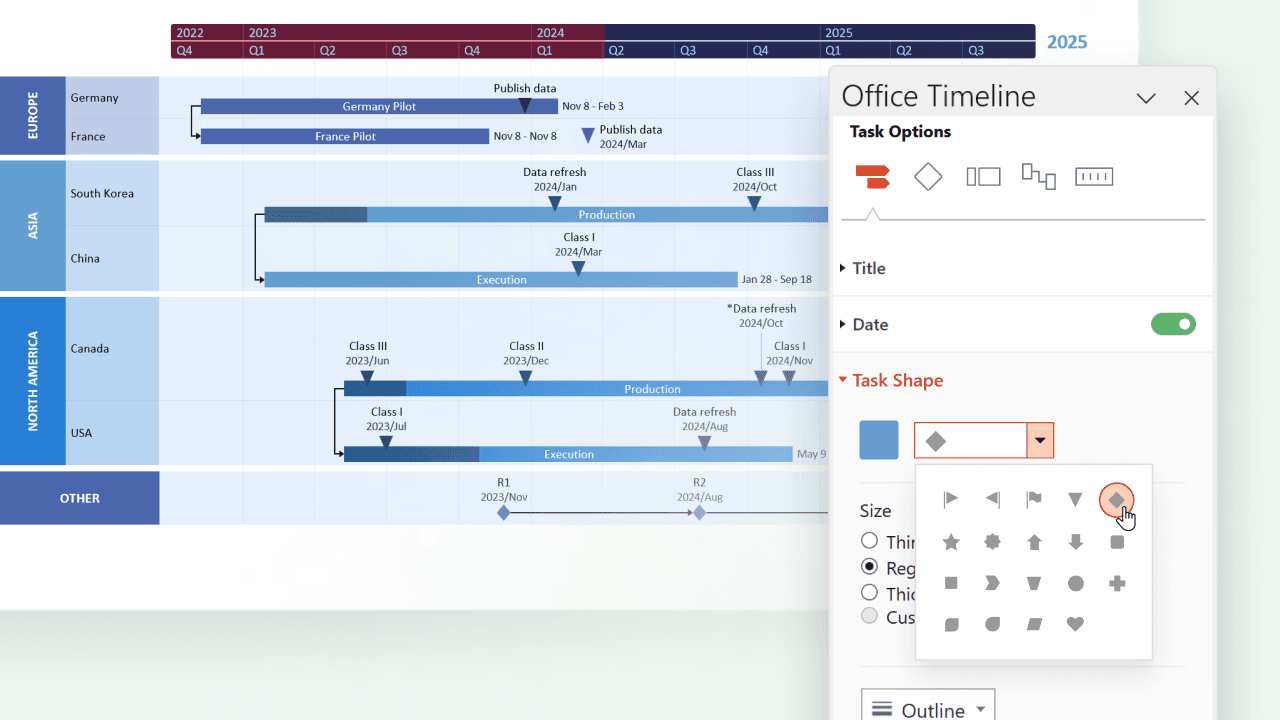
Detailed customization for Microsoft Project
Adjust visual styles and templates to highlight critical paths and dependencies, bringing transparency to each phase.
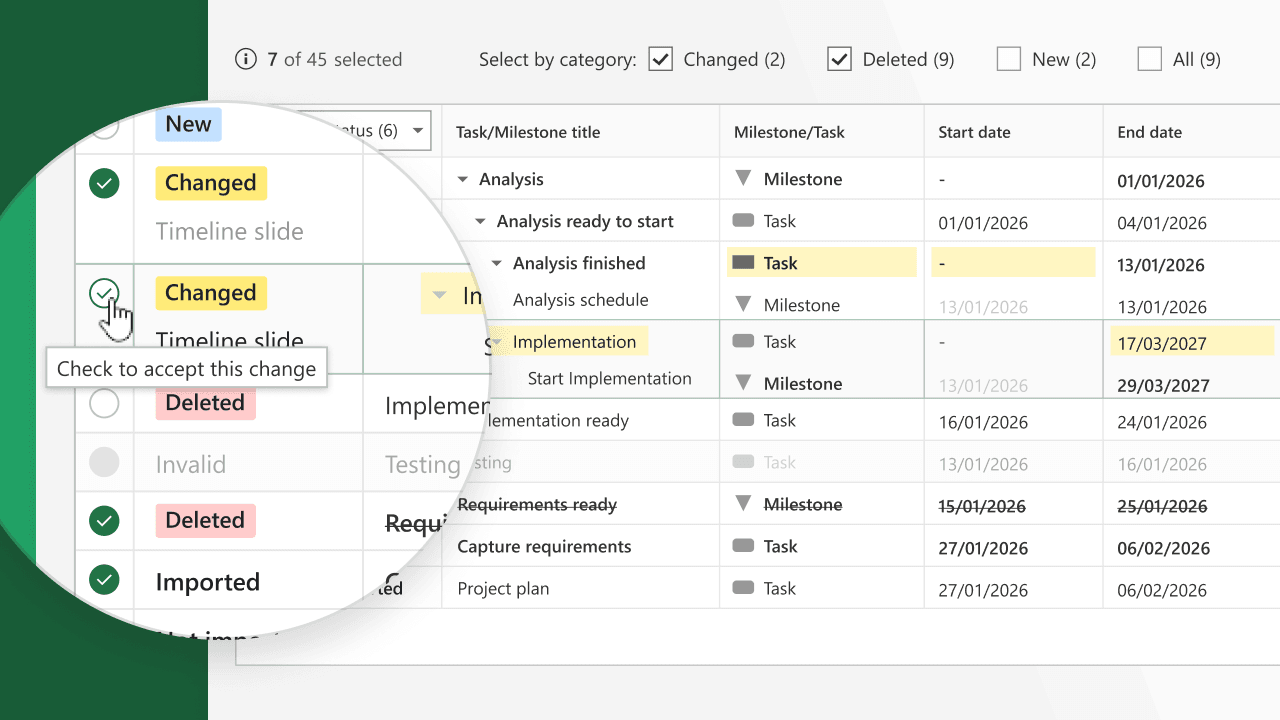
Accurate updates in real time
Reflect Project updates instantly, so your team always has access to the latest project status.
Transform Microsoft Project data using Lucen Timeline
Here are some practical ways in which Lucen Timeline helps you get the most out of your Microsoft Project data.

Streamline project presentations
Create clear, professional timelines and Gantt charts from MS Project data, ideal for executive meetings and status reports.

Effortlessly track phases and progress
Convert project phases into digestible timelines, keeping the entire team aligned on key deliverables.

Support focused decision-making
Enable stakeholders to make fast, informed decisions by presenting only the most relevant project data.
Getting started with Microsoft Project integration
- Link Microsoft Project account: Connect Lucen Timeline to your Microsoft Project file.
- Select and import key data: Choose specific tasks and milestones to display.
- Customize and share: Select templates, add branding, and share your visuals.
Master the Project integration
Unlock the full potential of Lucen Timeline’s integration with Microsoft Project through step-by-step guides, expert tips, and best practices for creating impactful project visuals.

Seamlessly import Project data
Learn how to quickly and effortlessly import tasks, milestones, and dependencies from Microsoft Project into Lucen Timeline.

Keep your timelines updated
Discover how to refresh your Lucen Timeline visuals with the latest changes from your Microsoft Project files.

Transform Project plans into timelines
Find out how to convert detailed Microsoft Project plans into clear, professional timelines.
Gantt chart 101: Everything you should know about Gantt charts
Explore our complete guide about Gantt charts to get all information you need and answers to your questions.
Get personalized training


Ready to enhance your Microsoft Project experience?
Try out Lucen Timeline for free and start showcasing your Project plans with clarity and professionalism.