


Daily schedule template
A visual daily schedule template in Gantt chart style - making it easy to plan tasks, appointments and time blocks hour by hour with a clear visual overview.
Powered by Lucen Timeline (formerly Office Timeline)

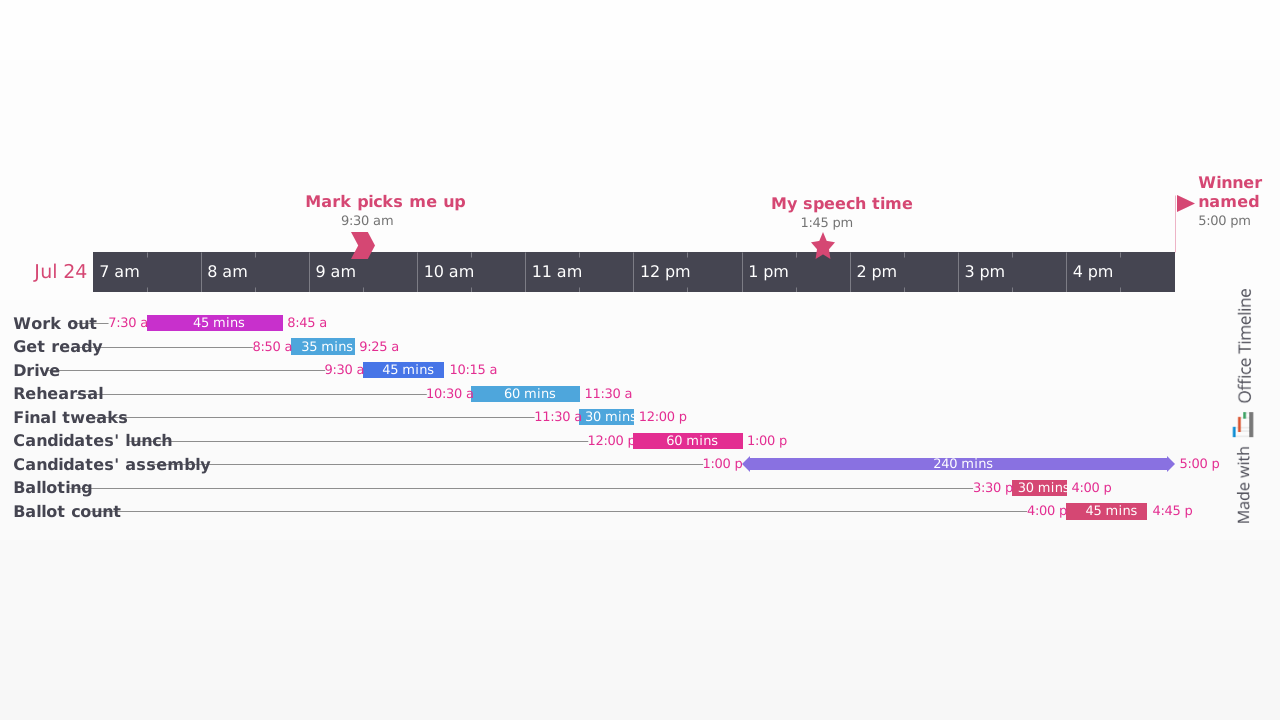
Keeping track of everything that needs to happen in a single day can quickly become overwhelming. Tasks pile up, meetings overlap, and important items can easily slip through the cracks. A clear daily schedule helps bring structure to your day - making it easier to see what needs to happen and when.
This free daily schedule template provides a simple visual way to plan your day. Built directly in PowerPoint, it can be printed, shared by email, embedded in documents or included in presentations. Instead of using a traditional list or spreadsheet layout, the template displays your day as an hourly Gantt-style timeline, allowing readers to understand the schedule quickly and clearly. You can download the template and customize it in PowerPoint in just a few minutes to create a clear daily planner or visual hourly schedule.
How the daily schedule template can help
Most daily schedules rely on vertical lists where appointments are stacked according to their time. While functional, these formats can be difficult to scan quickly and make it hard to visualize overlapping activities.
This daily schedule template uses a horizontal Gantt-style layout, allowing you to read your day from left to right. The result is a clearer overview of how your time is allocated throughout the day - making it easier to identify conflicts, adjust priorities and communicate the schedule to others.
What can you do with the daily schedule template?
The template can be downloaded and edited directly in PowerPoint. Every element - shapes, colors, text and fonts - can be customized to match your needs. It was created with the Lucen Timeline add-in for PowerPoint, which can automatically update the template with calendar data and quickly generate new schedules using a variety of built-in styles - helping you turn a simple schedule into a polished visual plan in minutes.
The template works well for many scheduling scenarios, including:
- Presenting a daily or weekly agenda at conferences, off-sites or team meetings.
- Planning and organizing personal daily or weekly schedules.
- Coordinating work shifts across teams.
- Visualizing detailed agendas with time slots scaled down to minutes.
Because the template is a native PowerPoint slide, it can be easily shared with team members, meeting participants and other stakeholders who use Microsoft Office. Anyone with PowerPoint can open, edit, update and print the schedule or incorporate it into their own presentations. Schedules and calendars created in PowerPoint can also be fully customized to match a company’s branding, themes and colors - making them suitable for both internal planning and professional presentations.
Frequently asked questions
There are two straightforward ways to create a daily schedule in Excel.
- Use a template. Excel includes a variety of pre-made templates you can use as a starting point. To access them, click File, select New, and type “daily schedule” in the search bar. Choose a template that fits your needs and customize it by adjusting columns, time intervals or other parameters relevant to your tasks.
- Build your own scheduling tool. Open a new Excel workbook and create a table with columns for the information you need - for example Time, Activity and Duration. You can also add additional fields such as Location, Priority or Notes, depending on how detailed your schedule needs to be.
While Excel works well for basic schedules, it can be limited when it comes to visual clarity. For a more visual and presentation-ready option, you can use the daily schedule template on this page and populate it with data imported directly from Excel.
Excel does not include a built-in daily planner, but you can create one yourself or download ready-made templates available online.
If you need a more visual and presentation-ready daily planner, the daily schedule template on this page offers an effective alternative. You can easily populate it with spreadsheet data using the Office Timeline add-in (direct import or copy-paste from Excel), making it easy to keep your schedule updated without rebuilding it from scratch.
You can create a basic daily schedule in Word by inserting a table and mapping out your tasks and time slots. To do this, go to Insert > Table and select the number of rows and columns you need. Add headings to the first row - such as Task, Time and Duration - and fill in your schedule accordingly.
You can adjust the table at any time by adding or removing rows and columns, merging or splitting cells, and formatting the layout to suit your needs. Word works best for simple text-based schedules. If you need something more visual and easier to present, a timeline-based daily schedule template can provide a clearer overview of the day.
There are two main ways to create a daily schedule in Google Sheets.
- Use a template. Google Sheets offers built-in templates for scheduling. To access them, go to docs.google.com/spreadsheets and click Template gallery in the top right corner. From there, choose a schedule template and customize it to suit your needs.
- Build your own schedule. Open a new Google Sheets document and create a table with the rows and columns needed for your schedule. Enter your tasks and time slots, then adjust the formatting as needed.
You can also use formulas and conditional formatting to automate tasks - for example, highlighting overdue activities or color-coding different types of work.
Yes. Google offers a daily planning tool called Google Calendar, which is available for free and accessible from any device with an internet connection.
With Google Calendar, you can create events, set reminders and notifications, schedule appointments and share your calendar with others. The platform also integrates with many third-party applications, making it a flexible tool for managing daily schedules.
There are several tools you can use to create a daily schedule on your computer, depending on your needs.
- Calendar apps. Most computers include built-in calendar apps such as Google Calendar, Apple Calendar or Microsoft Outlook. These tools allow you to schedule events, set reminders and invite others to meetings.
- Spreadsheet programs. Microsoft Excel or Google Sheets can be used to build a simple daily schedule using a table with time slots and tasks.
- Word processing tools. Programs such as Microsoft Word or Google Docs allow you to create basic schedules using tables and formatted text.
- Professional timeline tools. A timeline maker like the Lucen Timeline add-in for PowerPoint can automatically generate a polished daily schedule in minutes, offering a clearer visual format for planning and presenting your day.
The best daily schedule tool is the one that fits your needs and helps you stay organized. When choosing a tool, consider features such as:
- Ease of use, with an intuitive interface for quickly adding and editing tasks.
- Multi-device access, allowing you to manage your schedule from your computer, tablet or phone.
- Reminders and notifications, so you don’t miss important events or deadlines.
- Sharing and collaboration, making it easier to coordinate schedules with colleagues or family members.
- Customization, allowing you to adapt the layout, time intervals or color coding to suit your workflow.
Ultimately, the best tool is one that makes it easier to plan your day and follow through on your priorities.
Google Calendar offers two simple methods for building a daily calendar.
- Create events. Go to calendar.google.com, click on the day and time slot where you want to add an event and enter the details in the pop-up window - including title, date, time, location and notes. You can also add reminders and set recurring events if needed.
- Create time blocks. Time blocking is a popular productivity method that helps you allocate dedicated time for specific tasks. To create a time block, click on a time slot, enter a title such as “Deep work” or “Admin tasks,” and set the start and end times. You can assign colors, add notes and configure reminders to keep your schedule organized.
A well-structured daily schedule typically includes:
- Key tasks or activities for the day;
- Meeting or appointment times;
- Estimated duration for each task;
- Breaks or buffer time between activities;
- Important deadlines or priorities.
Including these elements helps create a clear overview of the day and makes it easier to manage time effectively.
The best format for a daily schedule depends on how you plan to use it. List-based formats such as spreadsheets work well for simple task tracking. However, visual formats - such as timeline or Gantt-style schedules - are often easier to read and communicate, especially when multiple activities overlap.
A visual daily schedule template can provide a clearer picture of how your time is distributed throughout the day, helping you quickly identify conflicts, adjust priorities and share your plan with others.

Your download should start now. If it doesn’t start click here and check your inbox for tips to get started.