
Simple flowchart template
Five shapes and one decision branch: A start, two steps, a revision path, and an end. The fastest way to map a process you have not drawn before.



Two decision points: the three-way match and the value threshold. Routing an invoice from submission through the right level of approval to payment, or back to the vendor.
Powered by Lucen Flowchart
An invoice approval flowchart is a decision diagram that shows every path an invoice takes between submission and payment, including the exception route back to the vendor.
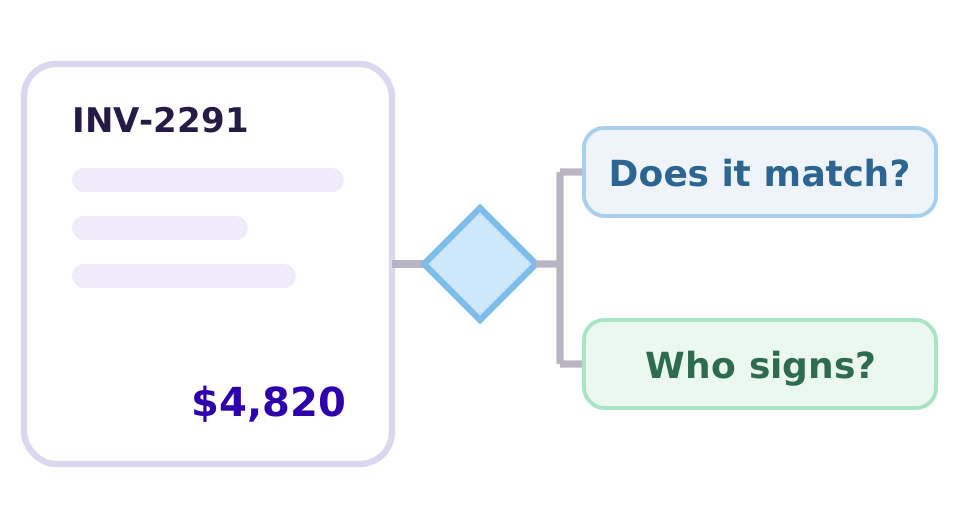
The invoice arrives, and what happens next depends on two questions nobody wants to answer twice. The flowchart puts both in one frame: does it match, and who has to sign, so an AP clerk is following a rule rather than remembering one.
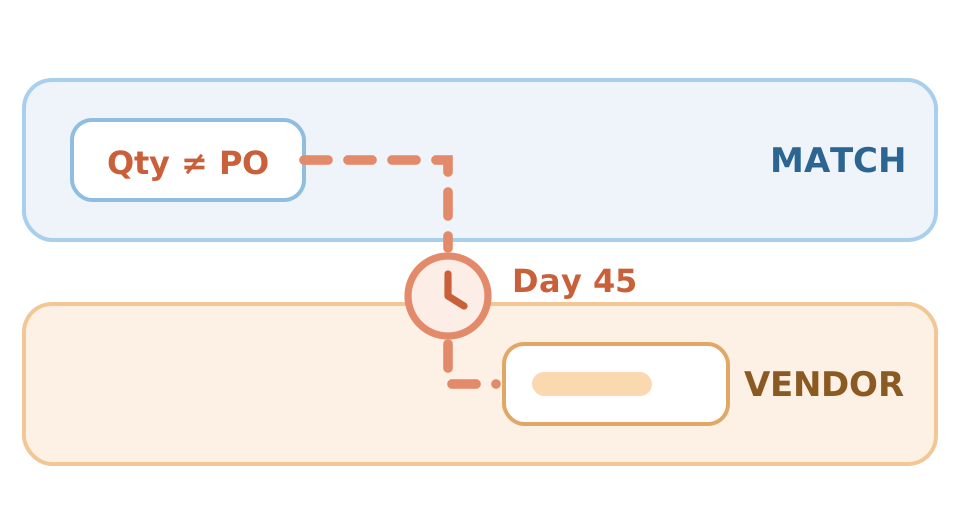
Clean invoices move fine, but mismatches do not. A quantity discrepancy sits in someone's inbox because the return path was never agreed. A decision flow gives every exception a destination, so a held invoice is visible instead of quietly ageing past its terms.
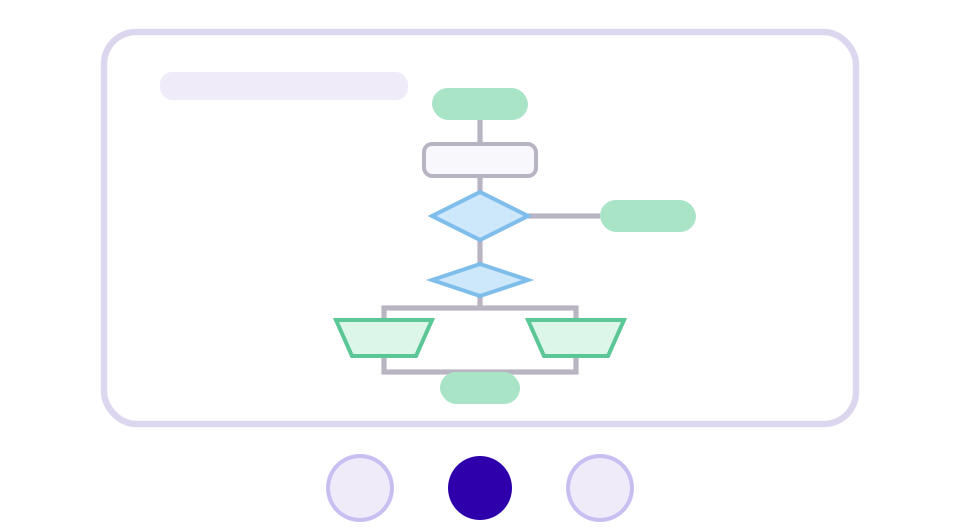
A diagram survives an audit in a way a screenshot of an ERP workflow does not. That is why finance and controls teams keep the flowchart as the process of record rather than a slide decoration, and why it belongs in the deck, not in the system.
Templates are grouped by the team that uses them. Open Operations & Finance, pick the invoice approval flowchart, and it opens on a PowerPoint slide as native, editable shapes.
Six process shapes, two decision nodes, two approval paths converging on payment, and the connectors that join them all are native PowerPoint objects on a single 16:9 slide, built with Lucen Flowchart.
STAGE 01
The invoice is submitted and captured, then matched against the purchase order and the goods receipt before any approval is sought.
STAGE 02
The first decision node. A failed match exits to the vendor rather than continuing, so a discrepancy is returned rather than approved.
STAGE 03
The second decision node, deciding how many signatures the invoice needs. Everything above the threshold takes the longer path; everything below it does not.
STAGE 04
Both approval paths are drawn as manual operations, because a signature is a human act rather than a system step. They converge on a single payment shape, so there is one release point rather than two.
Download the .pptx and drop it into your deck. Every shape is a native PowerPoint object, so you can edit it with PowerPoint's own tools — and with Lucen Flowchart installed, connectors reroute and the diagram reflows as you move things.
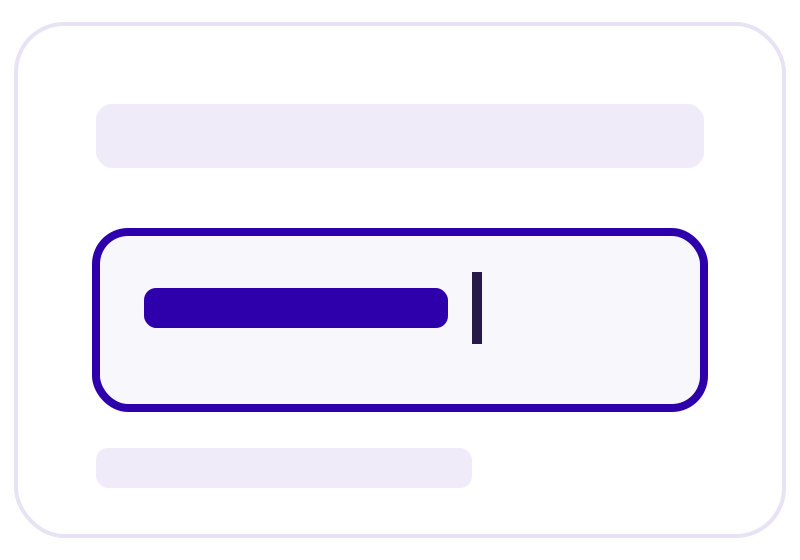
Click any step and type to replace the text. Font, fill, and size follow your deck theme.
Copy a shape into the flow, or delete one you don't need.
Change the deck theme and the flowchart follows. Override individual shape colors when a step or lane needs to stand out.
Teams use it as the process of record for accounts payable, a stakeholder slide in an audit or internal controls review, a training reference for new AP clerks, and a starting point for any threshold-gated approval — purchase orders, expense claims, or capital spend.
If your process differs from the template, describe it instead of redrawing it. Lucen AI generates the diagram as native, editable shapes on the current slide, then keeps editing it in place rather than regenerating from scratch.
1. Open Lucen AI with Generate with AI — On the Lucen Flowchart tab, choose Generate with AI. The Lucen AI pane opens beside the slide — describe the change you need, or attach an image of a diagram you already have.
2. Answer the clarifying questions — If the prompt is broad, Lucen AI asks about the audience and depth before generating.
3. Refine it on the slide — Ask for a sub-swimlane or a new branch, or edit the shapes directly. The diagram stays the same object throughout.
If your process already exists as a screenshot or a photo of a whiteboard, give the image to Lucen AI instead of redrawing it. It reads the steps, decisions, and any lanes, then rebuilds the same flowchart on your slide as native PowerPoint shapes, which you then edit like any other object — rename a step, add a branch, or ask for another lane.
Invoice approval works best as a decision flow rather than a swimlane, because the hard part is which path an invoice takes, not who is holding it. We recommend following this process:
A three-way match checks the invoice against two other documents before payment is approved: the purchase order, which shows what was ordered, and the goods receipt, which shows what actually arrived. All three must agree on quantity and price. It exists to catch the three most common accounts payable failures: being billed for goods never ordered, goods never received, or at a price nobody agreed. It is the single most effective control in AP, which is why it sits before any approval decision on the diagram.
A two-way match compares the invoice to the purchase order only. A three-way match adds the goods receipt. The difference is whether you are confirming that something was ordered or that it actually arrived. Most organisations use three-way matching for physical goods and two-way for services, where there is no receipt to check against. If you run both, add a decision node before the match step to route by invoice type.
Each one routes the invoice down a different path:
Add a further decision for contracted suppliers, recurring invoices, or a fast-track band under a low value; the branches stay attached as the diagram reflows.
It returns to the vendor rather than entering an approval queue. That is a deliberate choice: an invoice with a quantity or price discrepancy is the vendor's to correct, and holding it internally while someone investigates is how invoices age past their payment terms. Most AP processes leave this branch undrawn, which is exactly why mismatched invoices sit unresolved. Drawing it forces the question of who chases the vendor and by when.
An approval threshold is the value above which an invoice needs a second, more senior signature. Below it, a manager can approve alone; above it, the risk is judged high enough to warrant executive sign-off. There is no universal figure — it depends on your revenue, your risk appetite, and what your auditors expect. Set it low enough to catch material spend and high enough that executives are not approving stationery. Edit the value on the decision node to match your own policy.
The two approval steps use the manual operation shape rather than a standard rectangle. In flowchart notation that distinguishes a step a person performs from one a system performs automatically. It matters here because approval is the one step in the process that cannot be automated away without losing control. Making it visually distinct signals that to anyone reading the diagram in an audit.
Segregation of duties is the point of the process, so no single person should own the whole flow. A common split:
If the same person can approve and release, the threshold gate is doing nothing.
PowerPoint can do it with SmartArt and the Shapes gallery, but the work is manual: you place each diamond yourself, label both exits, and reattach connectors every time something moves. For a flow with two decision nodes and converging approval paths, this becomes the reason the diagram stops getting updated.
A faster route is the Lucen Flowchart tab, which snaps connectors to shape anchors and reflows the diagram with Auto layout when you add a branch. Either way, the result stays a set of native PowerPoint objects on your slide.
The download is a free .pptx made of native PowerPoint shapes, so anyone can open, read, and edit it, and you can share it as you would any deck; recipients need nothing installed.
The smart connectors, Auto Layout, and Lucen AI come from the Lucen Flowchart add-in, which adds a Lucen Flowchart tab to the ribbon and runs on Windows with PowerPoint 2016 or later and with PowerPoint for Microsoft 365. PowerPoint for the web, Mac, and mobile are not supported. Setup and troubleshooting steps are in Lucen Support.
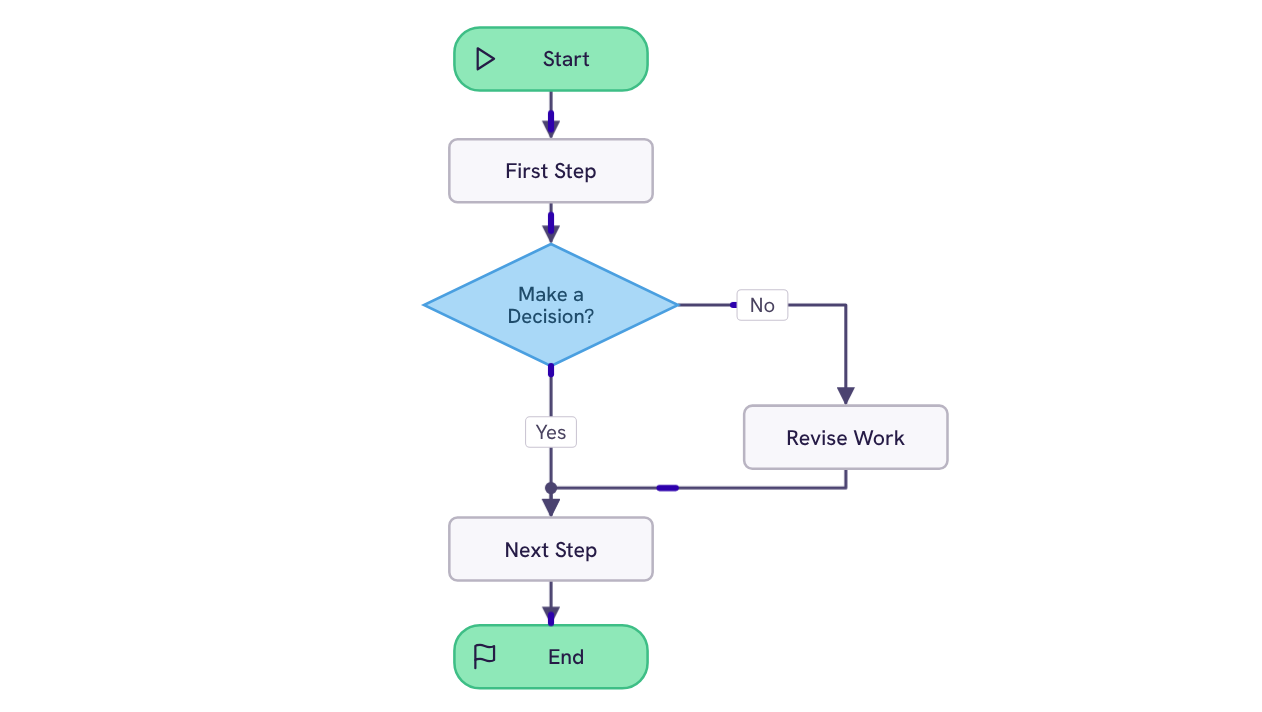
Five shapes and one decision branch: A start, two steps, a revision path, and an end. The fastest way to map a process you have not drawn before.
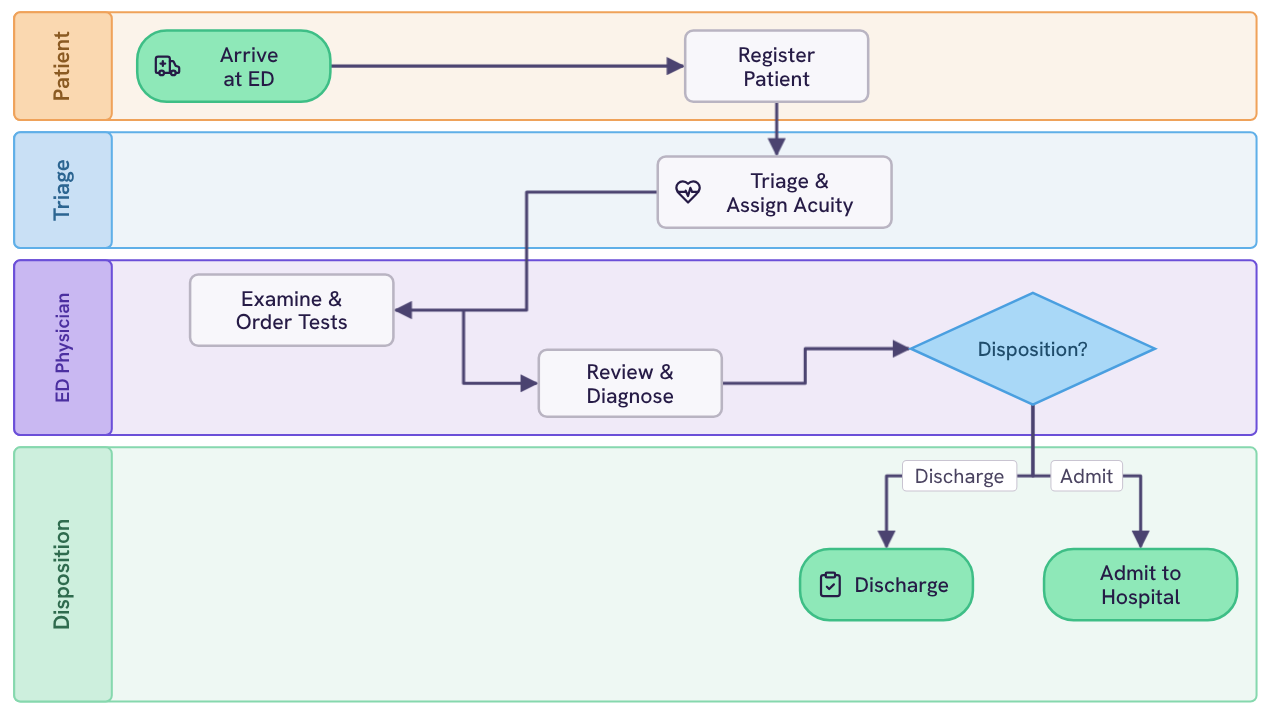
Four lanes: patient, triage, ED physician, and disposition. Routing a visit from arrival through acuity assessment and examination to admission or discharge.
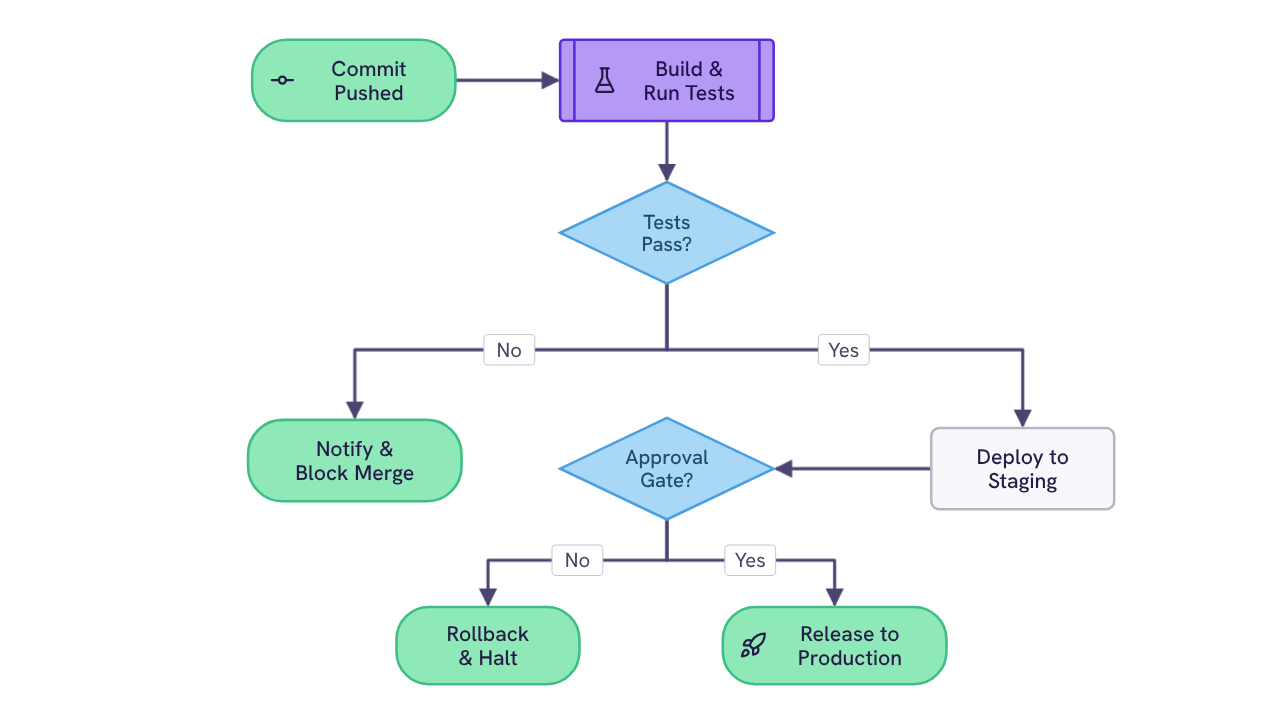
Two gates: automated tests and a human approval. Routing every commit to production, a blocked merge, or a rollback.
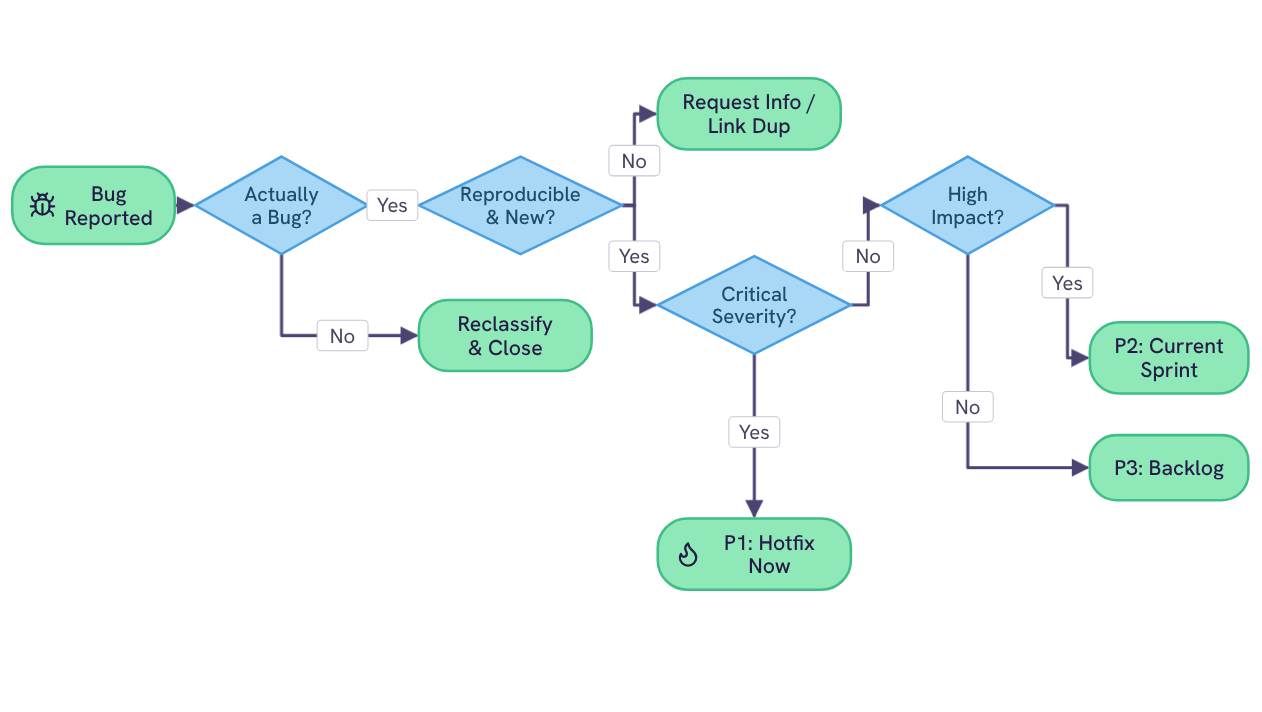
Four decision points: validity, reproducibility, severity, and impact. Routing every reported bug to one of five outcomes, from hotfix now to backlog.
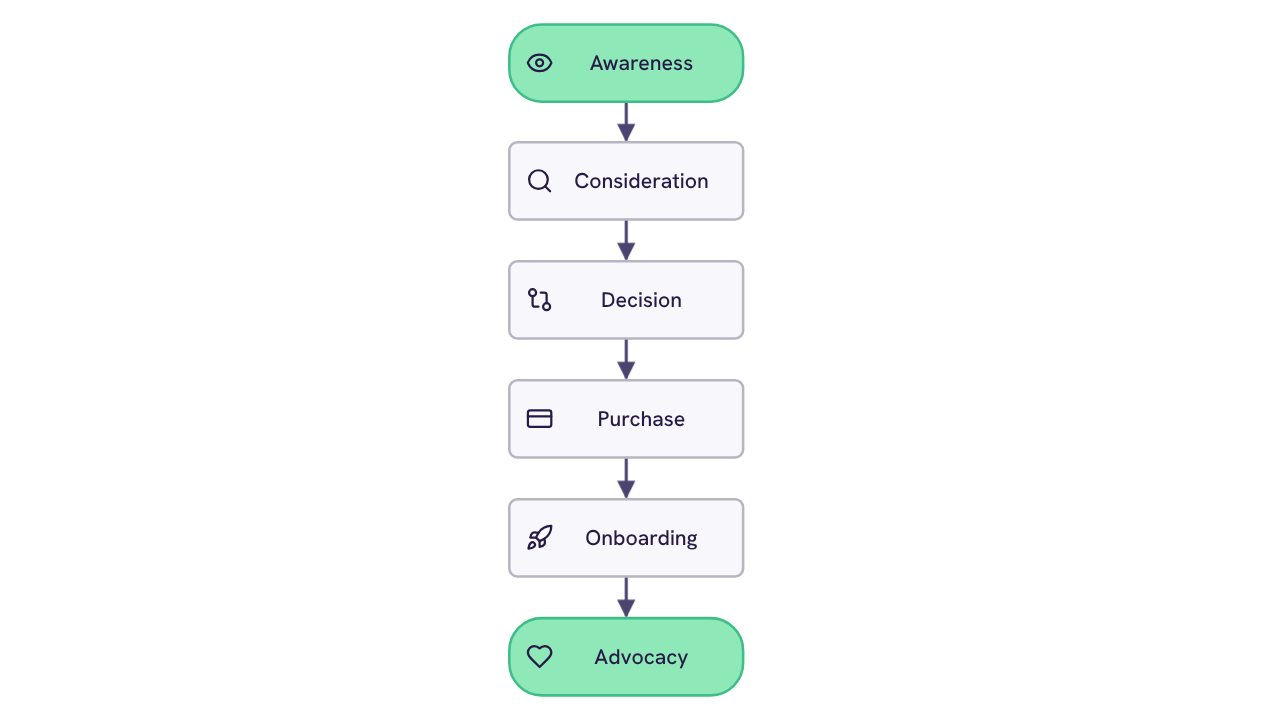
Six stages: awareness, consideration, decision, purchase, onboarding, and advocacy. Laid out as a linear lifecycle with a milestone icon at every step.
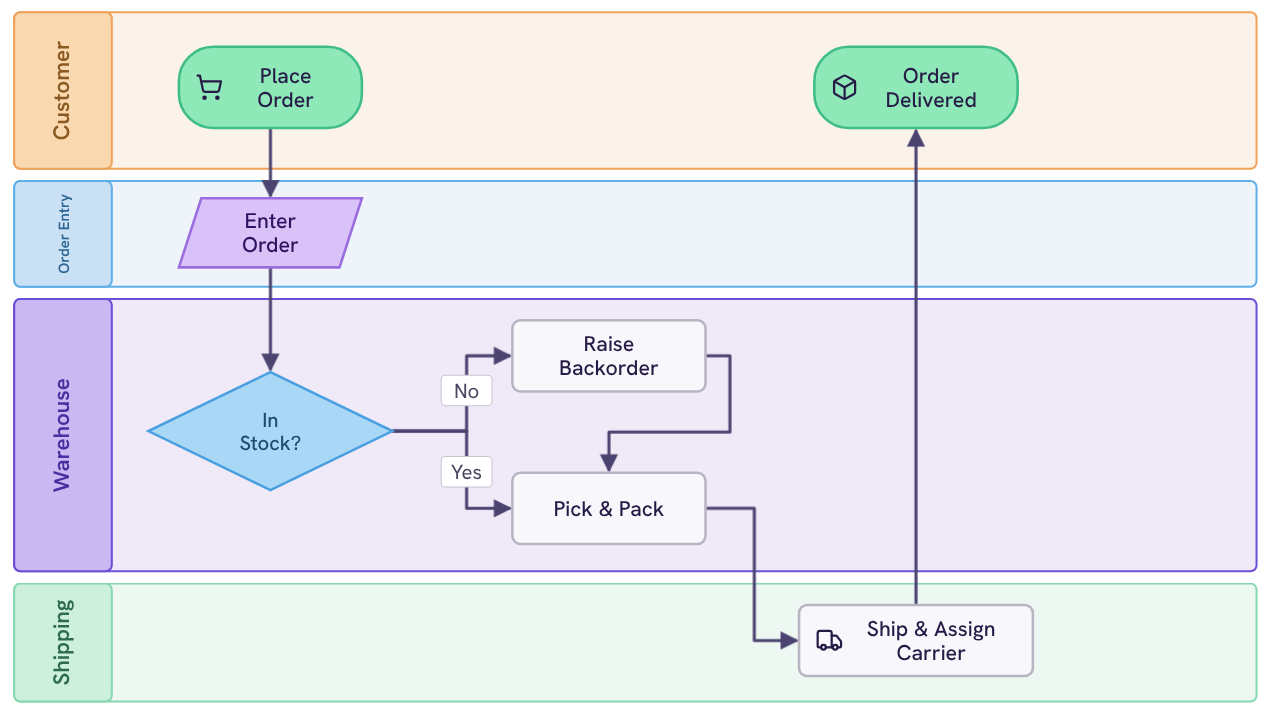
Four lanes: customer, order entry, warehouse, and shipping. Routing an order from placement through a stock check and picking to dispatch and confirmed delivery.
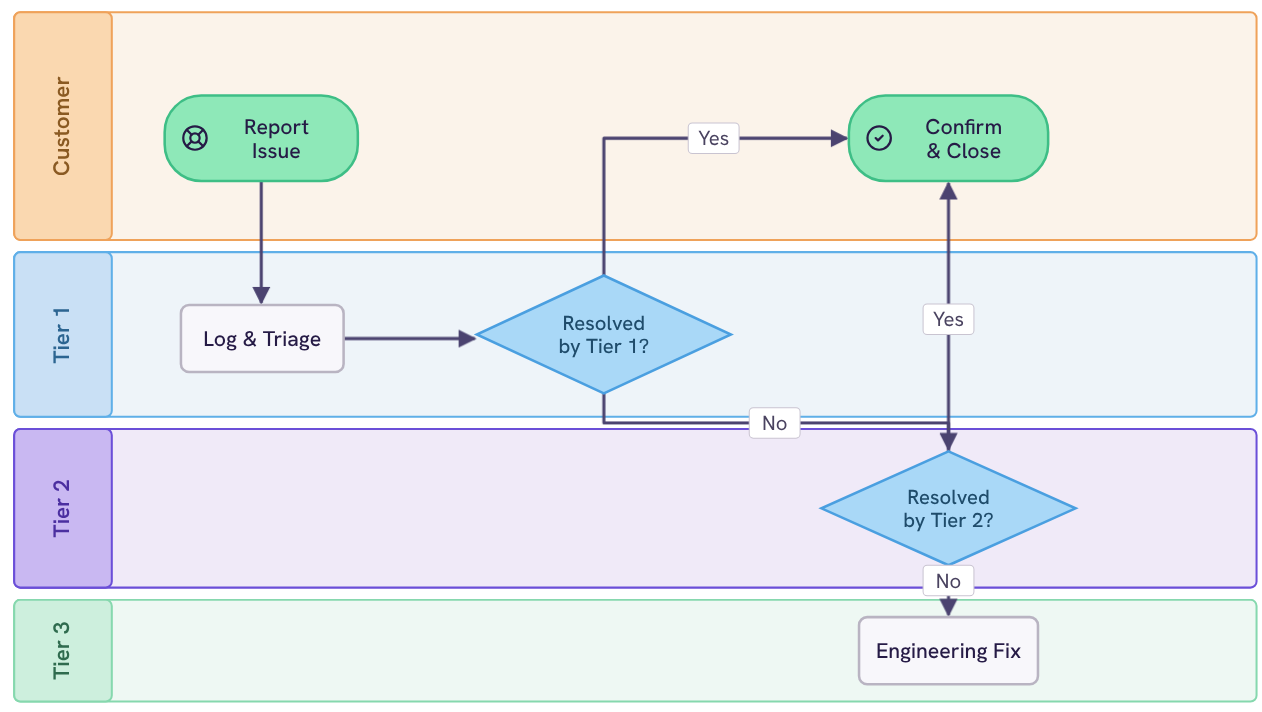
Four lanes: customer, Tier 1, Tier 2, and Tier 3. Routing an issue from first report through two resolution gates to engineering or a confirmed close.
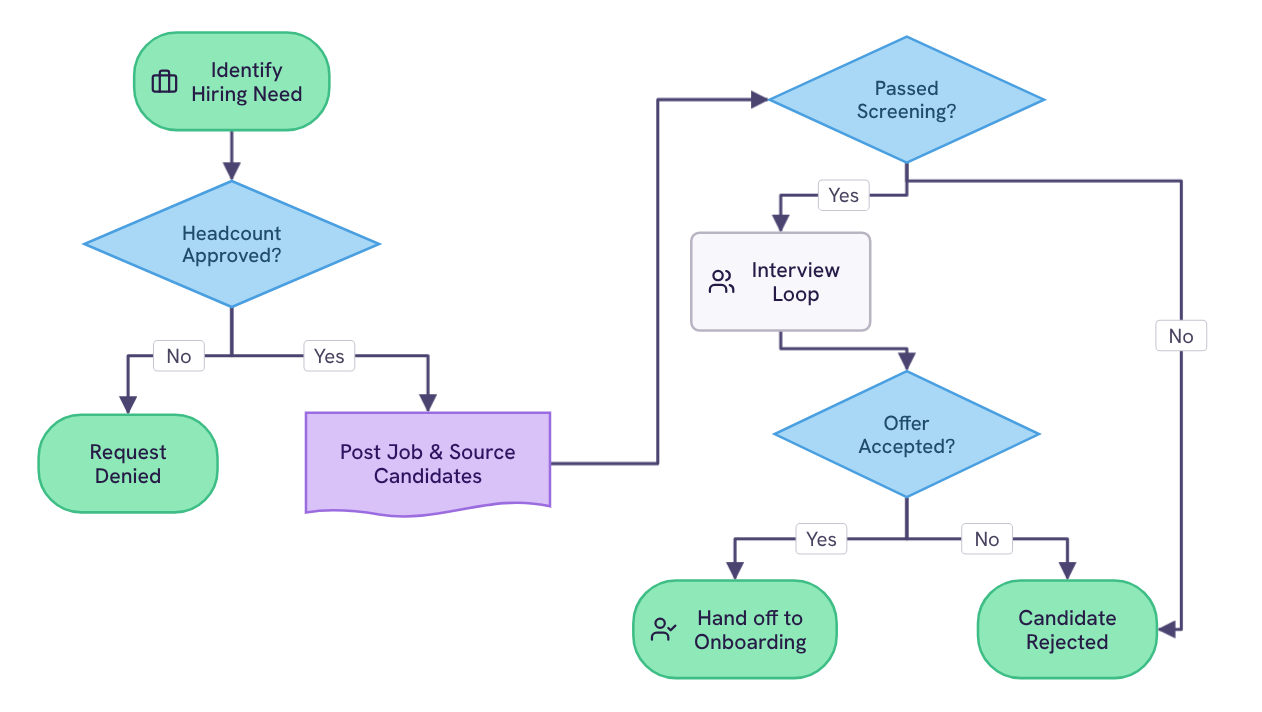
Three decision points: headcount approval, screening, and the offer. Routing a role from an identified need through sourcing and interviews to the onboarding handoff.
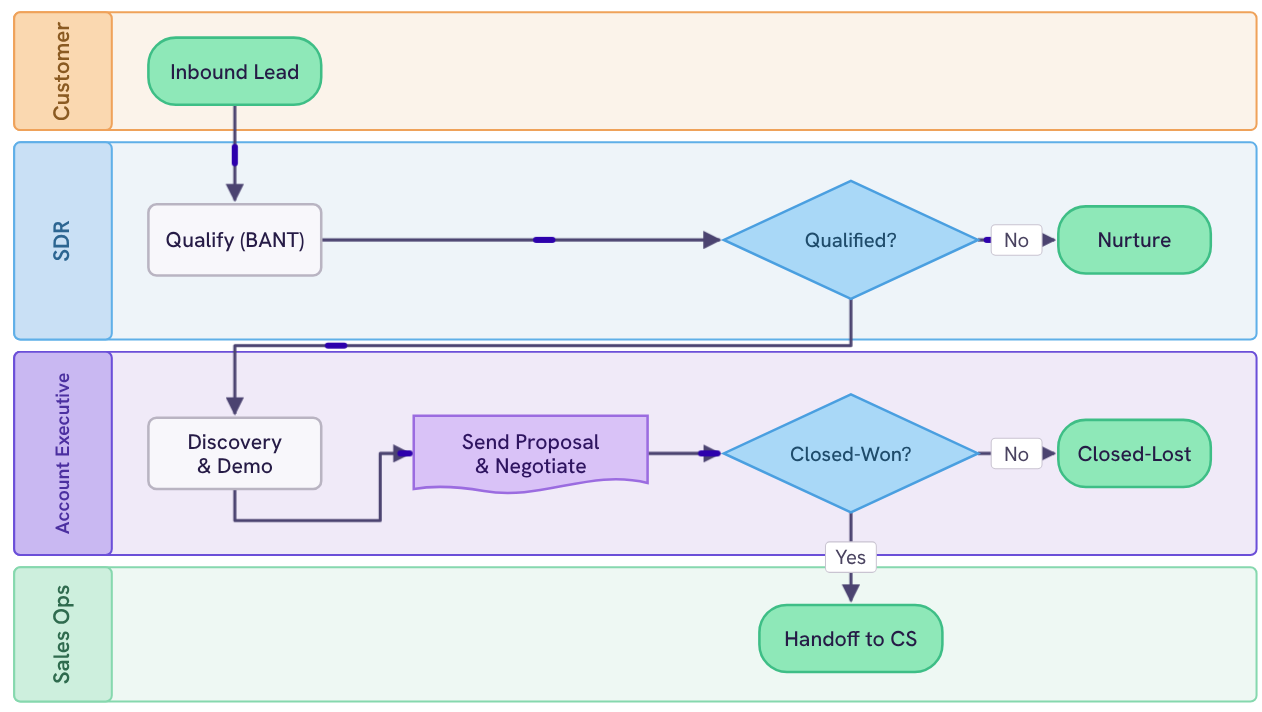
Four lanes: customer, SDR, account executive, and sales ops. Covering the inbound lead, BANT qualification, discovery, proposal, and the handoff to customer success.
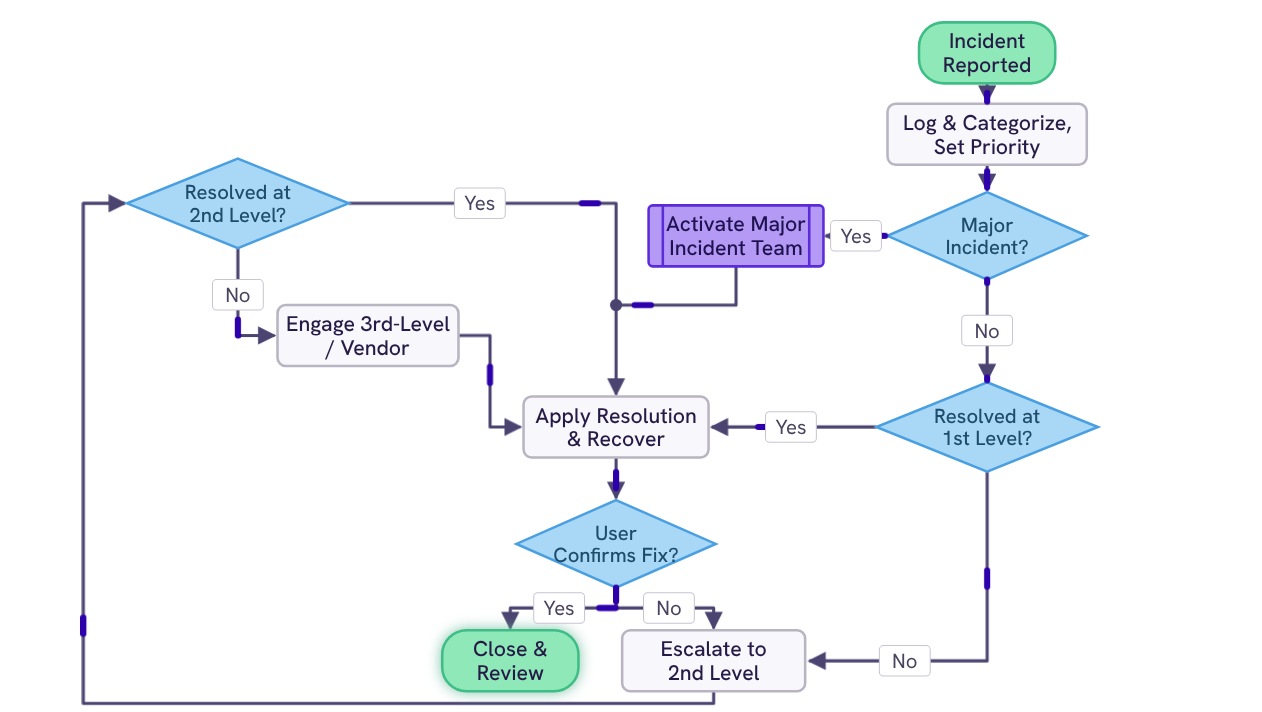
Four decision points: major incident, first level, second level, and user confirmation, routing an incident from first report through tiered escalation to close and review.
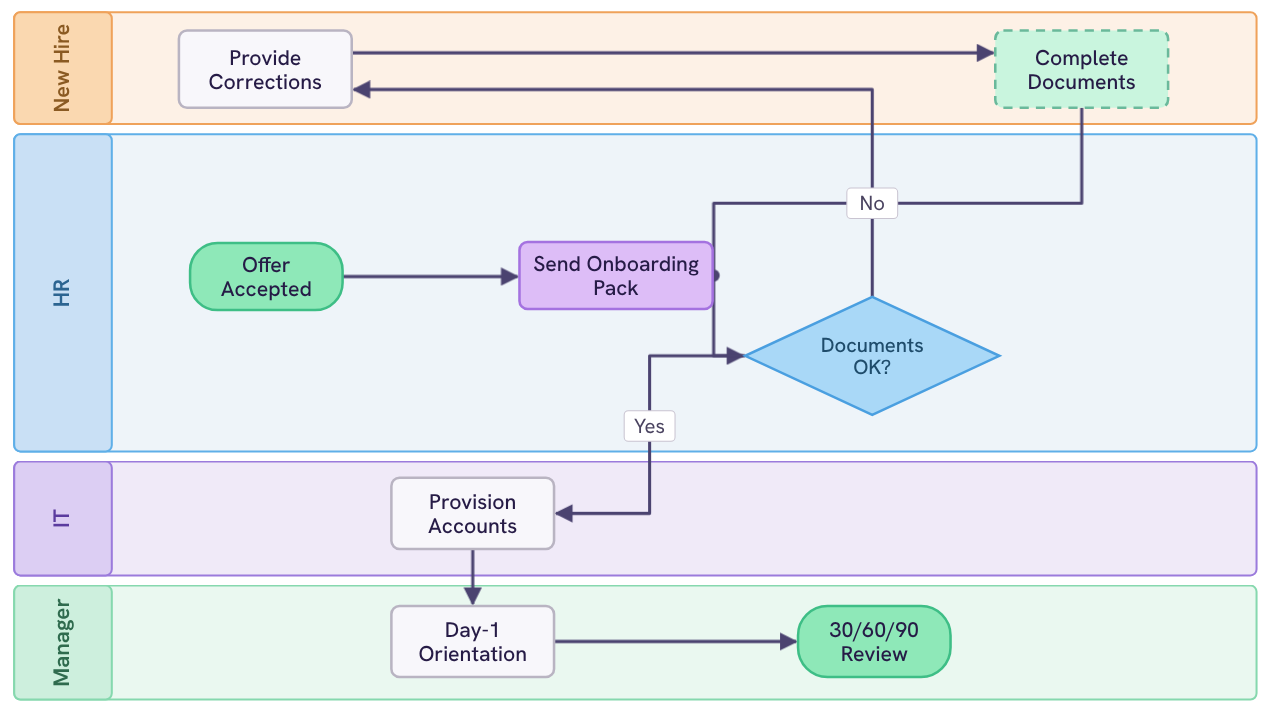
Four lanes — new hire, HR, IT, and manager — covering the offer, documents, provisioning, day-1 orientation, and the 30/60/90 review.

Free .pptx, editable in PowerPoint, no diagramming tool required.

Your download should start now. If it doesn’t start click here and check your inbox for tips to get started.