


Lucen Track + QuickBooks Online
QuickBooks Online time tracking integration
Lucen Track turns approved hours into invoices and sends them to QuickBooks Online, so billable time doesn’t get lost between the timesheet and your books.
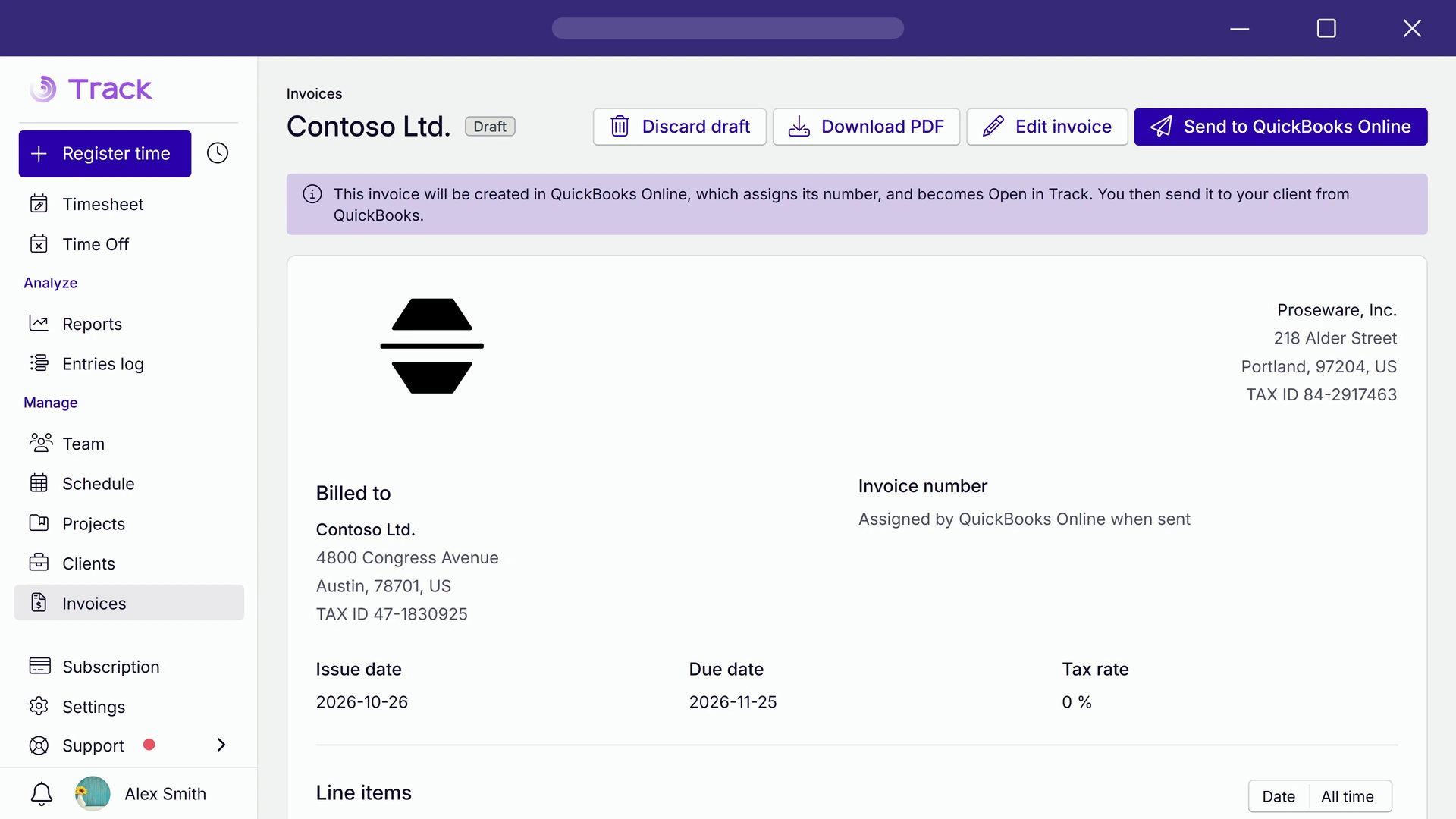

Billing day shouldn’t start with chasing timesheets
Missed hours are revenue you don’t collect. Track runs inside Microsoft 365, so hours come from your team’s Outlook meetings and Planner tasks. Approved hours become the invoice, and the invoice goes straight to QuickBooks with no rekeying.
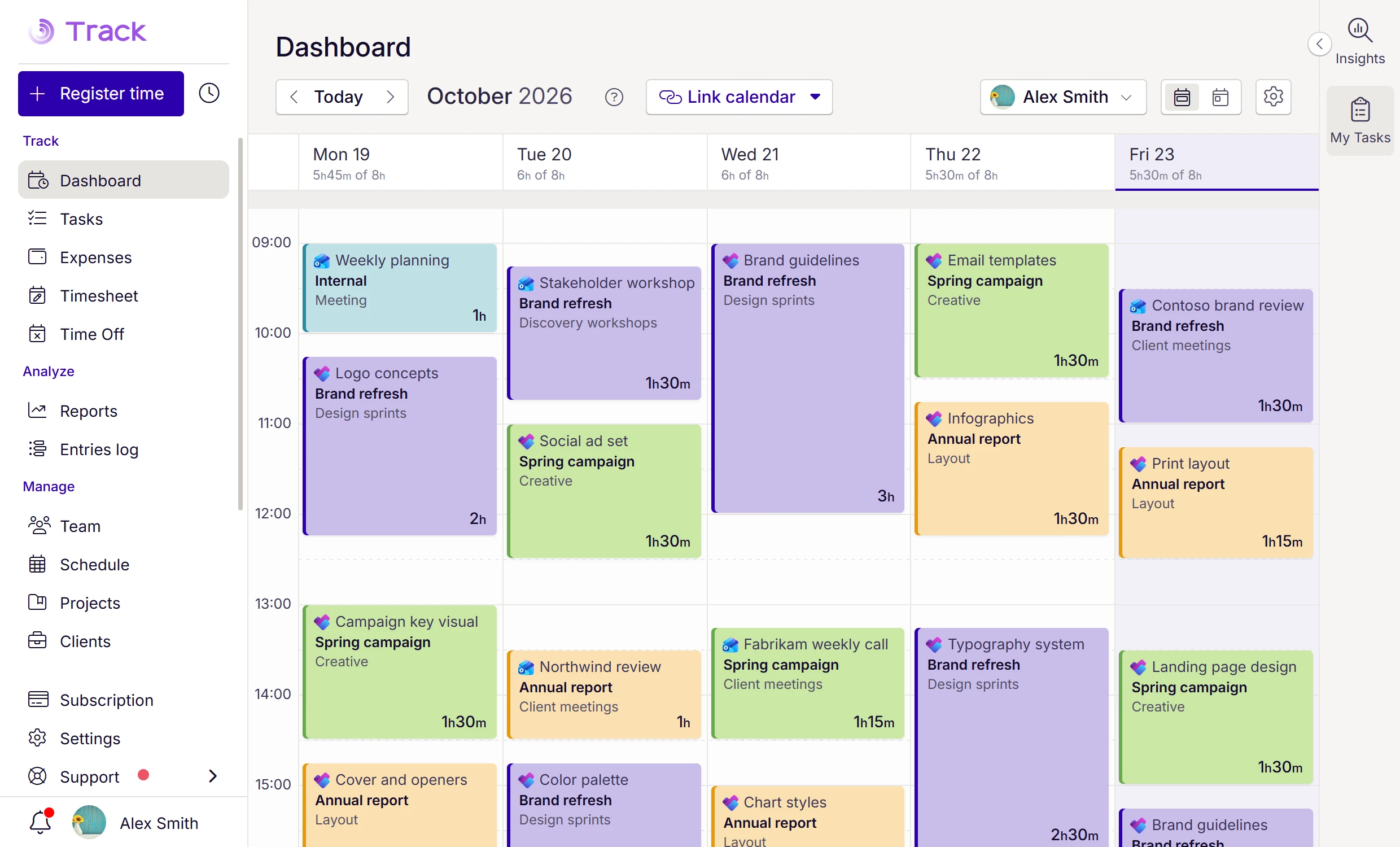
Log time where your team already works
Outlook meetings and Planner tasks arrive as suggested entries, so hours are captured as the work happens, not rebuilt later.
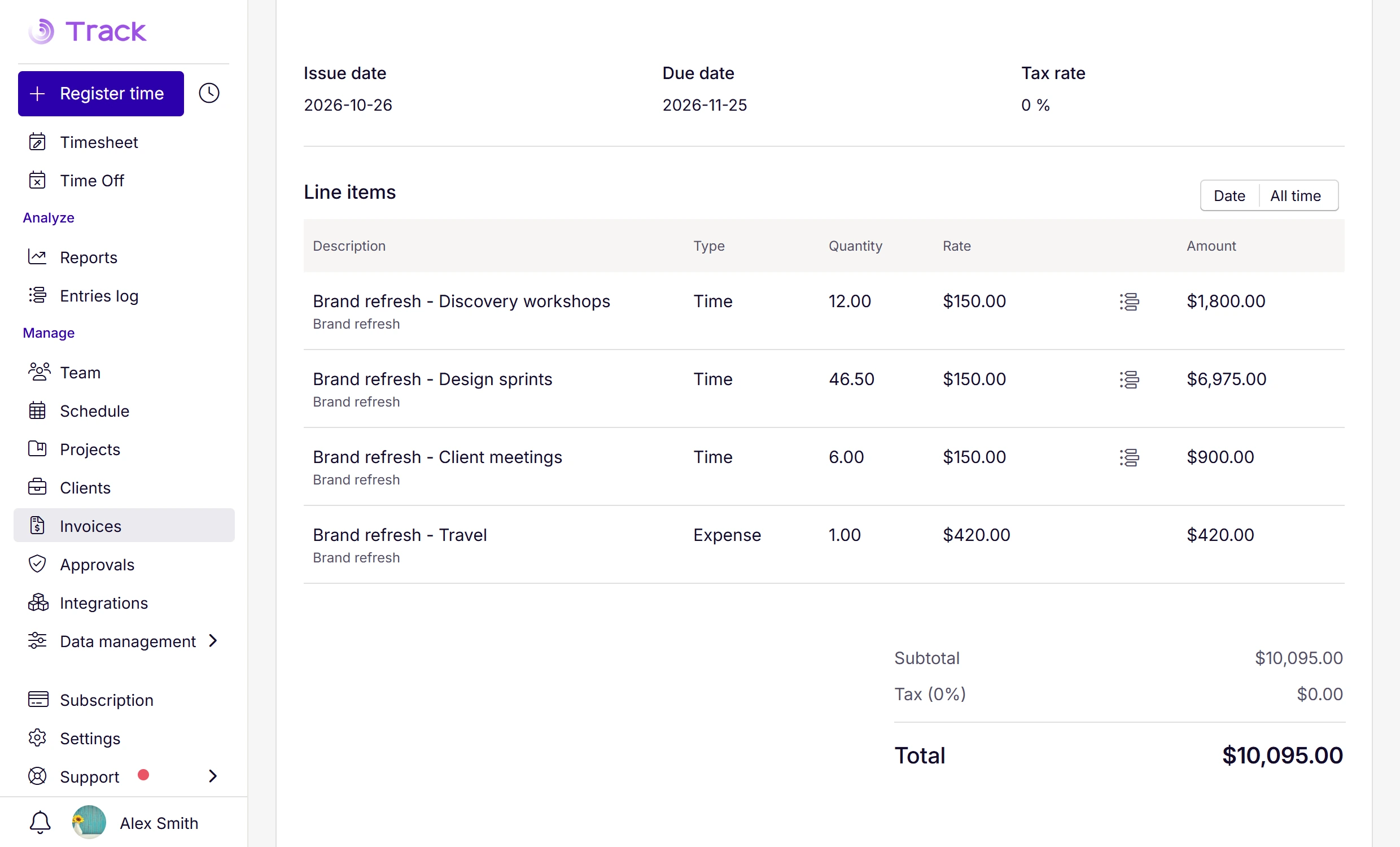
Create client-ready invoices in a few clicks
Approved hours show up as ready to bill for each client and project, and become accurate, branded invoices with your numbering and tax rates applied.
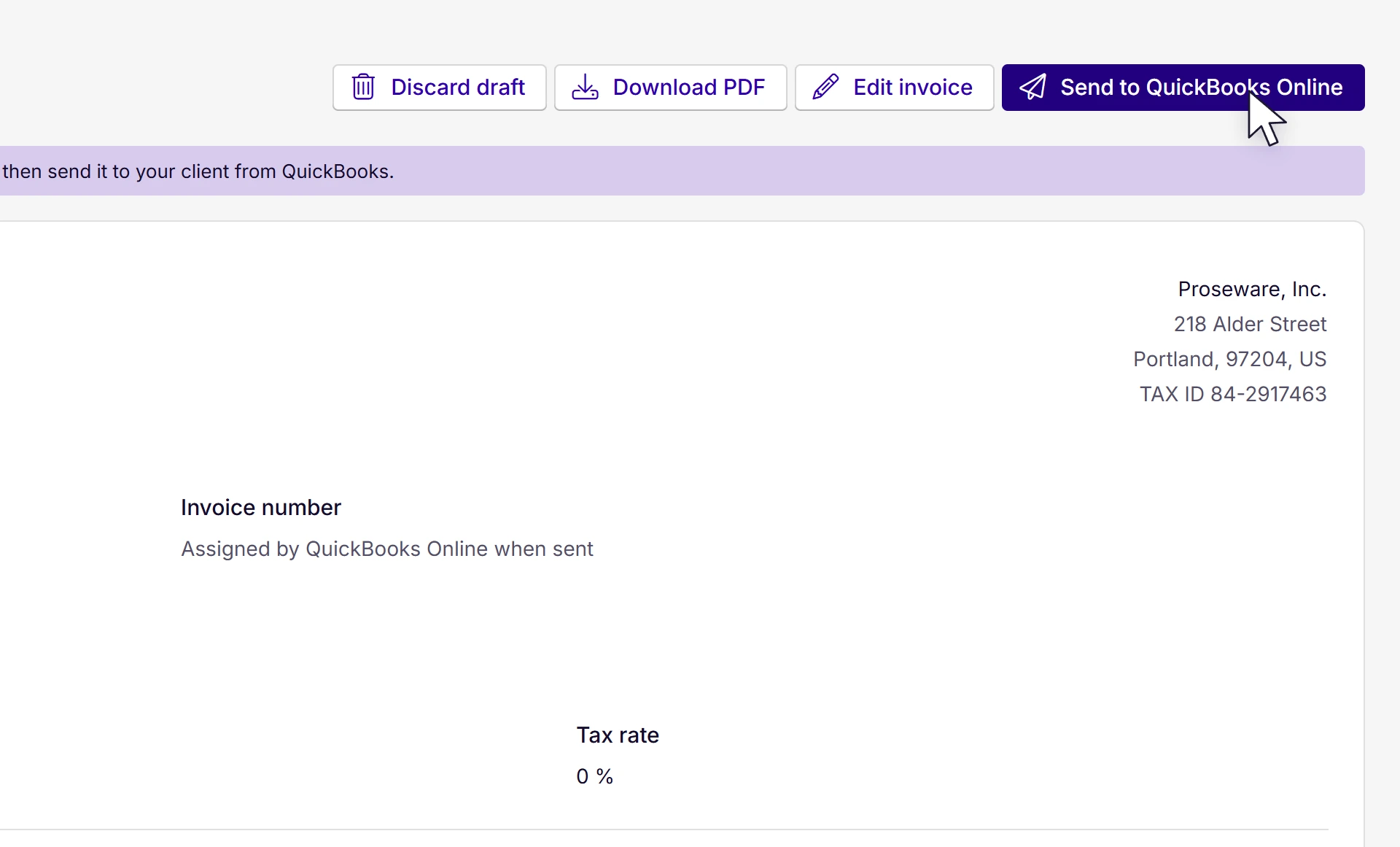
Send to QuickBooks in one click
QuickBooks numbers the invoice and Track shows the same number, so nothing gets typed twice. When it’s paid or voided in QuickBooks, Track updates in real time.
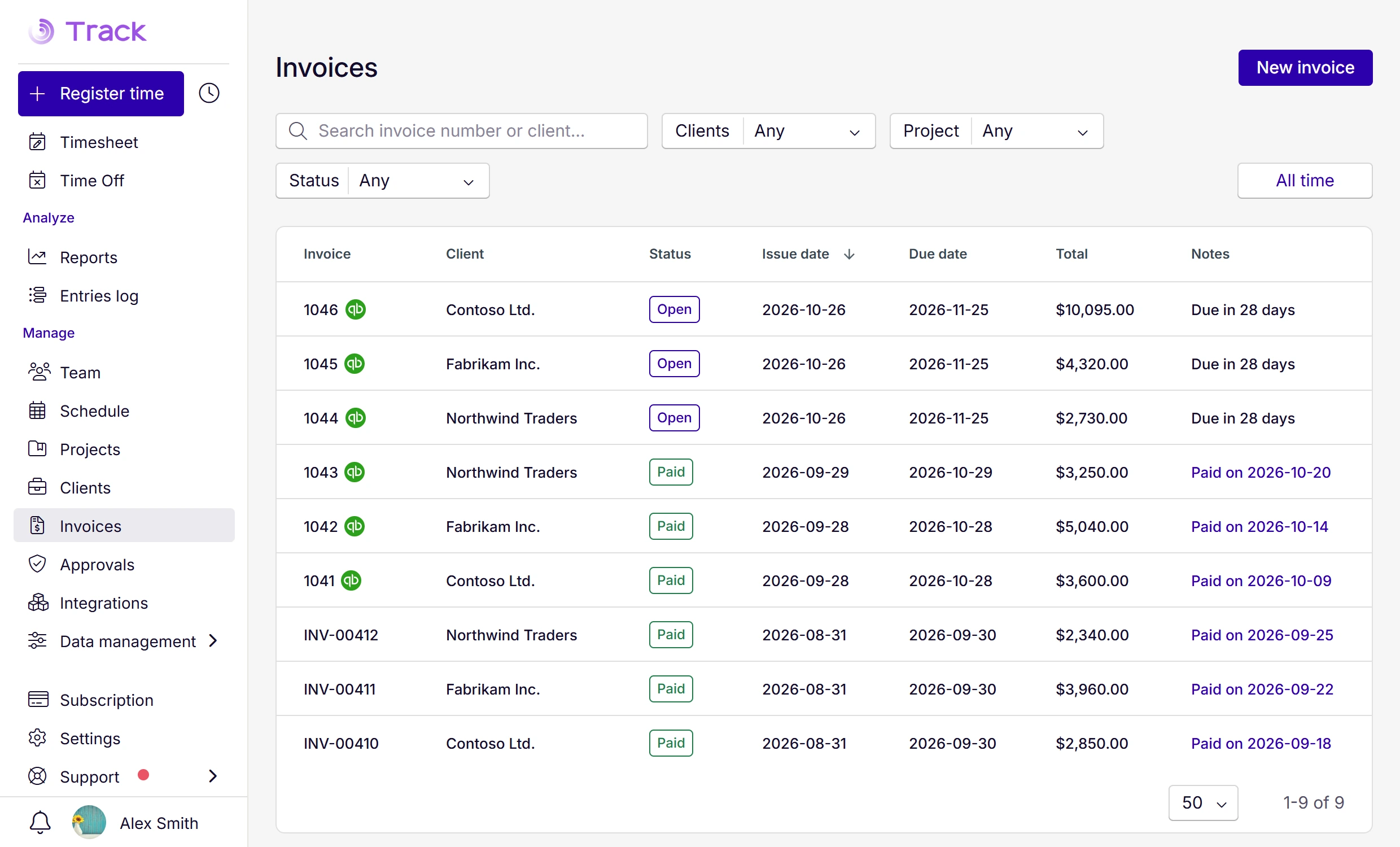
Follow every invoice from draft to paid
See what’s issued, paid and still unbilled by client and project, all in one place.
Set up in three steps
Link QuickBooks Online.
An admin connects it from Integrations in Track.
Match your clients.
Track matches your QuickBooks customers to your clients by name, so you only need to check the matches.
Send your first invoice.
Open a draft and click Send to QuickBooks Online.
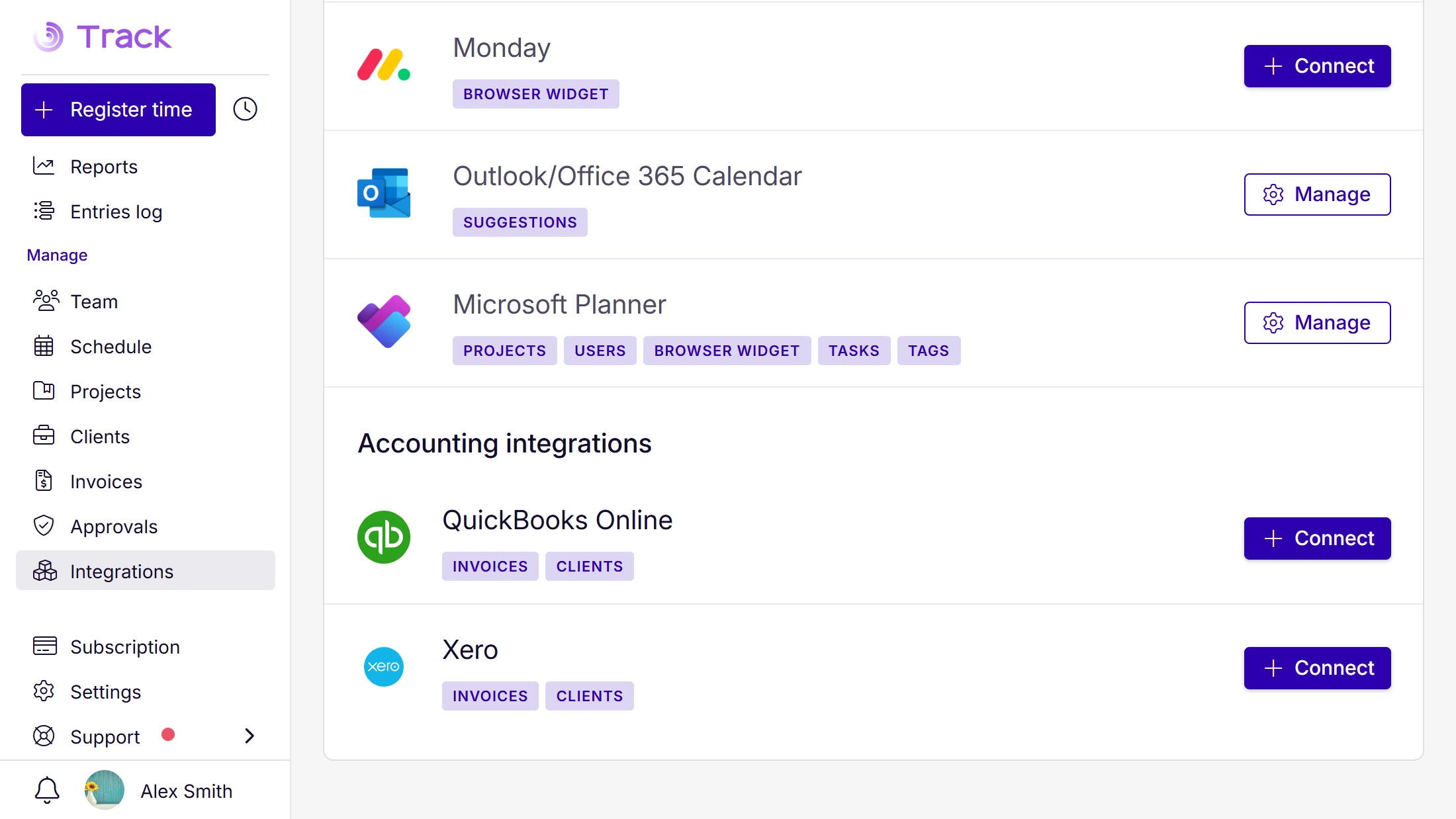
Connect the rest of your billing workflow
Using Xero? It works the same way: invoices go from Track to Xero, and their status comes back. Track also captures time from Outlook meetings and Planner tasks, and invoiced time can feed your Power BI reporting.




Additional information
Frequently asked questions.
Which plans include the QuickBooks integration?
Premium and Enterprise.
Does it work with QuickBooks Desktop?
No. It works with QuickBooks Online Essentials, Plus, and Advanced.
What syncs between Track and QuickBooks?
Invoices and the pairing between Track clients and QuickBooks customers. Invoice numbers and paid or voided status come back to Track. Projects, expenses, taxes and accounts aren’t mapped.
Can I edit an invoice after sending it?
Yes. Edit it in Track and update the copy in QuickBooks with one click. If QuickBooks can’t accept the change, for example because the invoice is already paid, Track tells you and nothing is lost.
Does Track create customers in QuickBooks?
No. Each Track client is paired with an existing QuickBooks customer. You can import QuickBooks customers into Track.
Do my clients receive the invoice from Track?
No. The invoice arrives in QuickBooks ready to send, and you send it to your client from QuickBooks.
What about invoices I created before connecting?
Drafts can be sent to QuickBooks. Invoices already issued in Track keep their Track number and stay managed in Track.
What happens if I disconnect?
Everything already in QuickBooks stays there, and your clients and invoices stay in Track. Invoicing keeps working with Track’s own numbering.