
AI Integration for Gantt Charts: What AI Can Draft, and What Keeps the Timeline Current
What AI can draft for a Gantt chart, what a draft leaves out, and how a plan-connected timeline stays current.

Can AI draft a Gantt chart, and what does it leave out?
AI tools can draft a first version of a Gantt chart from a prompt, but there is no schedule behind it: no dates engine, no link to your plan and no refresh. Lucen Timeline (formerly Office Timeline) keeps the slide connected to the plan, so the second and tenth update are quick too.
A Gantt chart is a bar-style timeline that shows tasks against dates. Getting the first version onto a slide is the easy part. The cost shows up in week two, when a date moves and the slide is out of date. This guide to AI integration for Gantt charts covers what AI tools can draft, what a draft lacks, and what keeps a timeline current.
What does AI integration mean for a Gantt chart?
AI integration for a Gantt chart means two things: using AI to draft or edit a project timeline, and connecting that timeline to the plan behind it. AI tools can turn a prompt or a document into a first draft of a plan, slide or chart, which saves the blank-page time.
A draft is still a starting point to check, not a finished plan. The part that matters in week two is the connection: whether the slide knows where its dates come from and can pick up a change without being rebuilt.
What is missing from an AI-drafted Gantt chart?
A drafted chart is a snapshot of one prompt. It does not know your real dates, your owners or your dependencies, and nothing connects it to the plan where those live. The table compares a drafted chart with a timeline that stays connected to the plan in Lucen Timeline.
| What you need | A drafted chart | Lucen Timeline |
|---|---|---|
| Dates | Whatever the prompt or pasted data says | Taken from your plan in Excel, Microsoft Project, Smartsheet or Jira |
| Link to your plan | None once the draft is created | Import keeps the slide tied to the source plan |
| Updating | Re-prompt or redraw the slide | Refresh Data brings in changes (Expert plan for Excel, Microsoft Project, Smartsheet and Jira refresh) |
| Dependencies and critical path | Only if you build them in by hand | Built in on Plus and Expert; Free is limited to 10 tasks and milestones per slide |
| Planned vs. actual | Not tracked | Planned vs. actual tracking and baselines on the Expert plan |
Plan details are from the Lucen Timeline pricing page and can change.
How do you keep a Gantt chart current after the first draft?
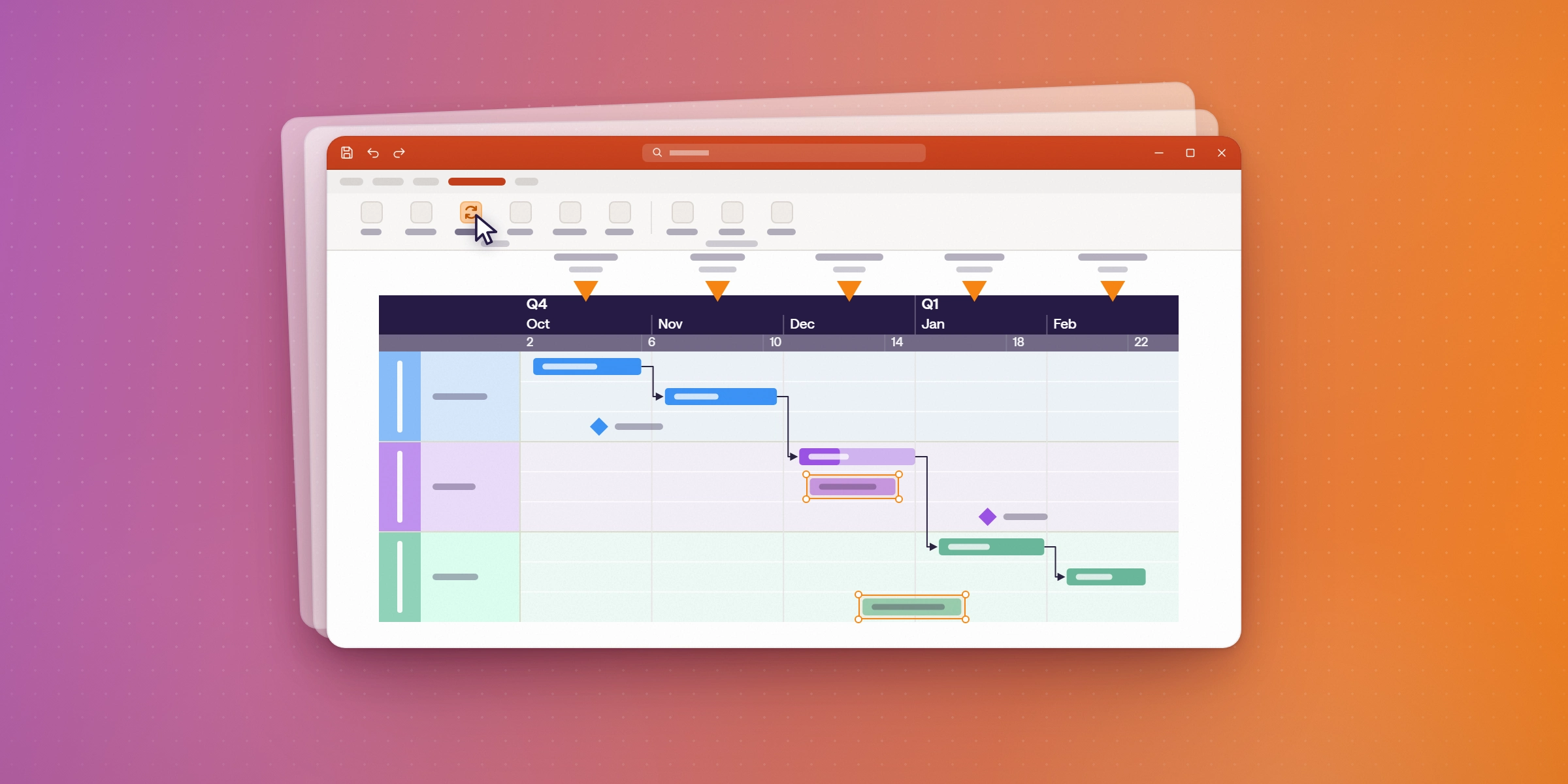
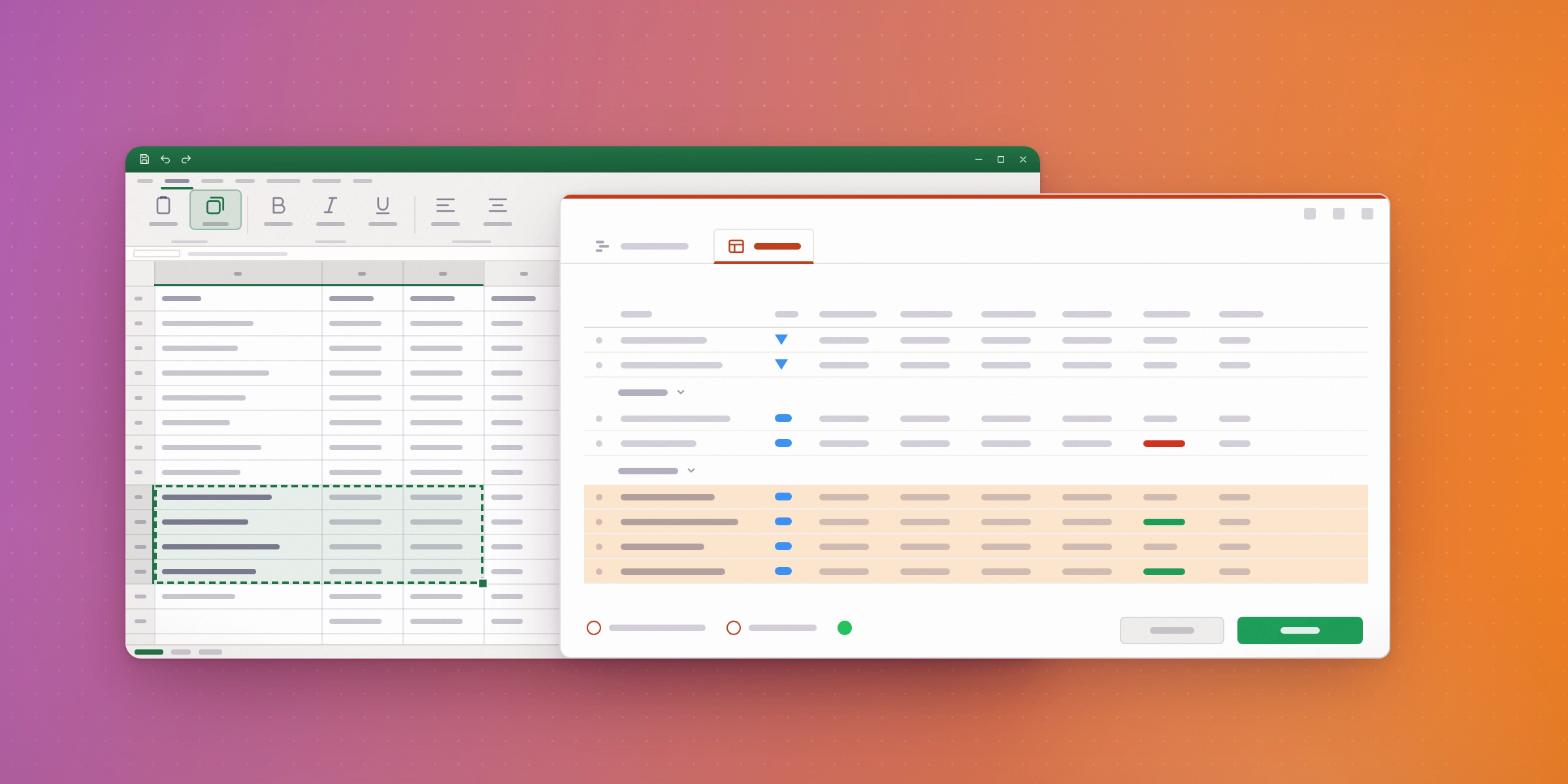
Keep the plan in the tool where dates are managed, and connect the slide to it. In Lucen Timeline you bring the plan into PowerPoint once, create the timeline, and use Refresh Data when the source changes, keeping the slide's formatting. Lucen's guide to the Friday afternoon formatting loop describes the cost of the alternative: redoing the visuals by hand every week.
- Start from the plan, not the prompt. Paste rows from Excel, or import from Excel, Microsoft Project, Smartsheet or Jira. If an AI tool drafted the task list, paste that in as the starting plan.
- Create the timeline. Pick a template, select which tasks and milestones to include, and import them to generate the slide.
- Add the schedule logic. Link tasks with dependencies and a critical path so a late task shows its knock-on effect.
- Refresh, do not rebuild. When the plan changes, refresh the slide from the source file instead of redrawing it.
- Compare plan with reality. Use planned vs. actual to show progress against the original baseline.
Which Lucen Timeline plan keeps the plan connected?
It depends on where the plan lives and whether you need a refresh. Pasting and importing are available on lower plans. Refreshing from a source file is on Expert.
| Capability | Free | Lite | Plus | Expert |
|---|---|---|---|---|
| Copy and paste from Excel | Limited | Yes | Yes | Yes |
| Import data from Excel | No | No | Yes | Yes |
| Refresh from Excel | No | No | No | Yes |
| Import and refresh from Microsoft Project, Smartsheet and Jira | No | No | No | Yes |
| Dependencies and critical path | Limited | No | Yes | Yes |
| Planned vs. actual and baselines | No | No | No | Yes |
Limited means 10 tasks and milestones per slide. Always check the current plan comparison before you buy.
For a wider look at tools, see the best Gantt chart software for PowerPoint timelines.
What is an MCP server, and why do people search for one for Gantt charts?
The Model Context Protocol, or MCP, is an open standard that Anthropic introduced in November 2024 to give AI systems a consistent way to connect to external tools and data. An MCP server is the piece a tool runs so an AI agent can read from it or act in it.
For Gantt charts, the appeal is simple: an AI agent could work from the live plan instead of a pasted copy. Whatever tool you evaluate, check its own documentation for what its server exposes before you rely on it, and keep your plan in a tool that holds real dates.
What should a project manager do next?
Use an AI tool for the first draft if it saves time, then move the plan into a tool that holds dates and can refresh. If you want a connected timeline in PowerPoint, try Lucen Timeline and see how the slide updates from your plan. For what to show on the chart itself, read what to include in a Gantt chart.
Ready to keep your Gantt chart current? Try Lucen Timeline free or compare plans.
Frequently asked questions
AI tools can draft a first version of a plan, slide or chart from a prompt, so treat the result as a starting point to review. A draft has no link to your plan and does not refresh on its own.
A drafted chart is a snapshot of one prompt. A plan-connected timeline, such as one built with Lucen Timeline, is imported from your plan and can be refreshed when the plan changes.
Connect the slide to the source plan and refresh it. Lucen Timeline can import from Excel, Microsoft Project, Smartsheet and Jira, and Refresh Data brings in changes on the Expert plan.
Refresh from Excel, Microsoft Project, Smartsheet and Jira is on the Expert plan. Import from Excel starts on Plus, and copy and paste from Excel is available from Free (limited) and Lite upward.
MCP, the Model Context Protocol, is an open standard introduced by Anthropic in November 2024 for connecting AI systems to external tools and data. An MCP server lets an AI agent read from or act in a tool, such as a planning tool, instead of working from a pasted copy.
If the plan changes, yes. An AI agent can speed up the first draft, but you still need a tool that holds real dates, dependencies and a way to refresh the slide.
Keep your Gantt chart current
Bring your plan into PowerPoint and refresh the timeline when dates change.

Subscribe to our blog
Get all the tips, tricks and inspiration you need to create professional looking timelines, straight to your inbox.