
How to Test Scenarios on a Program Timeline Without Touching the Plan of Record
Test what-if scenarios on a program timeline in PowerPoint by moving milestones on a slide copy, so the plan of record in Project or Excel stays untouched.

How can you test a scenario in a review without changing the plan of record?
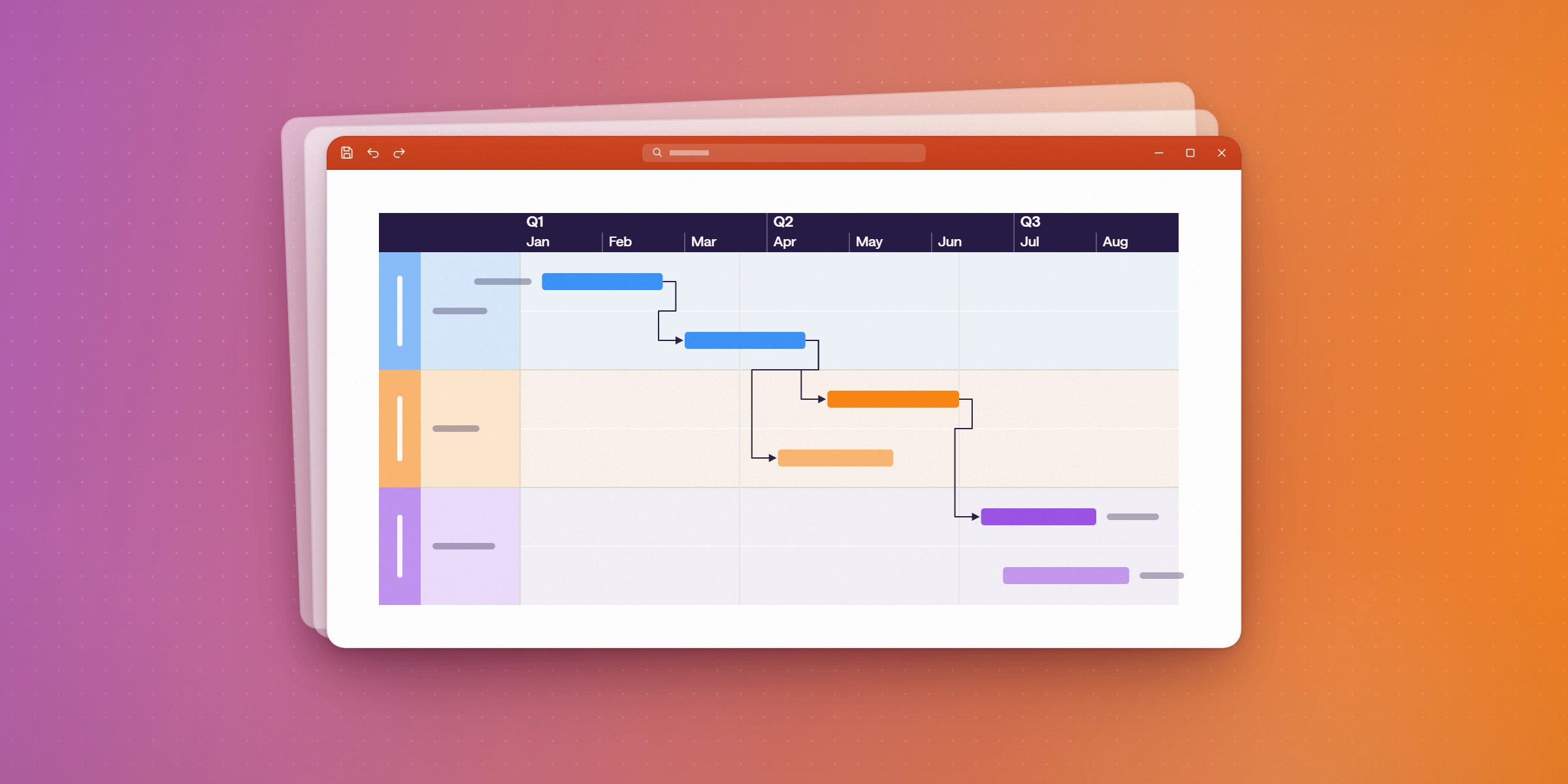
Copy the timeline slide and move milestones on the copy. With Lucen Timeline (formerly Office Timeline), edits on the slide don't write back to Microsoft Project or Excel, so you can compare options in the meeting and refresh from the plan of record once a decision is made.
The plan of record is the schedule your organization has approved and manages in its planning tool, such as Microsoft Project or Excel. A scenario is a what-if version of it: what happens to the launch if the design review slips a month, or if two workstreams swap order. Testing that in the plan itself risks leaving a trial date behind in the file everyone trusts. Testing it on a copy of the slide leaves the plan alone.
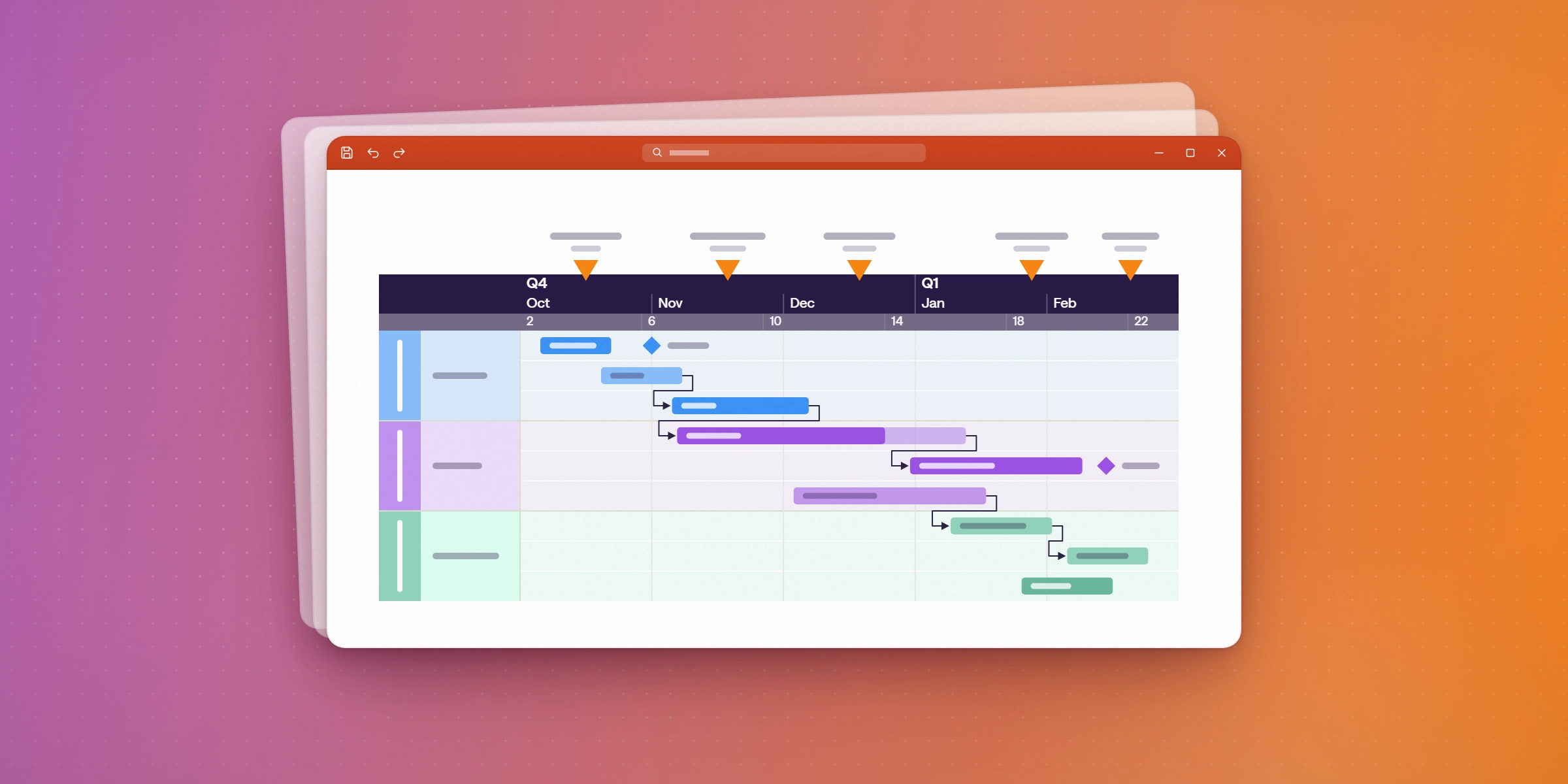
Duplicating a slide works on every plan. Keeping the copy tied to its source file, so you can refresh it later, needs an import, which starts on Plus for Excel and is on Expert for Microsoft Project, Smartsheet and Jira. For what a good program review looks like in the first place, see Project Visibility for Pharma Teams: What to Look For When Reviews Happen in PowerPoint.
How do you build a scenario copy of a timeline?
Duplicate the whole slide, label the copy clearly and make every change on the copy. The original slide stays as your baseline. Four steps cover it.
- Start from the plan of record. Build the slide from the plan, by import on Plus and Expert or by pasting rows from Excel on Lite. This is the baseline slide.
- Duplicate the whole slide. In PowerPoint, right-click the slide thumbnail and choose Duplicate Slide. For plans imported from Microsoft Project or Excel, the copy stays linked to the same source file.
- Label the scenario. Rename the slide title on the copy, for example "Scenario B: Gate 3 moves to March", and keep the baseline titled "Plan of record". In a meeting, people lose track of which slide is which faster than you expect.
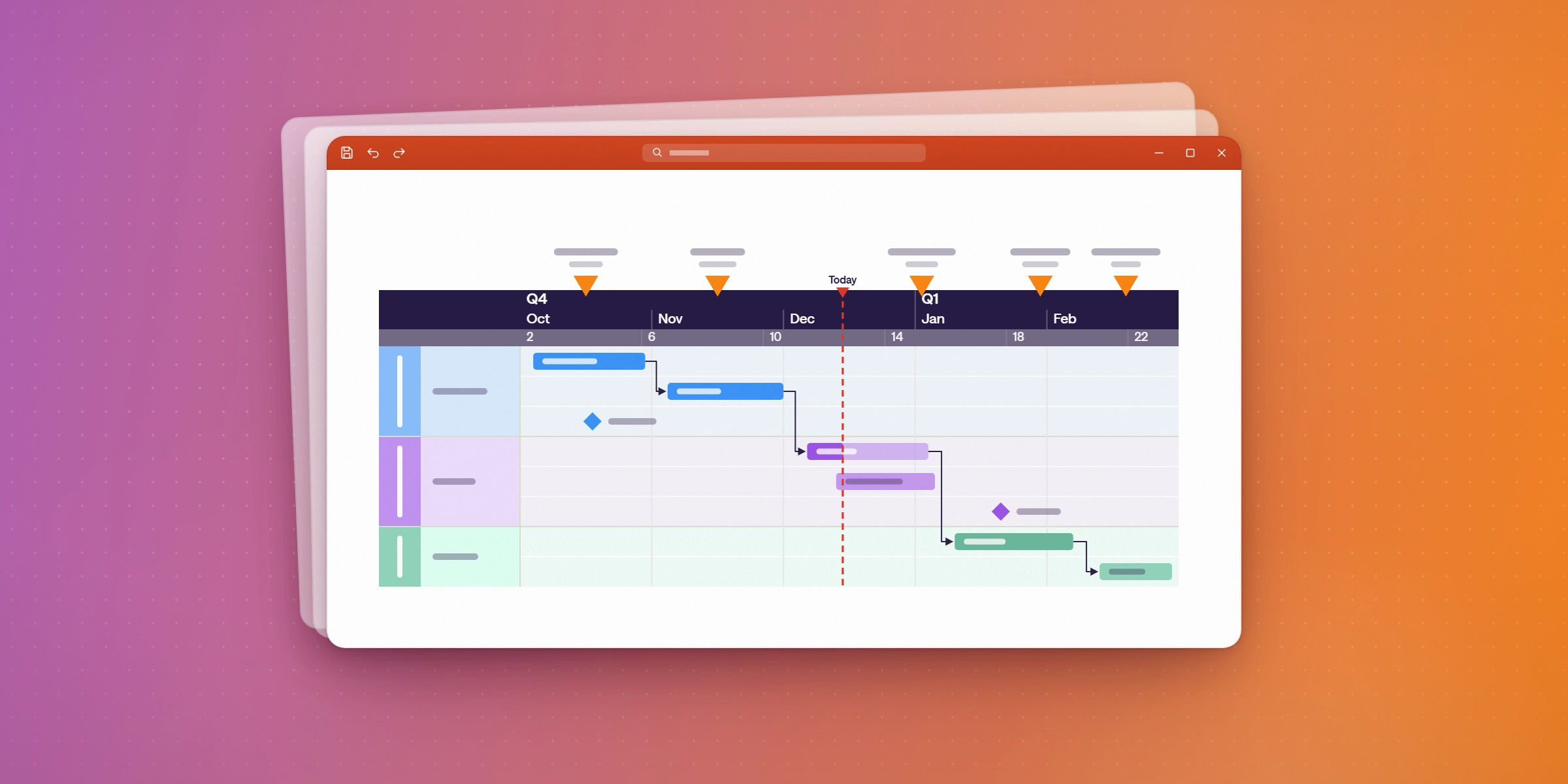
- Move the milestones on the copy. Change the milestone's date in Edit Data. If your slide has dependencies, which start on Plus, use the Edit Timeline window rather than dragging on the slide, and check the arrows after each move, because linked tasks and milestones can shift depending on your scheduling settings (Flexible Automatic, Strict Automatic or Manual).
Copy the whole slide rather than copying individual swimlanes onto a new slide, and check that the dependency arrows on the copy match the baseline before you present.
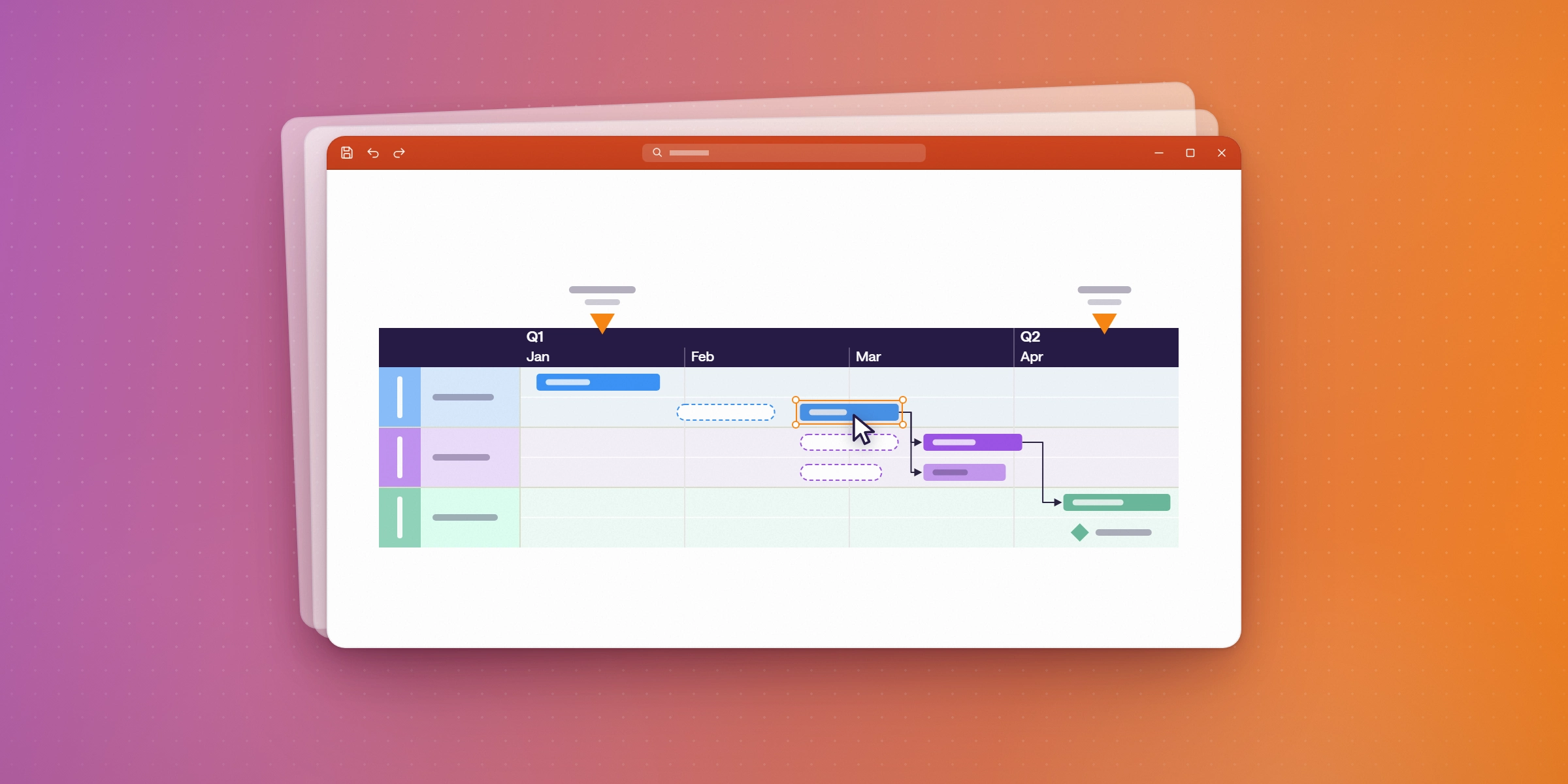
Here is an example. Your program has a design review in January and a launch in September. Leadership asks what happens if the review moves to February. On the copy, change the review milestone to February and see where the dependent tasks and the launch land. Then ask the follow-up question on a second copy, for instance adding a month of verification. By the end of the meeting you have the baseline and two options on screen, and the plan of record still shows January.
How do you compare two scenarios side by side?
Keep the baseline and each scenario on the same date scale, then flip between them in the meeting or place them next to each other in the deck. Because every slide uses the same layout, the only thing that changes is where the milestones sit.
- Same window. Show the same start and end dates on every copy so a move reads as a move, not as a rescaled chart.
- One change per scenario. A scenario that moves three milestones at once is hard to discuss. Make one copy per question.
- Same markers. Keep shapes and colors identical so differences stand out.
- Mind the Free plan. Free timelines are limited to 10 milestones and/or tasks per slide, which includes each copy.
The table shows what each action touches, so everyone in the room knows nothing has been committed.
| What you do | Plan of record (Project or Excel) | Baseline slide | Scenario copy |
|---|---|---|---|
| Move a milestone on the scenario copy | Unchanged | Unchanged | Changes |
| Agree the decision in the meeting | Not updated yet | Not updated yet | Shows the agreed option |
| Update the dates in the plan | Changes | Still shows the old dates | Can be deleted |
| Refresh the baseline slide | Unchanged | Changes to match the plan | Can be deleted |
Moving a milestone is quick, but the value is in the conversation it makes possible. A PMO lead or program manager can answer what-if questions live, show the effect on the slide and write down only the option that is agreed. Nothing is rebuilt between meetings, because the scenario copies are made from the same slide you already present.
What happens to the source plan when you move a milestone on the slide?
Nothing. A milestone you move on the slide changes the slide only. Lucen Timeline does not write back to Microsoft Project or Excel. Refresh runs the other way and only reads from the plan.
This is deliberate for a review. Nobody has to worry that moving a gate to March in front of leadership has changed the schedule the team works from. It also means a decision does not update itself: someone has to make the change in the plan. If you need the slide to push dates back to the plan, that is not something Lucen Timeline does.
For the detail on how refresh works across sources, read AI Integration for Gantt Charts: What AI Can Draft, and What Keeps the Timeline Current.
How do you refresh the slide after a decision?
Record the decision in the plan of record first, then refresh the baseline slide so it matches. Refresh is manual and one way, so you choose when it runs.
- Update the source plan. Change the dates in Microsoft Project, Excel or whichever tool holds the plan.
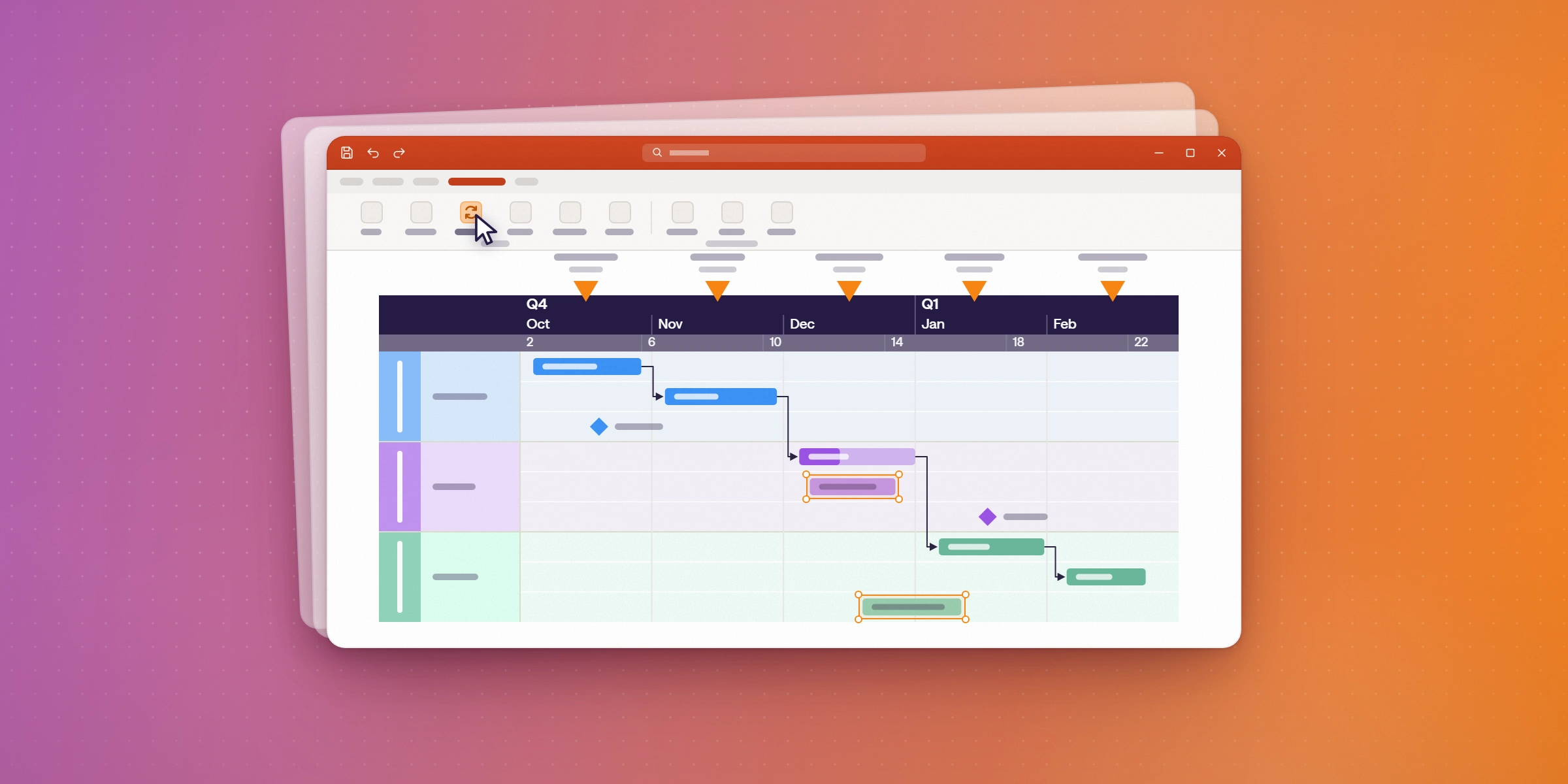
- Refresh the baseline slide. On the Timeline tab in PowerPoint, click Refresh Data. The wizard lists the items that differ between the plan and the slide, marked as Changed, New or Deleted.
- Choose what to apply. Changed items show both versions with the differences highlighted. Select the changes you want and click Finish. Selecting an item brings in the plan's version, and deselecting it keeps the version on your timeline.
- Retire the scenario copies. Refresh the baseline slide, not a scenario copy, because a copy holds moved dates that differ from the plan. Then delete the copies, or keep the one that was chosen as a record of what was agreed.
Refresh from Microsoft Project, Smartsheet, Jira and Excel is on the Expert plan. On Plus, update the Excel file and import it again. Refresh does not run on its own and there is no alert when a plan changes, so put it on the checklist for the day after the decision.
Ready to try it on your next program review? Try Lucen Timeline free or compare plans.
Frequently asked questions
Duplicate the timeline slide and move milestones on the copy. In Lucen Timeline, edits on the slide do not write back to Microsoft Project or Excel, so you can compare options in the review and refresh from the plan of record once a decision is made.
No. Edits stay on the slide. Refresh runs one way only, from the source plan to the slide, and never changes the plan.
Lucen Timeline has no Planisware import. If you can get the dates into Excel, you can build the slide from that file: import on Plus, refresh on Expert. Edits on the slide still do not change the source.
Expert. It refreshes from Excel, Microsoft Project, Smartsheet and Jira. On Plus you can import from Excel and import again after the plan changes, and Lite supports copy and paste from Excel.
No. Refresh runs when you click Refresh Data, and there is no live connection or alert when the plan changes.
Duplicate the whole slide, not individual swimlanes. Then check that the dependency arrows on the copy match the baseline before you present.
Keep the baseline and each scenario on the same date scale, change one thing per copy, and flip between the slides. Label each slide so everyone knows which is the plan of record.
The add-in runs in PowerPoint on Windows. Mac users can use Lucen Timeline Online in the browser.
Project management visualization: tips and tricks
Test the what-if before it touches the plan
Duplicate your timeline slide, move milestones on the copy and refresh from the plan when the decision is made. Start on the free plan.

Subscribe to our blog
Get all the tips, tricks and inspiration you need to create professional looking timelines, straight to your inbox.